
User Management Widget
Manage Users
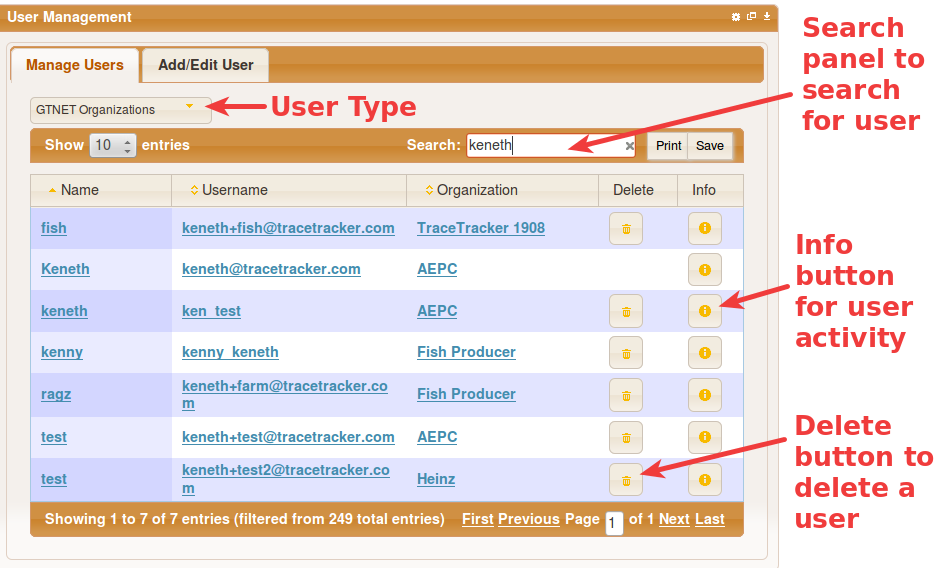
- Loading the widget shows the manage users table. To search users, use the Search Panel and User Types to search.
- Columns such as email are hidden but can be seen by Maximizing the Widget.
- To sort the columns, click on the title of the column to sort ascending or descending values.
- The drop down allows you to filter the users depending on which organization they belong to.
- For a user with TTADMIN rights, GTNET is the default organization selected on User Type
- Organizations that do not have a name value "FN" will have the organization ID shown instead in square brackets as seen below:
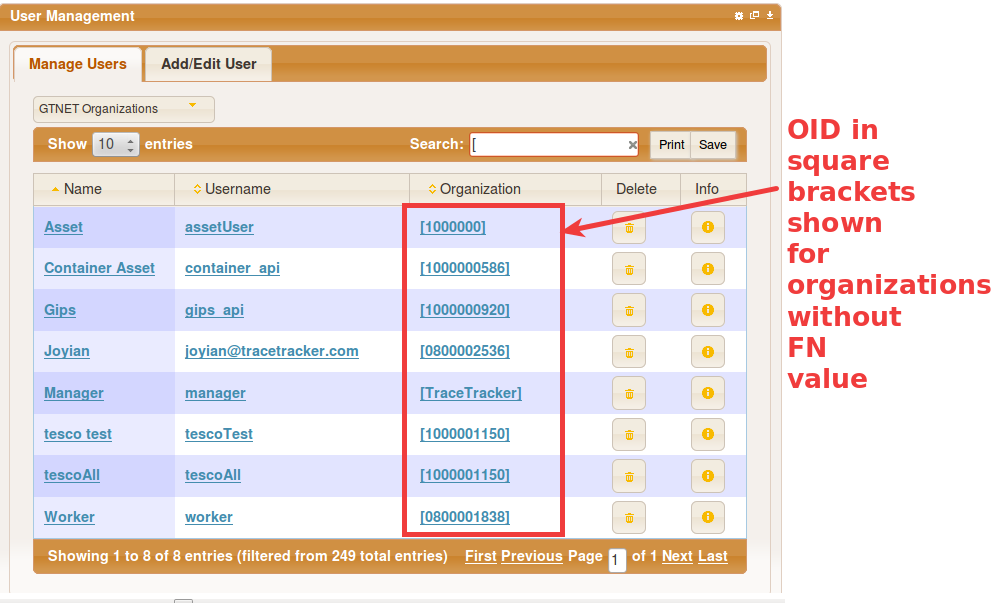
User type selection
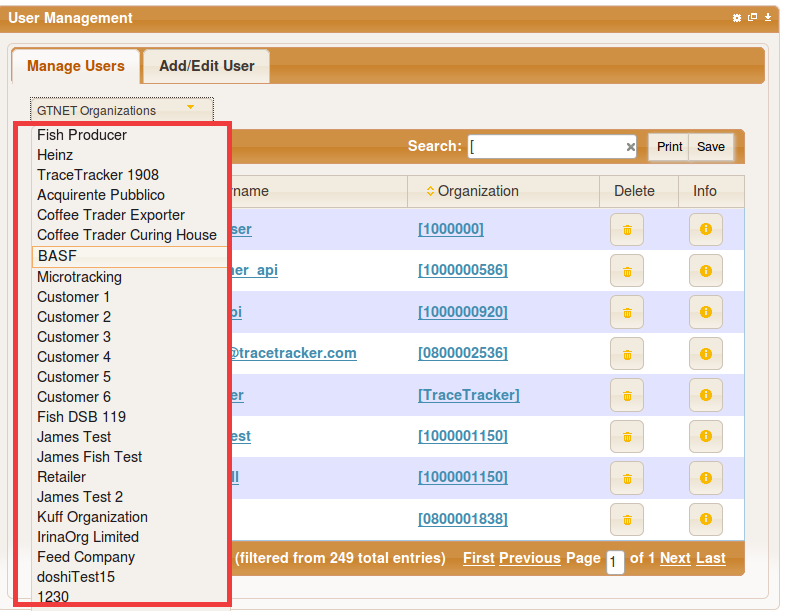
The user type dropdown allow you to select the type of users to display in the table
- XXX(Internal) will show the users of the current organization of the user logged in
- Partner organization will show a list of users of USB( up stream basic) and DSB( downstream basic) users i.e partner organizations
- GTNET Organization will show a list of all GTNET users
Delete User
To delete a user, click on the Delete icon on the row of the user to be deleted.
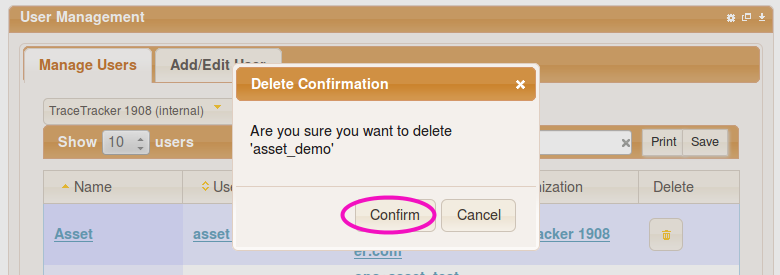
a confirm dialog will show to confirm your request, cancel will return back to the form and confirm will delete the selected user.
Note: the current user shall not be allowed to delete their own user.
More Info button
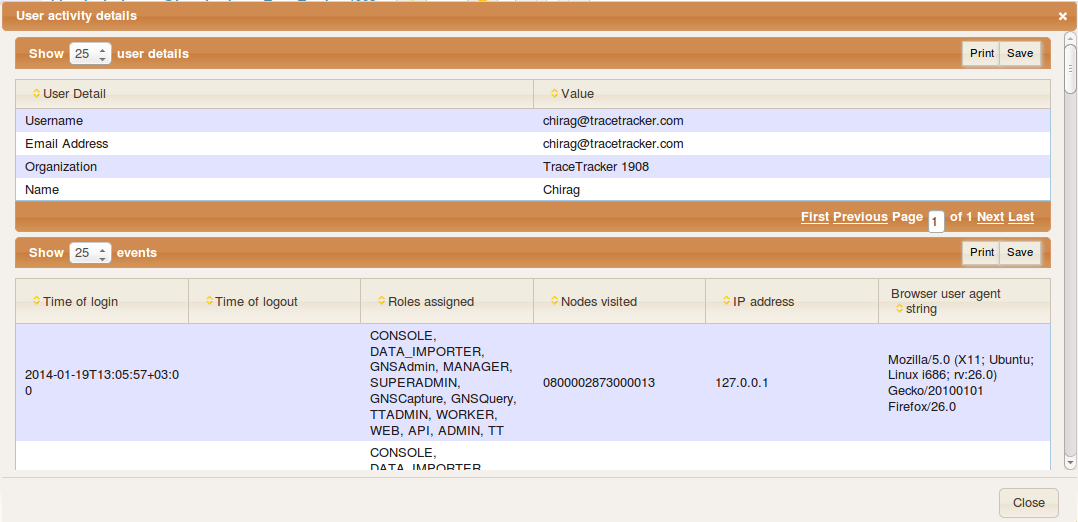
This button opens a popup to show user activity details for the user
Add User
Click on the "Add User" tab to present the add user form, Below is a description of each field
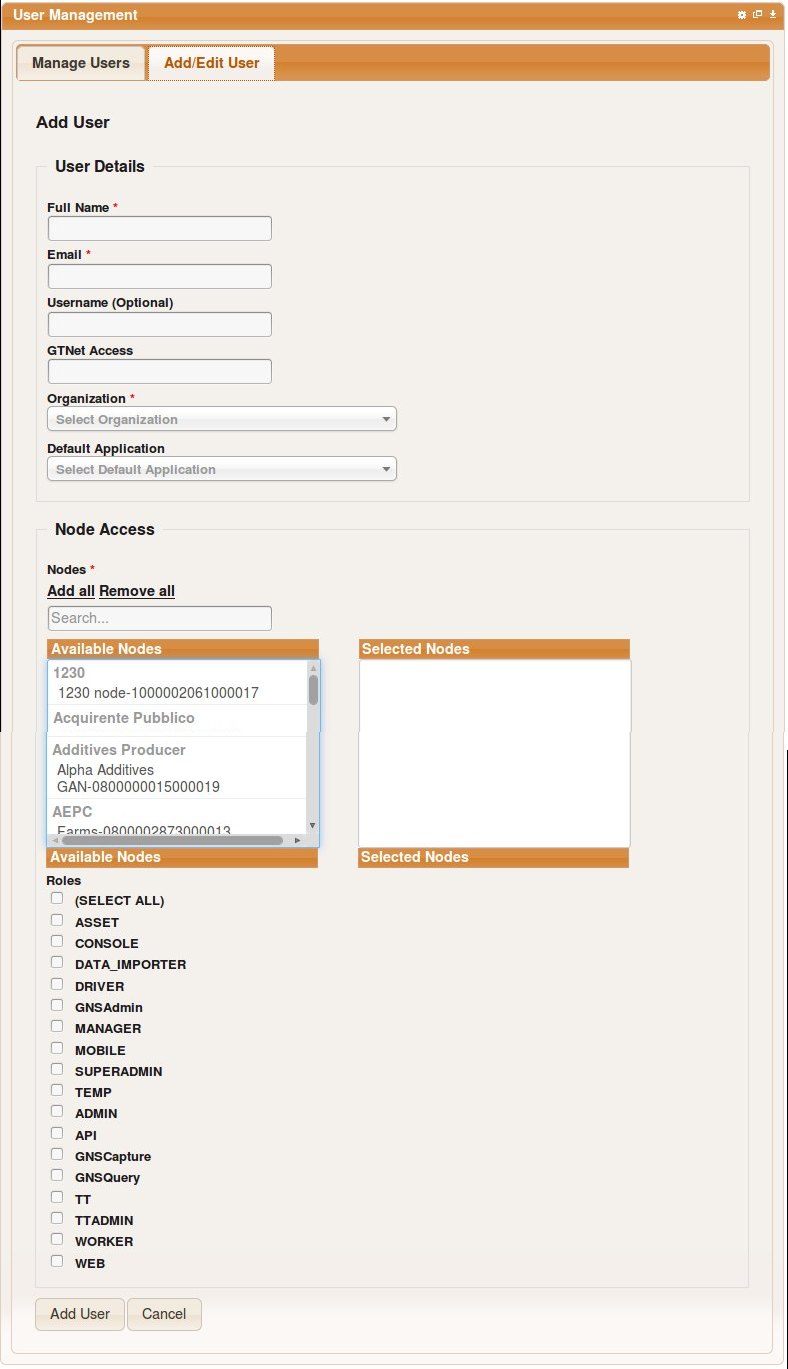
Fields Description
Field | Description |
|---|---|
Name | The users' first ans last names |
A valid email address for the user | |
*Username | This will be used by the user to login, if not specified, the users' email will be used as the username |
*GTNetAccess | By default only visible to users with the TTADMIN role.
Example values are. ENV=DEMO,TIXID=NIGHTLY,ORG=0801020312,NODE=080128001021*,SUPERADMIN=08000* |
*Default Application | Defines the application the user will be redirected to when they login |
Organization | Select the organization that the user shall belong to. |
Nodes | Assigns nodes to the user. |
Roles | Assign roles to the user. |
Note
Fields marked with ( * ) are only available for users with the TTADMIN role
After filling in the users' details and click on submit to create the user.
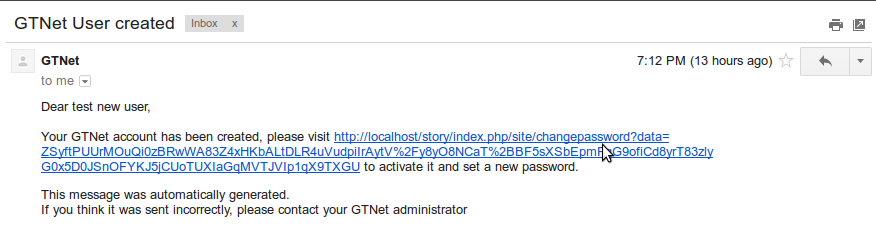
Once a user has been created, an email will be sent to the user with a link to set a new password. (As seen below)
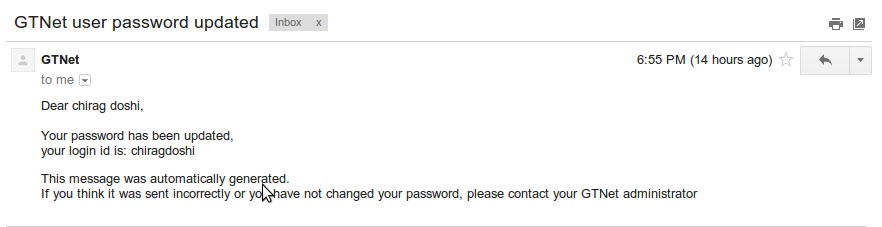
Once the user clicks on the link and updates their password a new information email shall be sent example:
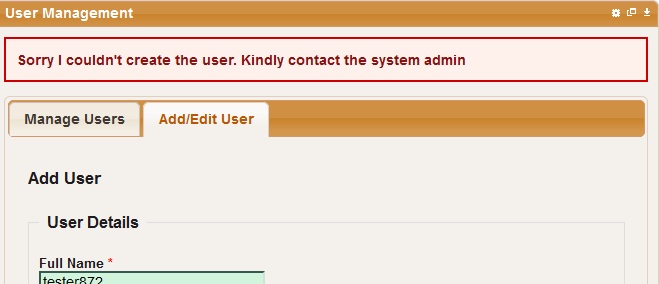
If creation of the user fails, due to their vocabulary missing in the MDS, an error message is displayed and an email is sent to the Administrator informing them that creation of the user xxx belonging to organization yyy failed and that the Admin should create the vocabulary zzzzz manually.
Edit user
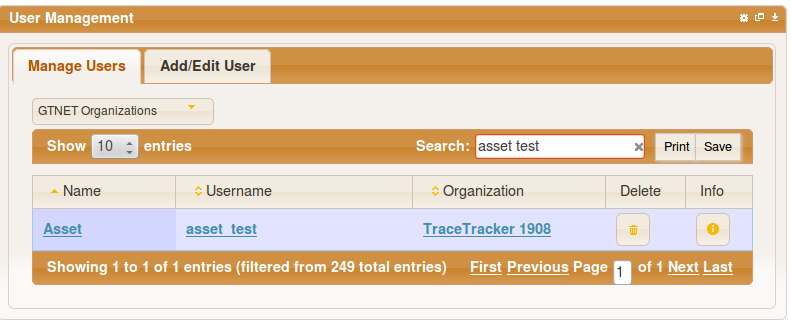
Click on any user row to edit the user. Controls with similar functionality are grouped together using fieldsets.
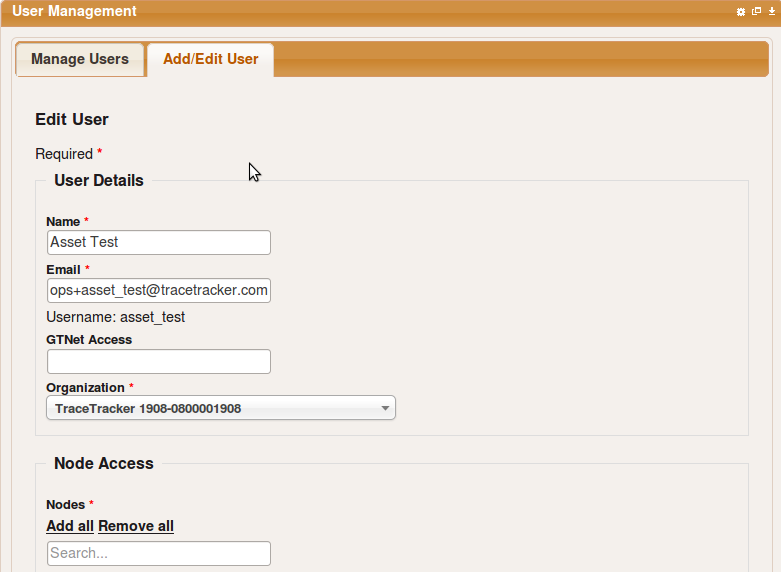
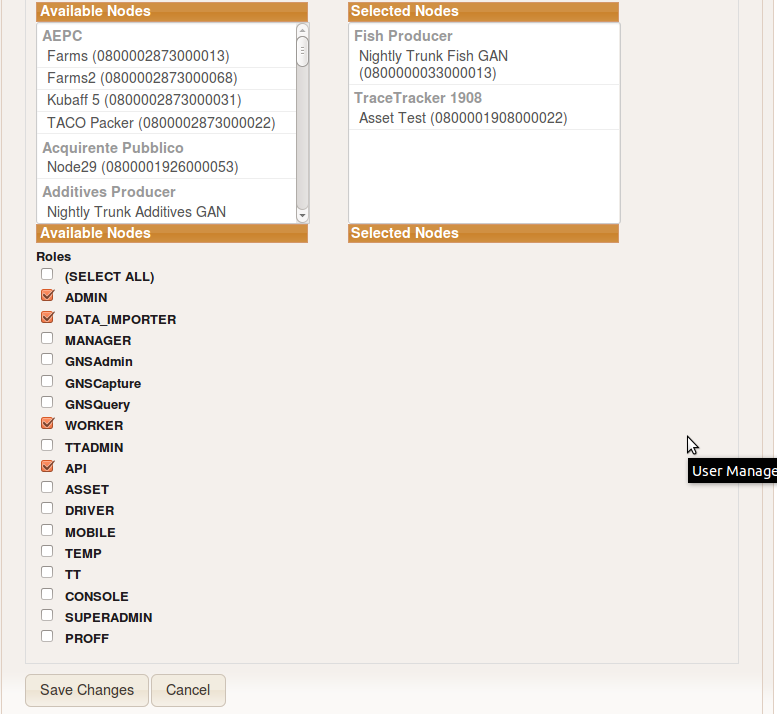
Edit user form will be loaded, change the parameters and click "Save Changes" to update the changes
Configuration
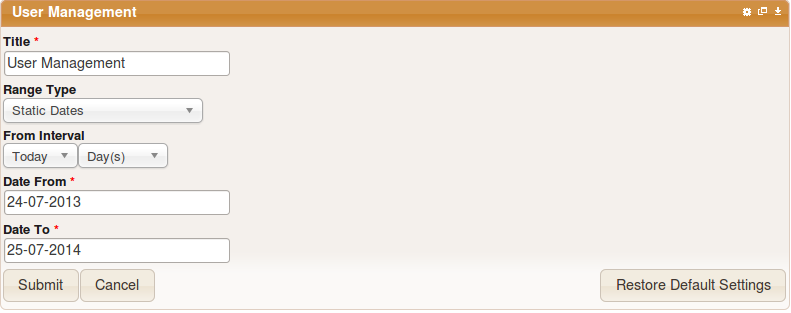
Configuration of the widget to change the title and date range settings for the user activity popup
Note
- the (SELECT ALL) option in the role selection will select all the roles or deselect all the roles on check or unchecked respectively
- Information and error messages can be closed by clicking on the messages