
Master Data Browser
Master Data Browser
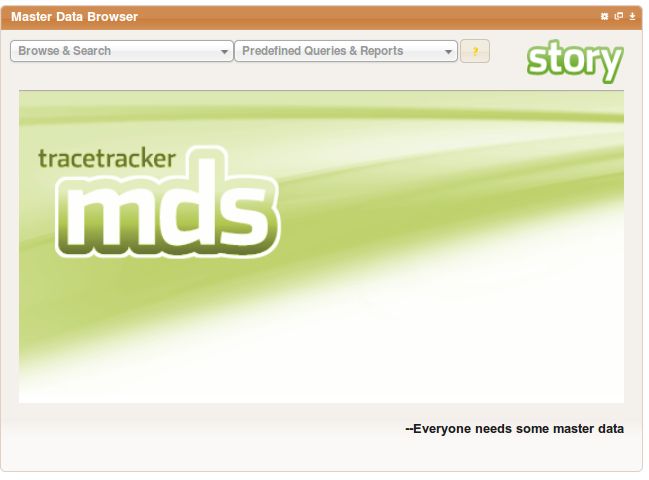
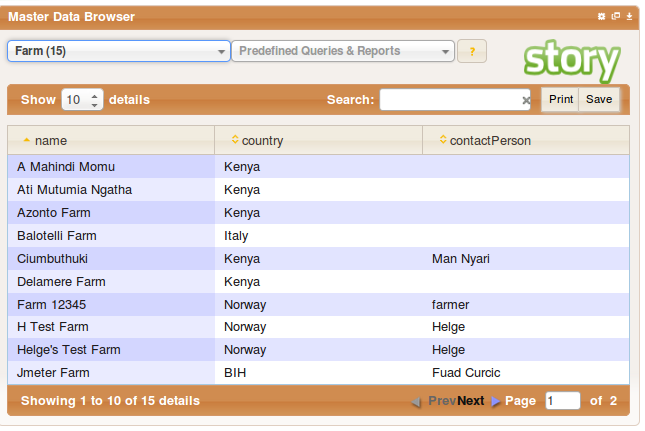
On loading the widget you shall be presented with 2 drop down selection, help button, a logo, background image and a caption.
Browse & Search Selection
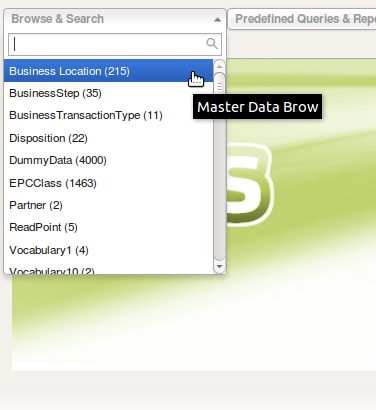
The search & browse dropdown option shows a list of vocabularies that the user may select to view its data.
It shows options with the vocabulary name from the data dictionary if present otherwise will show the full vocabulary id and the number of records in the vocabulary
A search can be performed by typing into the text box in the dropdown
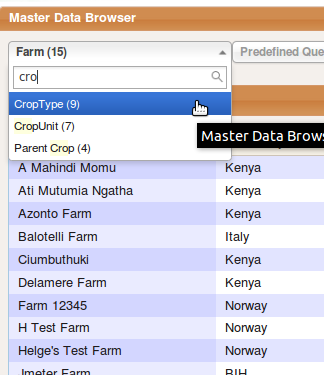
Vocabulary columns are specified and configured per organization showing only the columns that have been selected
This configuration is done in the config vocabulary for the organization and in the element MDBrowserWidget:displayAttributes
example below:
<Vocabulary type="urn:tracetracker:0800002873:story:config">
<VocabularyElementList>
<VocabularyElement id="urn:tracetracker:0800002873:story:config:MDBrowserWidget:displayAttributes"> - element Id
<attribute id="urn:tracetracker:0800002873:taco:Collector">name,mobile,address,ganId,contactPerson,unloadingPoints</attribute> - vocabulary and the columns selected comma separated
<attribute id="urn:tracetracker:0800002873:taco:CoolingFacility">name,farmId,coolingType</attribute>
</VocabularyElement>
</VocabularyElementList>
</Vocabulary>
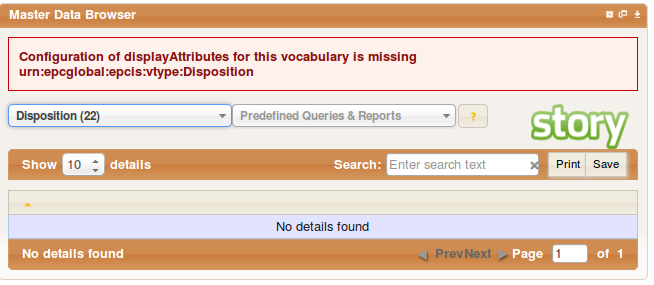
If a configuration is not present an error message will be displayed to the user
When the config is found then the columns from the config shall be displayed and the data for them
Predefined Queries & Reports
Company Data Query
Once you select the company data query, you will be presented with a drop down menu that contains id's of various vendors from which you can choose from.
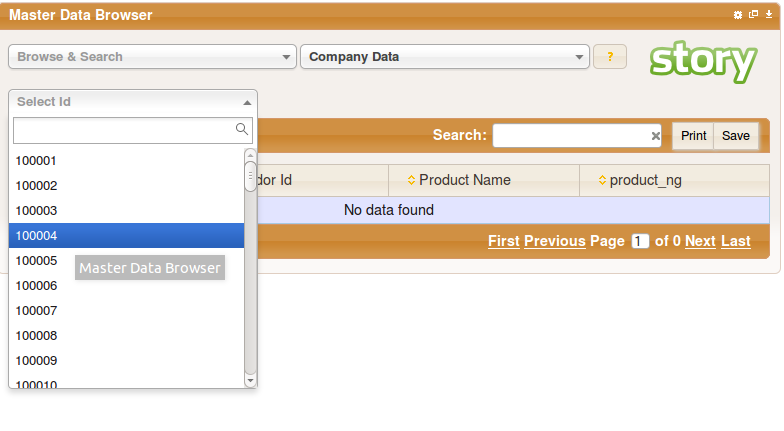
Once you have selected a vendor, the information will be displayed as shown below
Note
For the the information displayed below, we retrieve the columns to display from companyDataCustomReportColumns attribute in urn:tracetracker:_ORG_:story:config:MDBrowserWidget:displayAttributes vocabulary element.
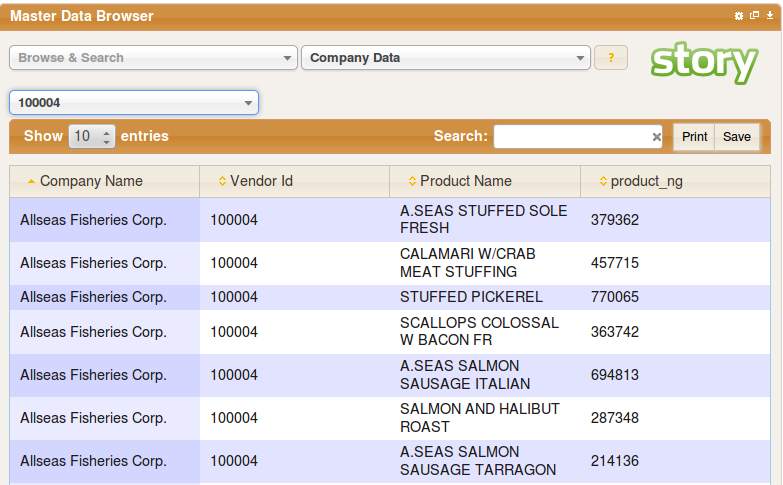
Above is a listing of products belonging to a company that has been selected from the drop down.
Companies Query
This query returns a bulk data dump of all companies

Companies With Specified Attributes Query
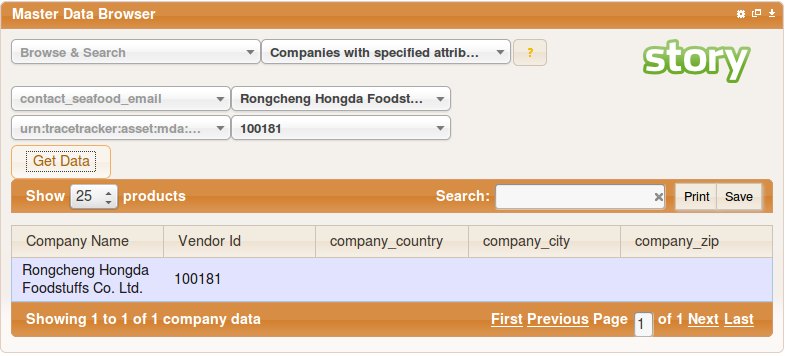
Once you selected, you will be presented with a number of drop downs ( which will contain values of the different attributes that were specified in the widget configuration ) from which you can select different values that will be used to filter the companies, based on the ones that have the specified attributes as shown below
Other Custom Reports
Other custom reports may be created by the admin and shall appear at the bottom of the listing of the "Predefined Queries & Reports"
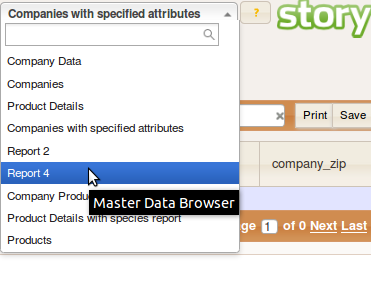
on selection of the other customized reports the data shall be presented on the table.
Layout Organization Configurable
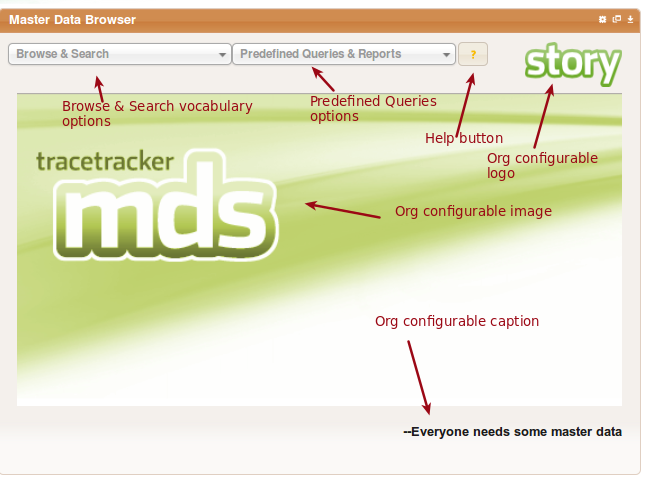
Some widget options may be configured by the organization admin
the logo, widget image and widget caption can be customized by adding/editing the vocabulary "urn:tracetracker:_ORG_:story:config" element "urn:tracetracker:_ORG_:story:config:masterDataWidget"
example below:
<Vocabulary type="urn:tracetracker:_ORG_:story:config">
<VocabularyElementList>
<VocabularyElement id="urn:tracetracker:_ORG_:story:config:masterDataWidget">
<attribute id="widgetLogoPath">images/logo_story.gif</attribute> - logo url path
<attribute id="widgetImagePath">images/masterData.png</attribute> image url path
<attribute id="widgetCaption">--Everyone needs some master data</attribute> caption to display
</VocabularyElement>
<Vocabulary>
Widget Configuration
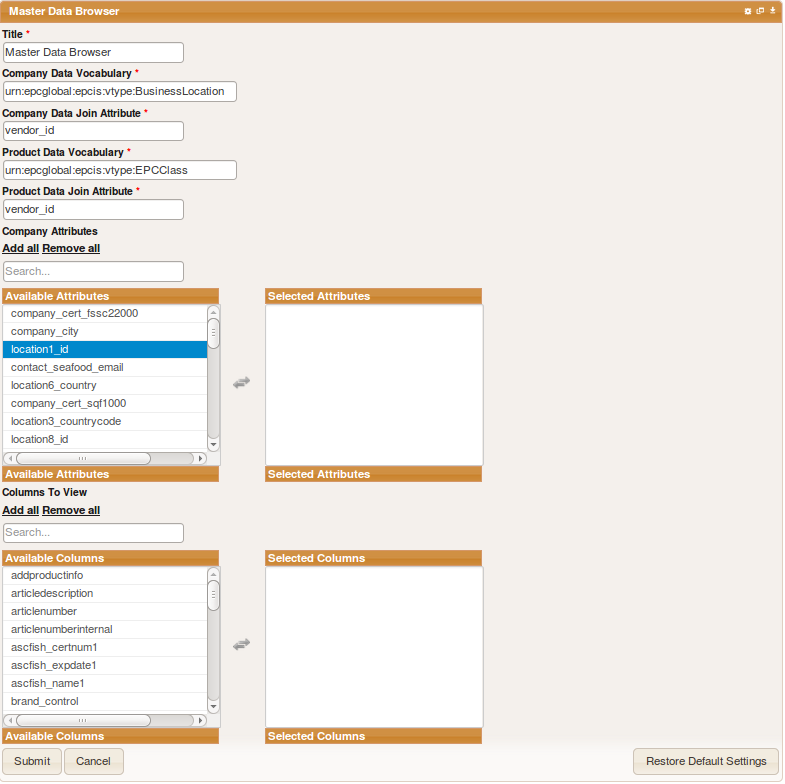
This form is loaded when the cogs icon is clicked from the top right corner
The user can change the default title of the widget here.
Option | Description |
|---|---|
Title | Allows you to set the title of the widget |
Company Data Vocabulary | Allows you to set vocabulary from which company data will be retrieved |
Company Data Join Attribute | The attribute that will be used to join company data with with product information (used in the company data query) |
Product Data Vocabulary | The vocabulary from which product information will be retrieved |
Product Data Join Attribute | The vocabulary from which product species data will be retrieved |
Company Attributes | A list box containing attributes that belong to the company data vocabulary |
Note
Note that, you can select a Company Data Join Attribute that is different from the Product Data Join Attribute when setting the widget config. By default, both attributes have the same value.