Event Statistics Widget
Configuration
1) To the top-right corner of the widget, click on the arrow facing downwards. A menu is displayed with the options Minimize, Delete, Edit, Refresh
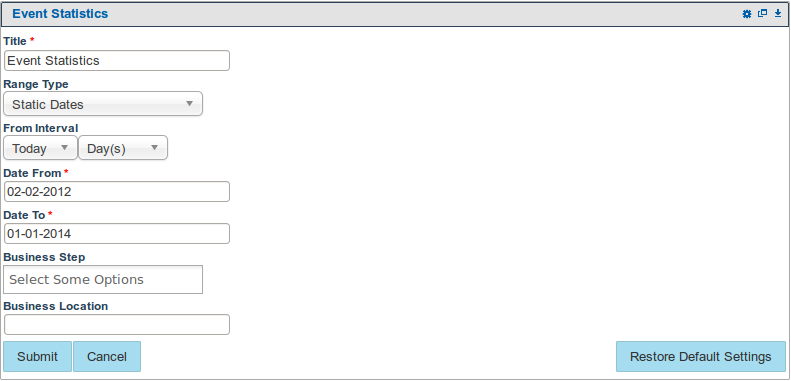
2) Click on Edit. A window is loaded on the widget where some parameters can be edited:
a) Title : Edits the title displayed on the widget
b) Range Type: Selects whether you want to use i.e
- Static date type : The date you specify on the date from / to will be used.
- Dynamic date type: The date you select using the From the last drop down will be used e.g 2 week(s) will show shipment sent / received in the last two weeks and the dates shown on the date from / to, will be ignored.
c) Date From & Date To : These specify the date range for which the records lying between will be displayed in the widget results
d) Business Step(s) : Specifies which business steps to display (By default or when no bizsteps are selected in the dropdown, all bizstep counts available shall be shown)
e) Business Location : Specifies the location for which to search
Note
- Use the Restore Default Settings button to restore default widget settings
Event Statistics Tabs
3) When done editing, click on Submit. Essentially the widget is reloaded and now displays the results based on the parameters that were entered.
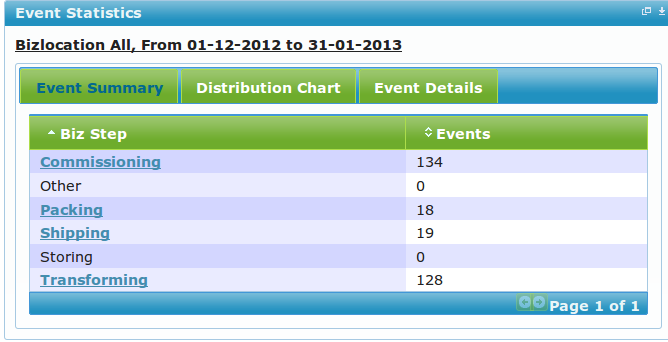
There are 3 tabs on this widget.
Event Summary
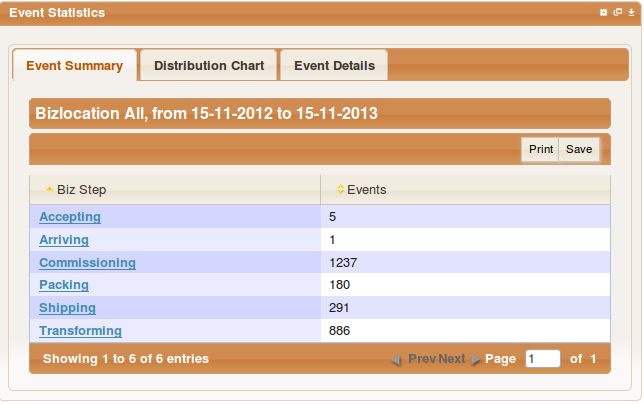
The above image shows the summary of the events selected that belong to the bizlocation selected and the selected date range
when you click on any of the biz steps it will load the event listing results on the "Event Details" tab with the clicked bizstep
Biz steps with zero events shall not be clickable.
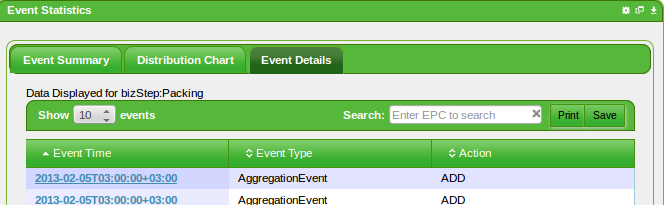
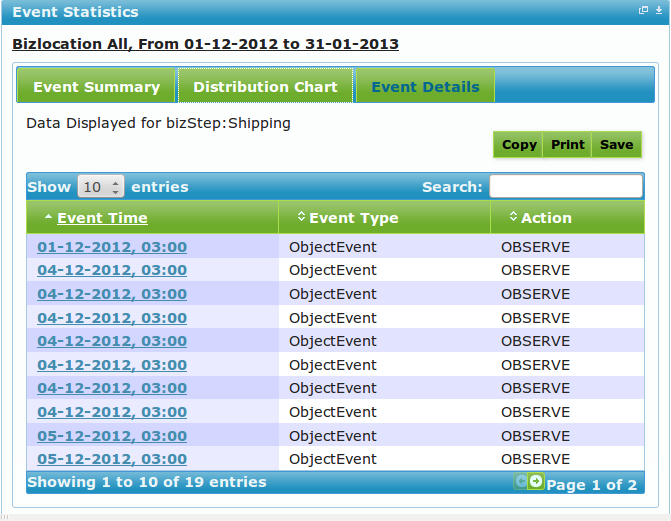
After clicking on a bizStep the Event details tab will be loaded with the clicked bizStep as a filter. eg clicking on Shipping you get a view as screen shot below.
Distribution Chart
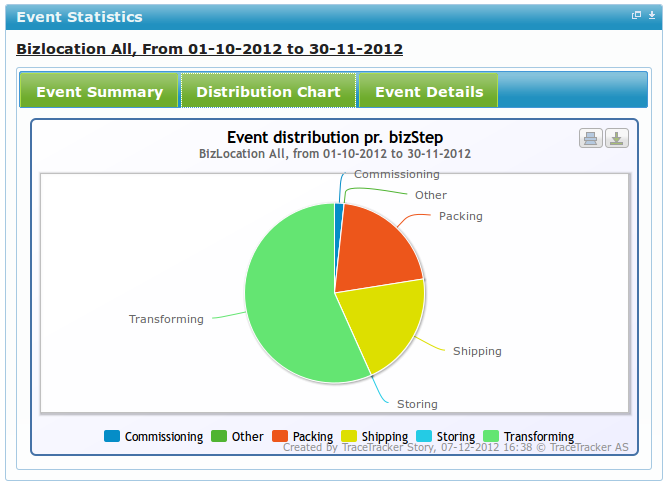
This shows the summary data in a pie chart view.
Clicking on any section of the chart will open the "Event Details" tab with events details filtered according to the bizstep selected
Events Details
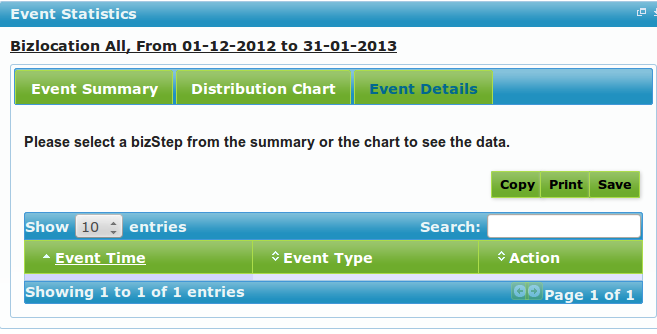
When the event details tab is clicked and no bizstep was selected the user will get a screen with a message as below.
Shows the summary listing of the events according to the settings entered.
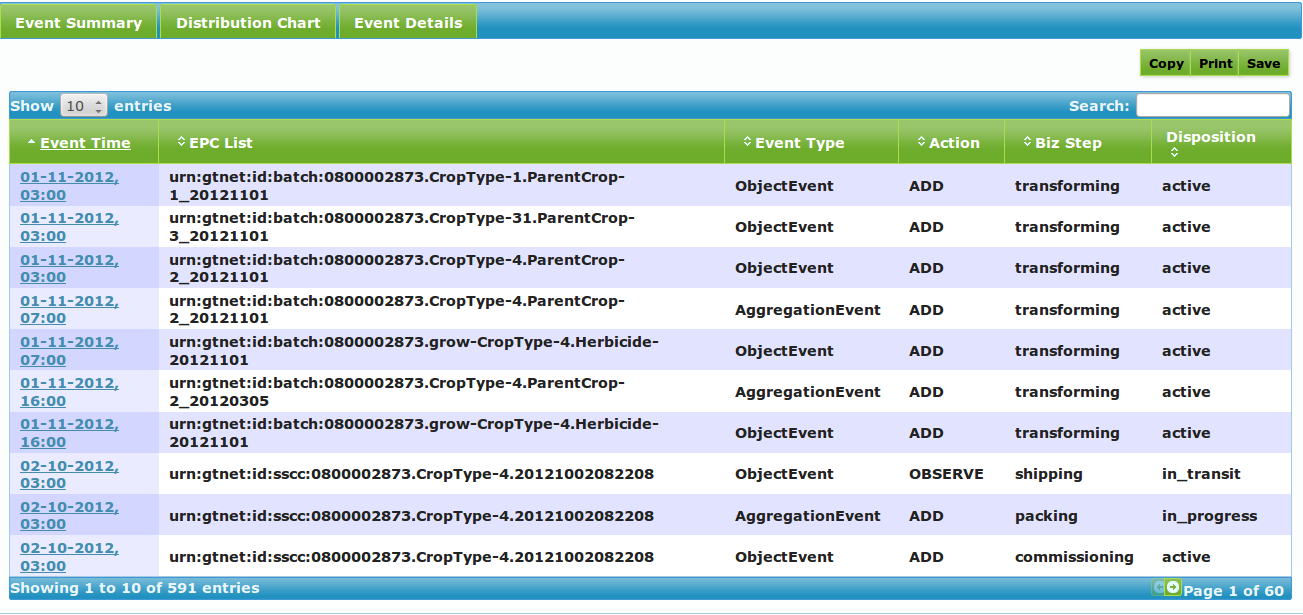
The maximized view of this widget will show more columns with extra details about the events
A search box is available to filter the data according to the user input, but it only searches for epc id full values or partial values of the id.
Double left button clicking on any column data shall filter the table with that cells value
Single left button click will reset the filter
There are previous and next paging buttons at the bottom left of the table
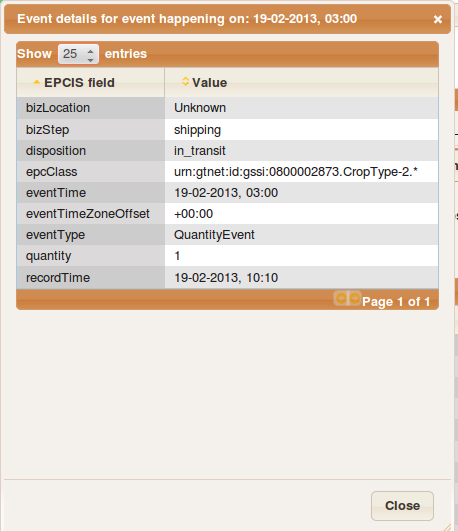
Clicking on the event time opens a dialog box with more details on that event as seen below
Events Search
Users are able to search for details by typing into the "search" text-box. For this particular widget, the search field used to search is the EPC field, meaning users can only search for EPC values.