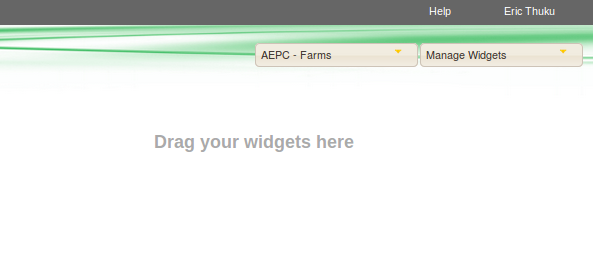
Dashboard
After you login to story, you are greeted with a dashboard that contains widgets that present different graphs and listings.
On the first login a default dashboard that is pre-configured to display certain widgets is loaded.
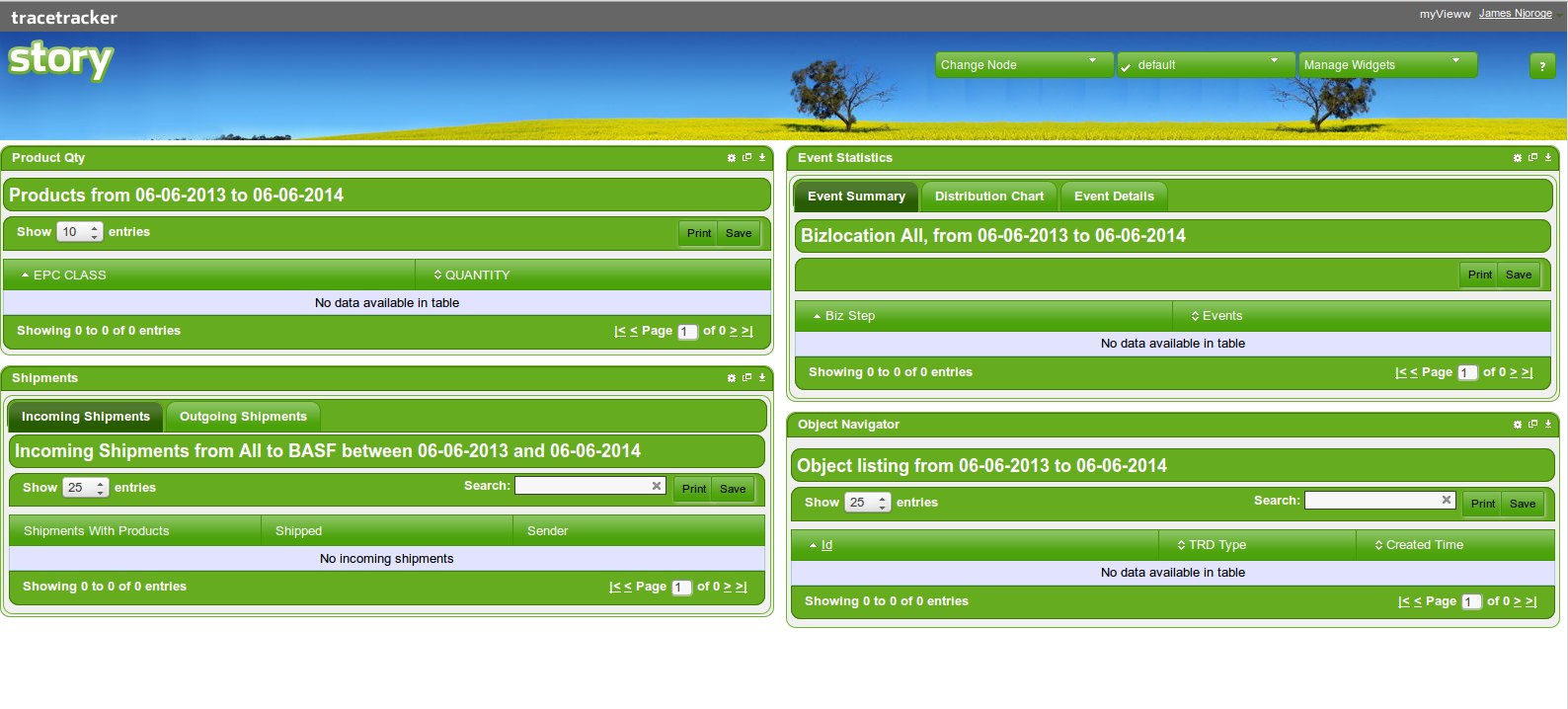
Selecting/Managing Dashboards
If you are not a first time user, then the dashboard is loaded with the respective widgets you had previously been working on. You are free to switch dashboards and even manage dashboards via the drop-down links as shown below:
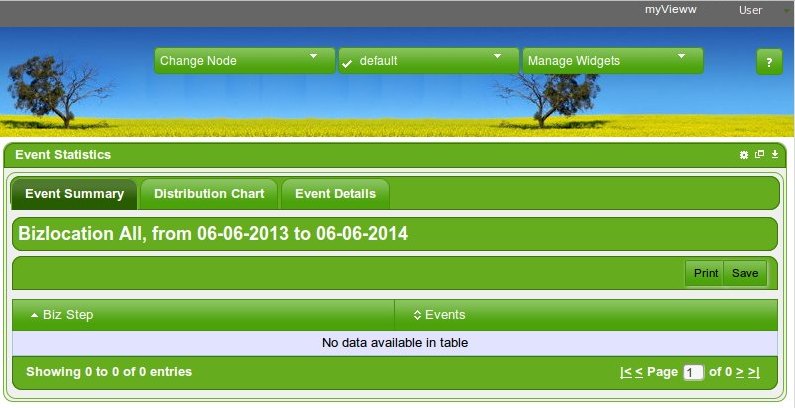
To the top right corner, the your Full Names are displayed as shown above
You can move any widget to any position by dragging the widget and dropping it on any column and row. The dashboard layout is saved on the fly and the widgets currently on the dashboard will be loaded next time you login.
For options on a widget click on the right hand corner icon to select
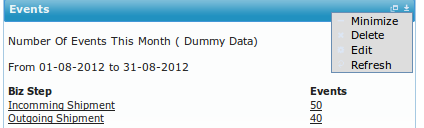
There is an icon next to the corner icon that will show the widget in full screen mode, clicking it again will restore the widget to its original size
The Corner icon has a dropdown menu with more options:
The minimize menu is to make the widget hidden only showing the title bar and to maximize it back click on the same icon and select maximize to restore the widget
The Delete menu will remove the widget from the dashboard, it will ask for a confirmation. once you confirm it will remove the widget
The Edit menu will give you options to configure the settings on the individual widget
The Refresh button refreshes the widget to give you the lastest changes in the database.
Any changes to the widgets are saved as the personal settings for that particular user.
Toggling Selectors
It is possible to show or hide each of the selectors individually i.e. the Dashboard, Node and Widget selectors. If user logged in directly into Story then the toggle menus will be available at the top right corner user menu. If user logged in to Story from another application, then the toggle menus will not be available, and the selectors will take the default settings assigned to them i.e. either hide or show.
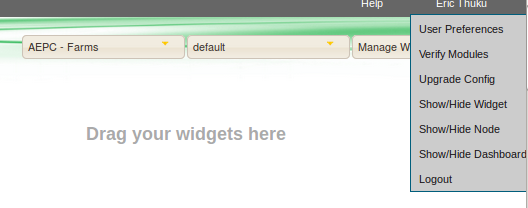
To hide or show any of the selectors, click on the Show/Hide Dashboard/Node/Widget menu. The selector is hidden/shown depending on its previous status. If currently it is showing then the menu is clicked, then it will be hidden. The hiding/showing may delay for a few seconds depending on the internet speed and connectivity. The status of the selectors is saved so that during the next login they will be shown/hidden depending on what the user selected during the previous session. If the user attempted to show a selector and during the process the internet connectivity spiked then the selector will not show, and the user has to try again clicking on the menu.