Harvest
Harvest Page
This page describes the harvesting process, persons responsible for harvesting and the packaging information.A user enters the information to the harvest form window in the harvest page.
A user will be automatically directed to the landing page upon logging in, click on the crop name link on the corresponding crop field you want to harvest on.
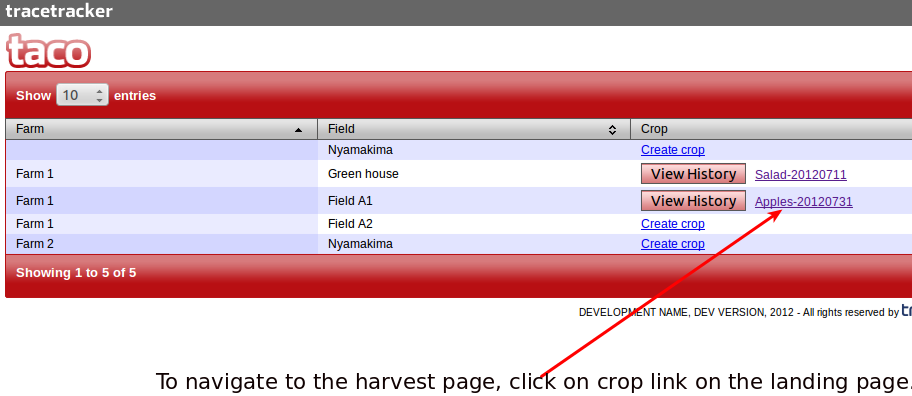
Click on the "Harvest" icon to navigate to the harvest page. Enter the data to the fields on the harvest form provided.To save the data,click on submit.If on submit you want to go directly to the products page,
click submit and pack.
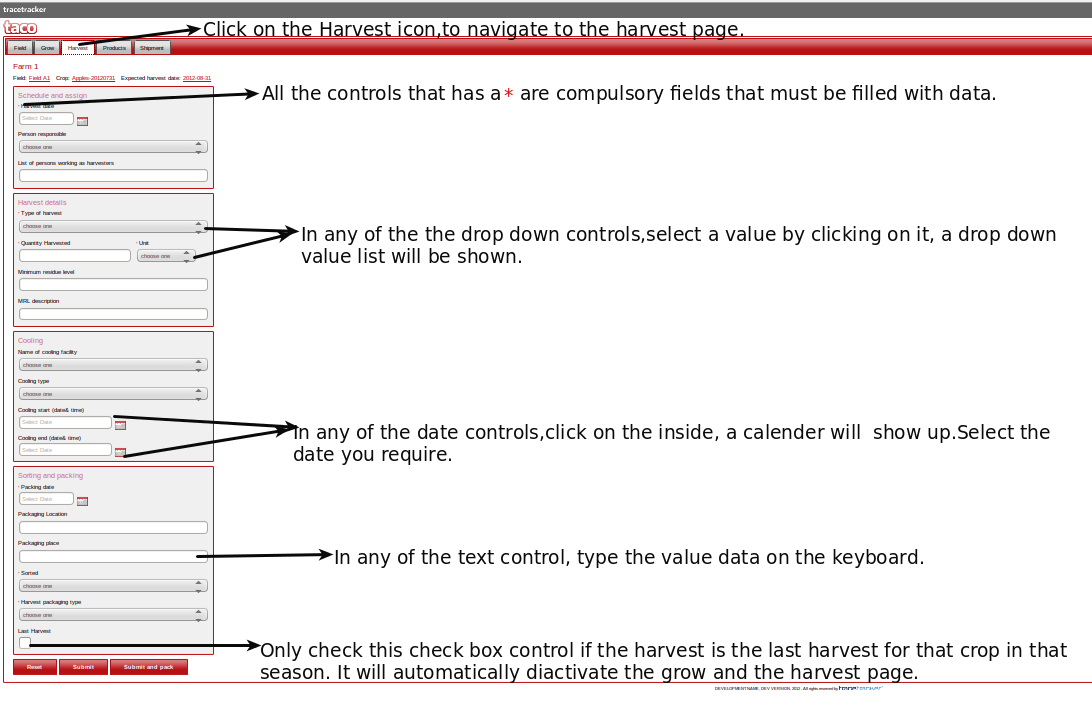
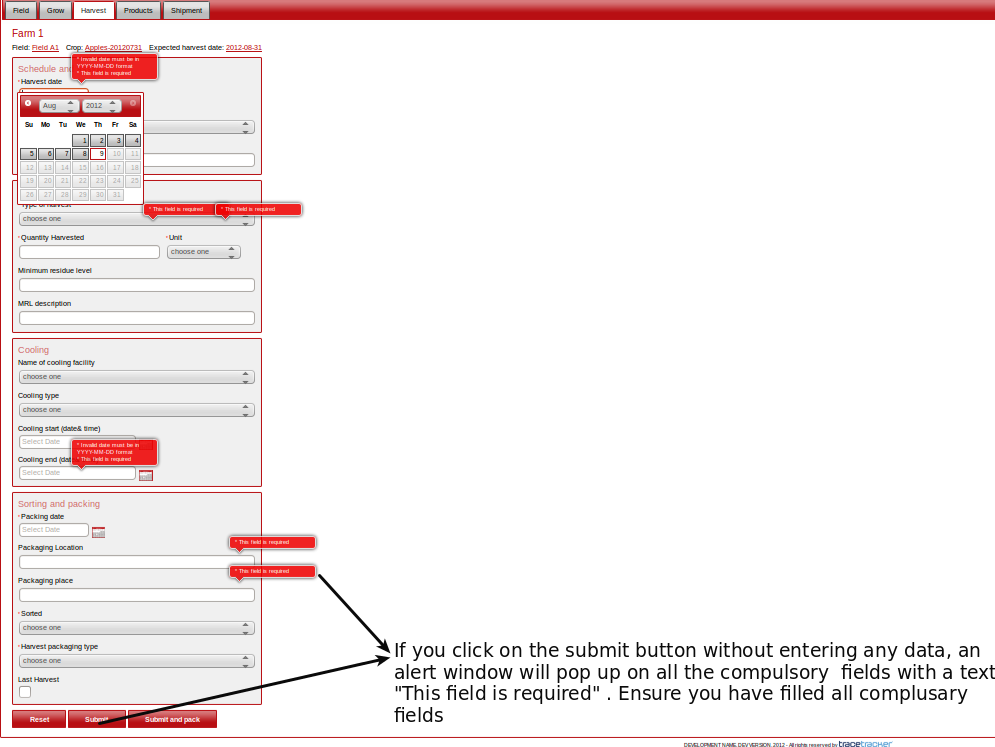
The page is strictly validated. The fields with the asterisk * are compulsory.If a user click on submit or submit and pack without filling these fields, alert message will pop up.Kindly ensure that you fill in the data to all these
compulsory fields.
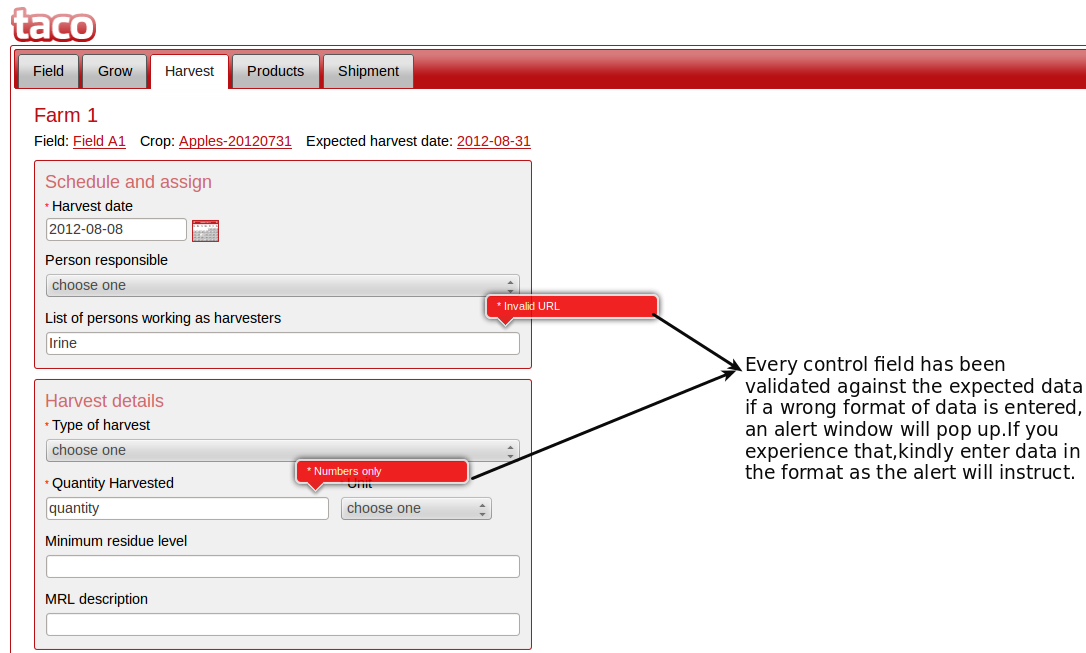
The format of data is checked as well.If a user enters a wrong format of data, an alert window will show up when you move to the next control. If this happen t you, don't worry simply type the format of the data as suggested by the message associated with the alert window.
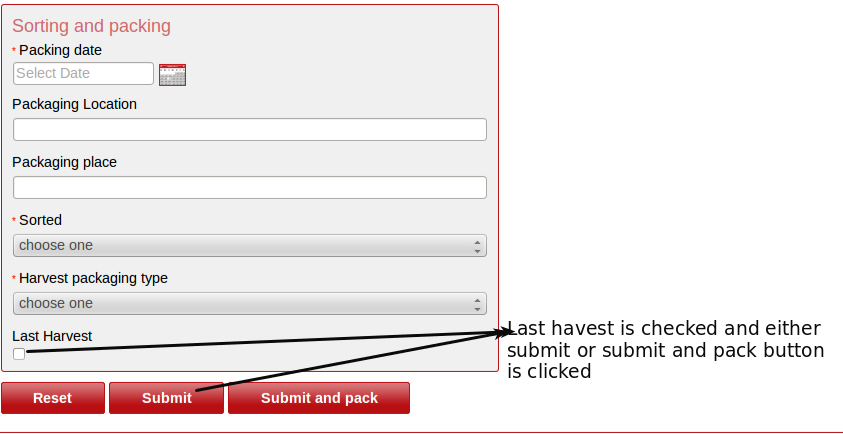
After you finish entering the data, click submit or submit and pack . A submit button will submit the data to the store house and remain in the harvest page. A submit and pack will submit the data to the store house and redirect the user to the products page. Depending on what you want, click the button to save the typed data.
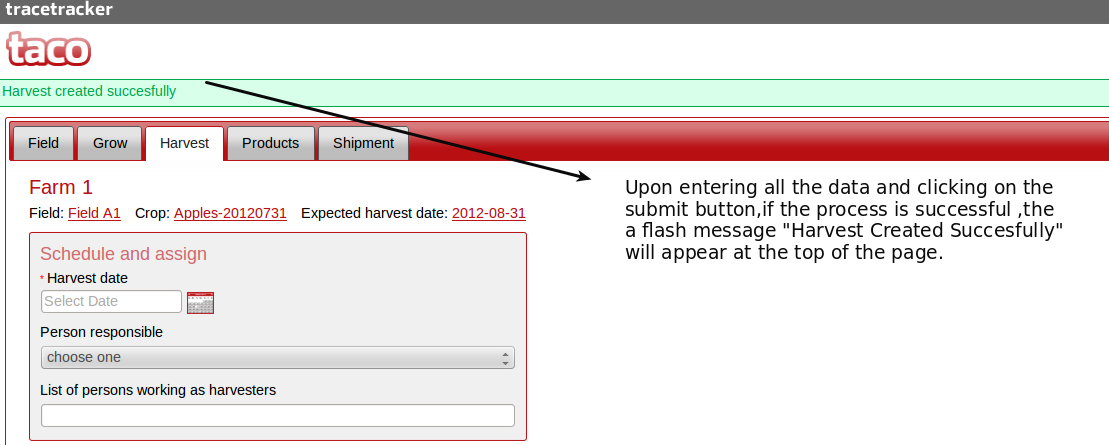
If the harvest process is successful ,the message " Harvest created Successfully" will appear on top enclosed in green. Well done you have finished the harvest process.
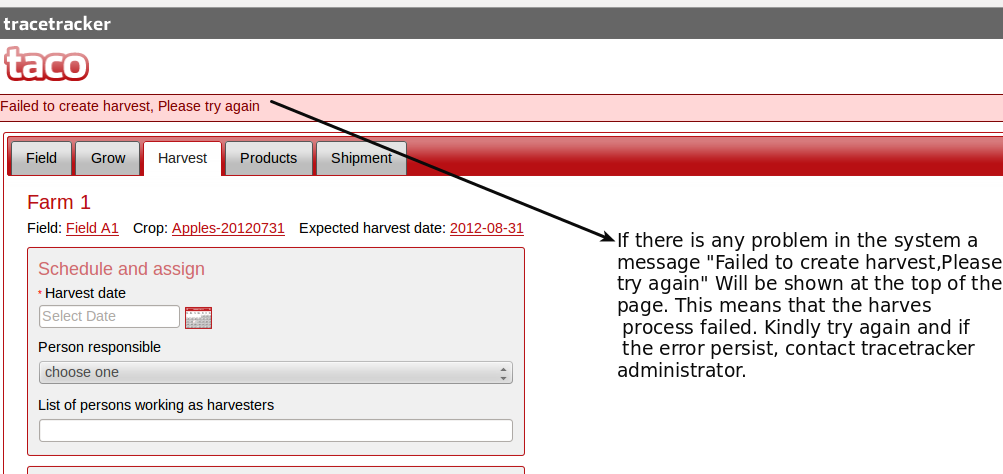
If there is any problem , a message "" will appear on top. Kindly refresh the page and try again.If the error persist, contact trace tracker help desk. You may use irine@tracetracker.com for now.
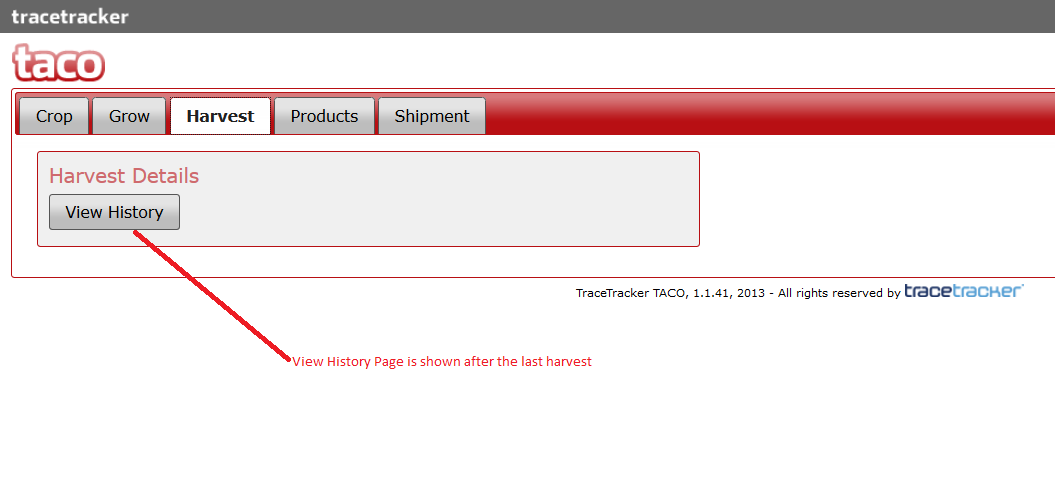
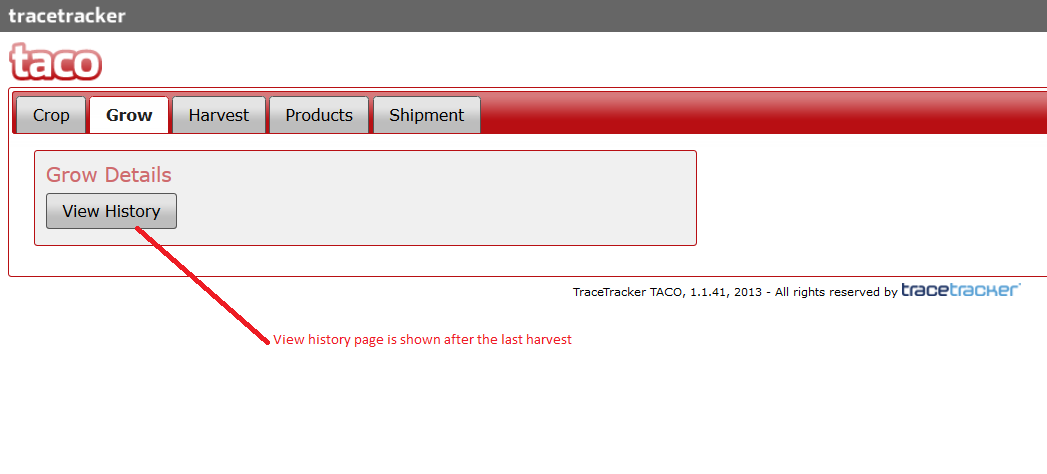
The Last Harvest functionality works in such a way that, when the last harvest field is checked, and either submit or submit and pack button is clicked, a user is redirected to the products page and both harvest and grow data field forms ate hidden. Only view history for both grow and harvest is shown.