
Asset History
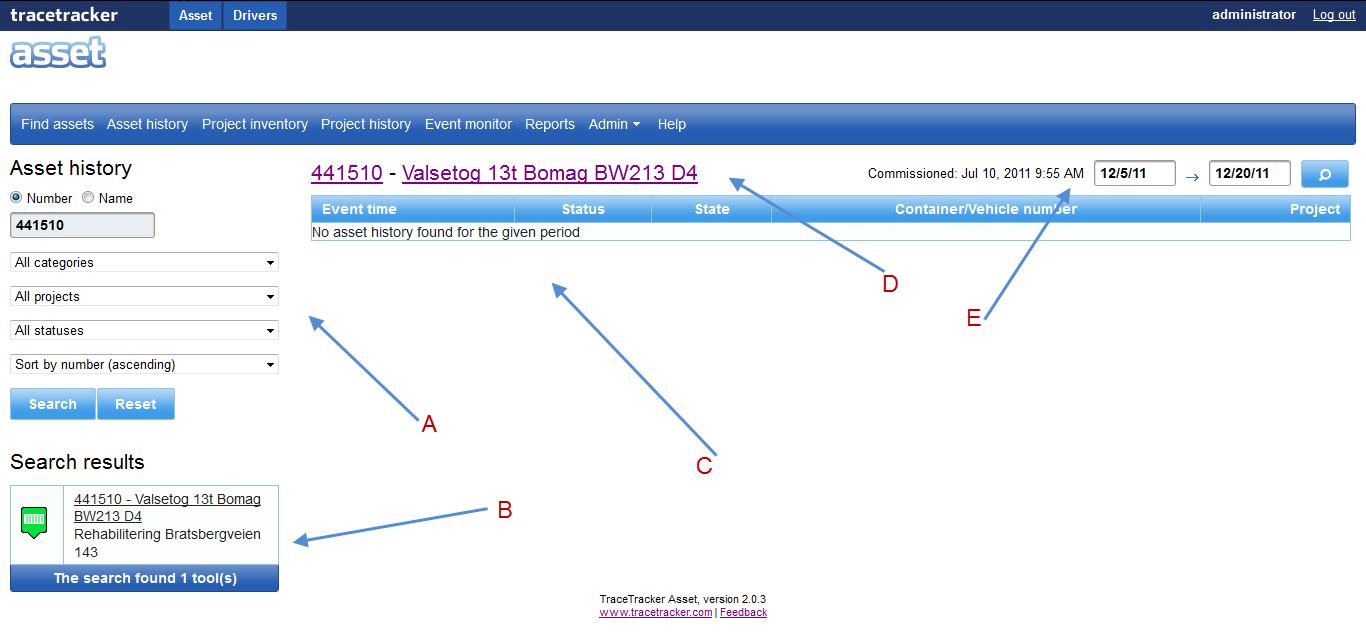 |Asset History Page.
The Asset History screen is where a user searches for an asset and views the history. The history of several assets is viewed including assets that have been in and out of containers, and assets that have moved between containers and vehicles, where it’s located, its status (i.e. whether in use, available, idle, needs repair or under repair), the time and the project that it’s currently being used.
1. Asset history has the following sections “A” is the search form, “B” the result area, “C” the list view.
a. When a search has been made results matching that name appears in the result field “A”.
b. On the results section “B” shows the icon, ID and name and project.
c. “D” is the list header the correct asset ID AND asset name is written as the table header, Data in table is for the last two weeks.
d. “C” is the “table”, if there has been no activity in the last 2 weeks; an error message appears “No Asset history found for given period.
b. On the results section “B” shows the icon, ID and name and project.
c. “D” is the list header the correct asset ID AND asset name is written as the table header, Data in table is for the last two weeks.
d. “C” is the “table”, if there has been no activity in the last 2 weeks; an error message appears “No Asset history found for given period.
2. When a single asset is chosen the number and name of the asset appear above the table on the right. The name is a link and next to it is;
a. Commissioned date.
b. From date and a calendar icon on a button.
c. To date and a calendar icon on a button.
d. A refresh button.
e. The default time span in the from to date is the last 2 weeks.
f. If there is no data for the asset in that timeframe there is an error message under the table header that says “No asset history found for given period”.
b. From date and a calendar icon on a button.
c. To date and a calendar icon on a button.
d. A refresh button.
e. The default time span in the from to date is the last 2 weeks.
f. If there is no data for the asset in that timeframe there is an error message under the table header that says “No asset history found for given period”.