
Find Asset
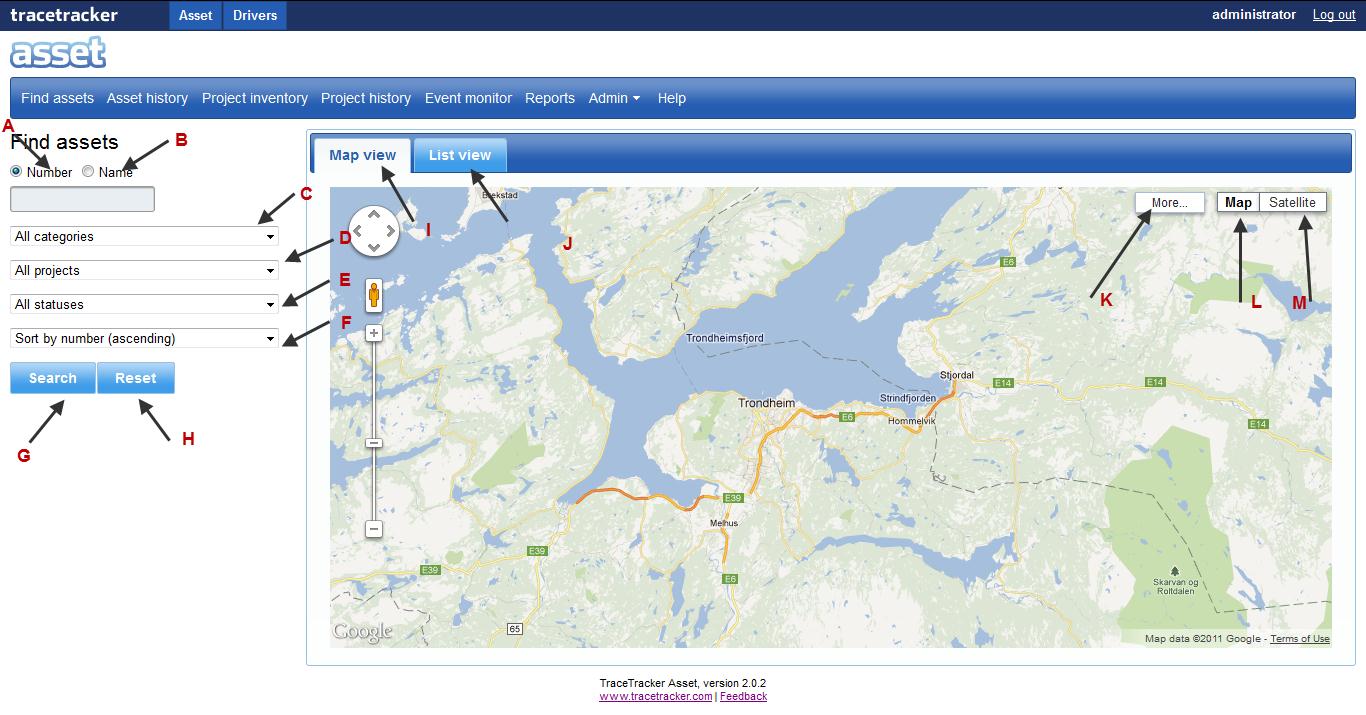
The search form
The form as illustrated above is located in the upper left of the screen and a map on the right side of the screen. It’s primarily focused in locating all the assets under certain parameters applied to it.
1. Filtering of results is based on the two radio buttons labeled “A” and “B”.
b. “Name”.
c. Under the radio buttons is a blank search field, where a user can edit what they are tracking.
2. Followed by a pull down menu indicated by “C” labeled “all categories.”
3. Then a pull down menu as indicated by “D” labeled “All projects” and
4. Then a pull down menu indicated by “E” labeled “All statuses”.
5. Then “F” is the pull down menu for “sort by” pull down bar.
6. “G” is the “Search” button and “H” the “Reset” button.
7. On the right is a blank map where the assets are displayed.
8. At the top of the map is a tab for “map” and “list view.” Indicated by “I” and “J”.
9. There are more button’s on the right side of the map indicate.
Results from the search
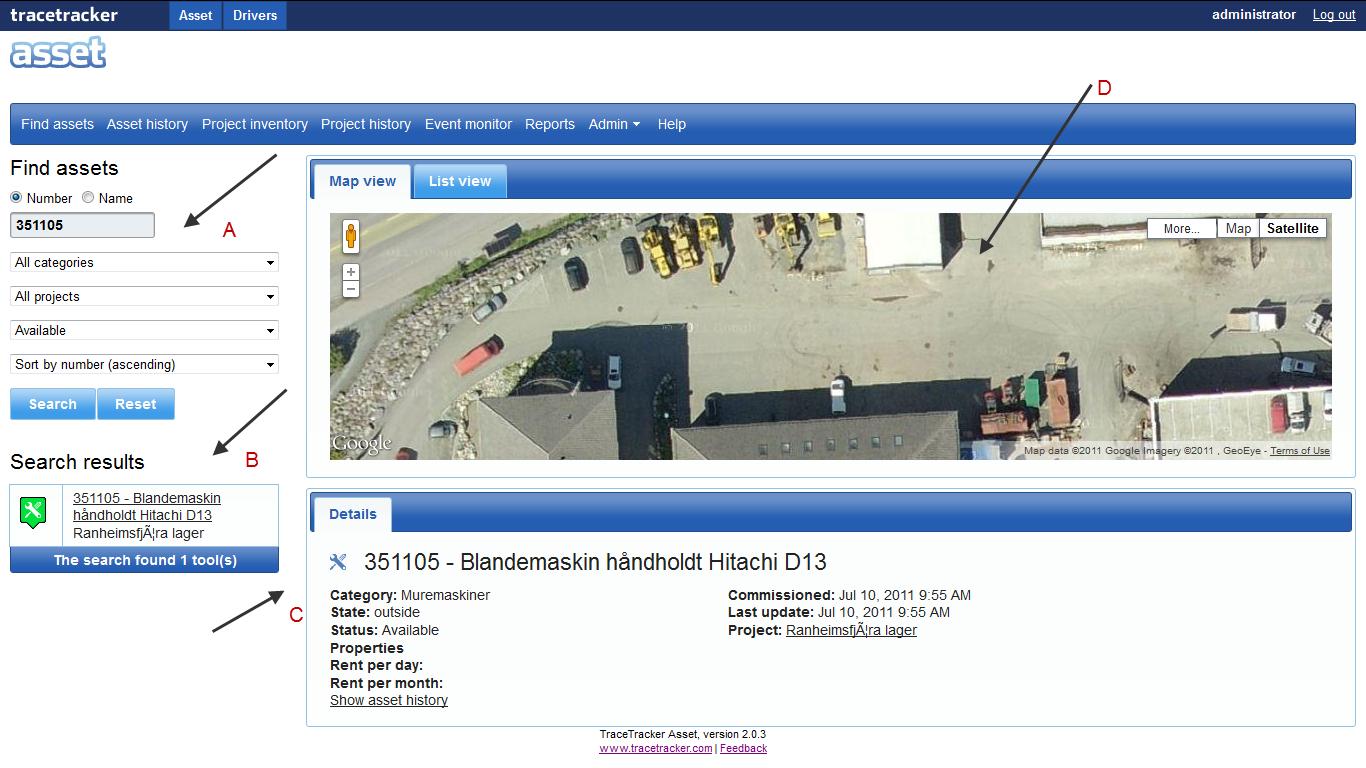
1. Click search when you are satisfied with your search parameters or click the clear button to start over.
2. You can view the result(s) in the “D “map view to show the geographical location of the results.
3. Select the “List view” tab to view the results in a sortable table.
4. The Map includes filters that can be turned on or off to display projects, boundaries, vehicles and containers.
5. Like in Google Maps, a list of results is displayed in the left column “B”, and the icons indicate the current status of the asset as well as where it was last seen.
6. When a result link is clicked on, a map pop-up will show detailed information about the selected container.
7. Once a result has been clicked on a panel below will open “C”, displaying a table that shows all the tools that currently exist at that moment in the same container.
8. The icons show the location of either a container or a vehicle that contains one or more of the search results.
9. The “Tools in container” panel lists the Id’s, price and the last time stamp.
10. The container table can be sorted by clicking on the table headings.