
07-Upload log
The page displays the most recent upload events. For each event, the following is shown:
- The time the event occurred
- The outcome of the upload trial
- The name and size of the file
- an option to retry uploading a file if it failed.
- an option to edit and validate a failed file.
The log displays the most recent events first, and is limited to 25 items.
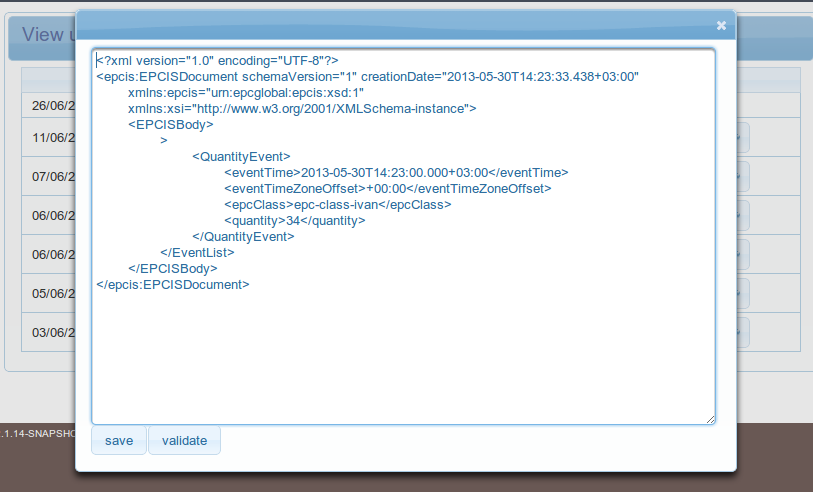
From this page, you can also edit files that failed to upload due to errors in the data by clicking on the gear button ( second button among the two buttons) corresponding to the file.
You can also click on the button with two arrows ( first button among the two buttons corresponding to the file) in order to have upload of the file that failed re-attempted.

editing and validating a failed upload;
Click on the gear button coresponding to the file. A pop just like the one below will appear. From there, you can make edits and even validate the contents of the file.
Make sure to click the save button on the dialog to have your changes effected in the file, however clicking on the validate button will automatically save you changes to the file.
retrying upload of a failed upload
click on the button with two arrows ( first button among the two buttons corresponding to the file) in order to have upload of the file that failed re-attempted.
Editing Failed Uploads
Please note that editing of failed XML files is only supported for EPCIS event data and not for Master Data