
06-Configuration
This page allows you to modify the current configuration. You can find description of all the configuration options if you hover mouse over the option name (see the figure below). Before you can change any property, you have to first suspend scheduled uploads. To do that, go to the Dashboard page and click Suspend button.
Note:
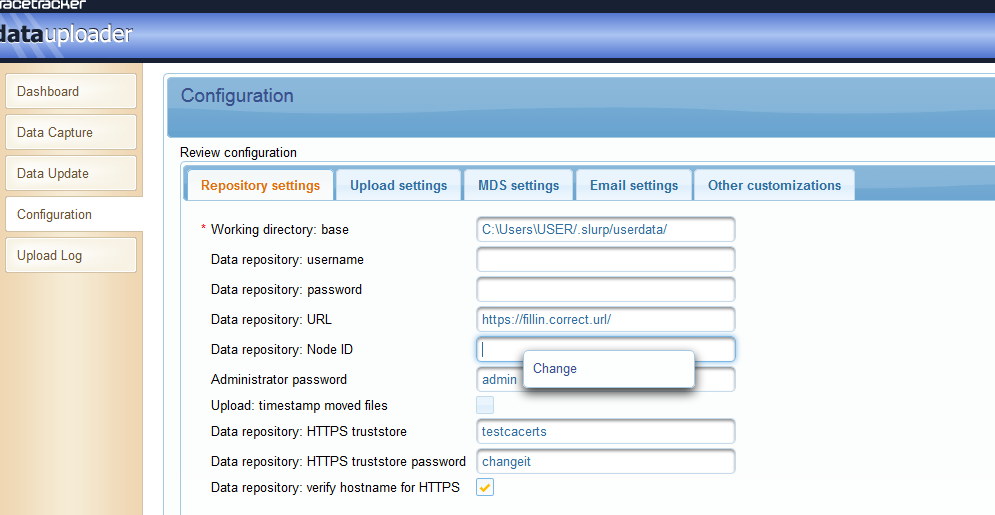
When you have provided the username,password and Data repository URL, click in the text-field for the node ID.
A small pop will appear(with option 'change'), click it to be able to fetch the list of all node Ids that that you can access.
As of version 2.1.31, only the Working directory: base setting is mandatory for the repository settings tab.
Timestamping filenames
If you, for one reason or another, create files with occurring names, files will be overwritten in the archive directory. For example, if you create the file daily.xml every day and place it in the data directory, you will end up with only the last daily.xml in the archive directory.
If you would like to keep each file in the archive, TT Data Uploader can add a timestamp to the filename when it is moved to the archive. This ensures that each filename will become unique. You enable this feature in the configuration by checking “Upload: timestamp moved files” checkbox.
Email Notifications.
TT Data Uploader can be configured to send email notifications when something goes wrong with an upload (click on the email settings tab). If the Data Uploader is set up to retry a failed upload, the same file may fail several times in a row for the same reason. If this happens, only one email notification will be sent. It is possible to use ones own email server, or one can use an external email provider, such as gmail.com, if it allows sending of emails through SMTP connections. The next section describes the options required to configure email notifications.
Configuration options
For a description of the different possible properties, consult the table at the bottom of ths page: http://java.sun.com/products/javamail/javadocs/com/sun/mail/smtp/package-summary.html. If you are having trouble, you should contact your email provider for which properties are required and what their values should be.
The following is an example using Googles gmail:
- mail.smtp.starttls.enable= gmail requires this to be set to true. It enables the use of Transport Layer Security.
- mail.smtp.host= The host address for gmails smtp server, which is smtp.gmail.com
- mail.smtp.user= The complete username for the gmail account, including @gmail.com
- mail.smtp.password= The password used to login to the gmail account.
- mail.smtp.port= The port used to contact gmails smtp server, which is 587
- mail.smtp.auth= gmail requires this to be set to true. It will cause Data Uploader to authenticate using the username and password you supplied above.
The complete string to use could look something like this:mail.smtp.starttls.enable=true; mail.smtp.host=smtp.gmail.com; mail.smtp.user=username@gmail.com; mail.smtp.password=secret; mail.smtp.port=587; mail.smtp.auth=true
Import
Contacts, templates and data repository configurations can be imported from here. You will need to have access to a user configuration file before you can do this action.
Important notice:
Make sure to provide the appropriate MDS settings otherwise the data capture page may not be usable.