05-Data update
This page enables you to modify selected properties of multiple traceable items at the same time. Modifications are then uploaded to the data repository based on the schedule.
Select what you are looking for
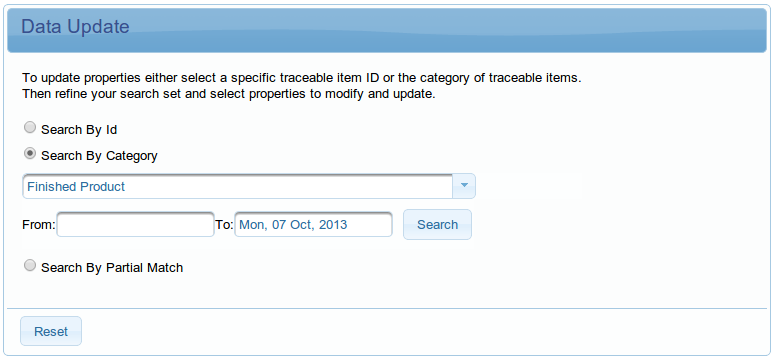
First, you can either (see figure below):
- specify ID of the traceable item you are looking for and click Search.
- or select category of traceable items.
Refine you search set
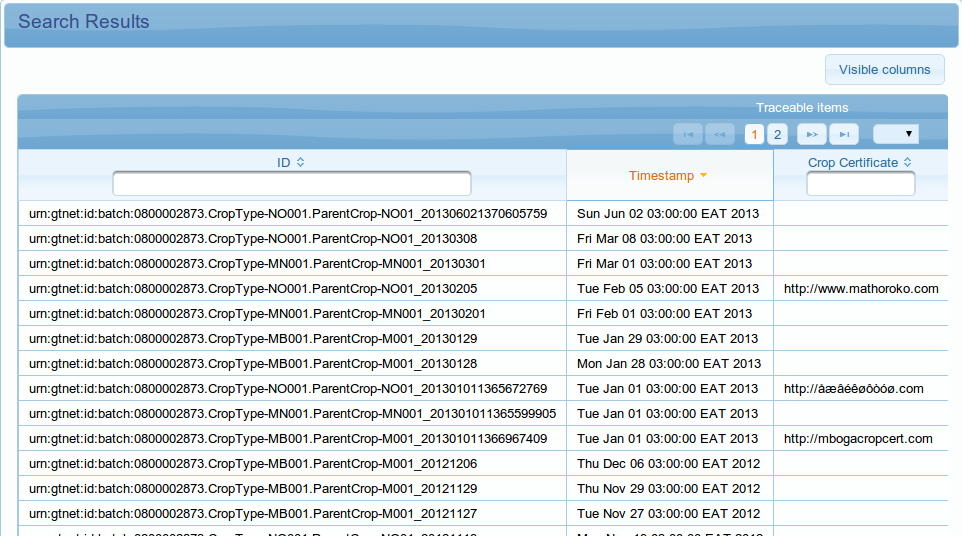
To restrict results more precisely, you can select date interval in which the traceable items time-stamps should be. In the table, you can filter items by entering filter text for some columns, sorting columns by clicking on its header (see the figure below).
Reset
Data Update page, unlike the others, keep its state even if you go to another page and go back. If you want to continue with totally new search, you can quickly reset the form using Reset button on top of the page.
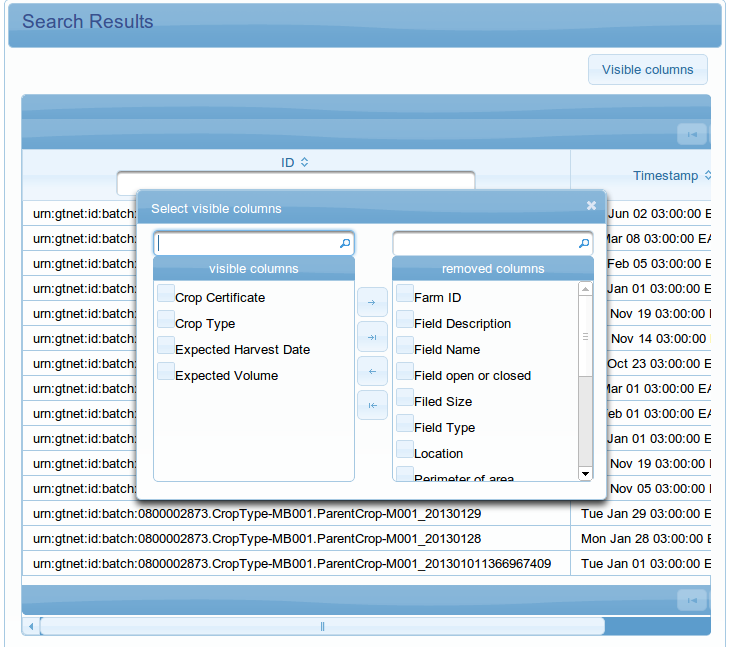
You can also chose which columns are displayed on the table by clicking on the visible columns button. (See the figure below for illustration)
The columns in the visible column section are the columns being displayed on the table and the ones on the removed columns section
are the ones that are capable of being viewed but the user has chosen to have them removed. You can switch columns from one section
to the other at any time by selecting them/it and then clicking on the respective indicator buttons.
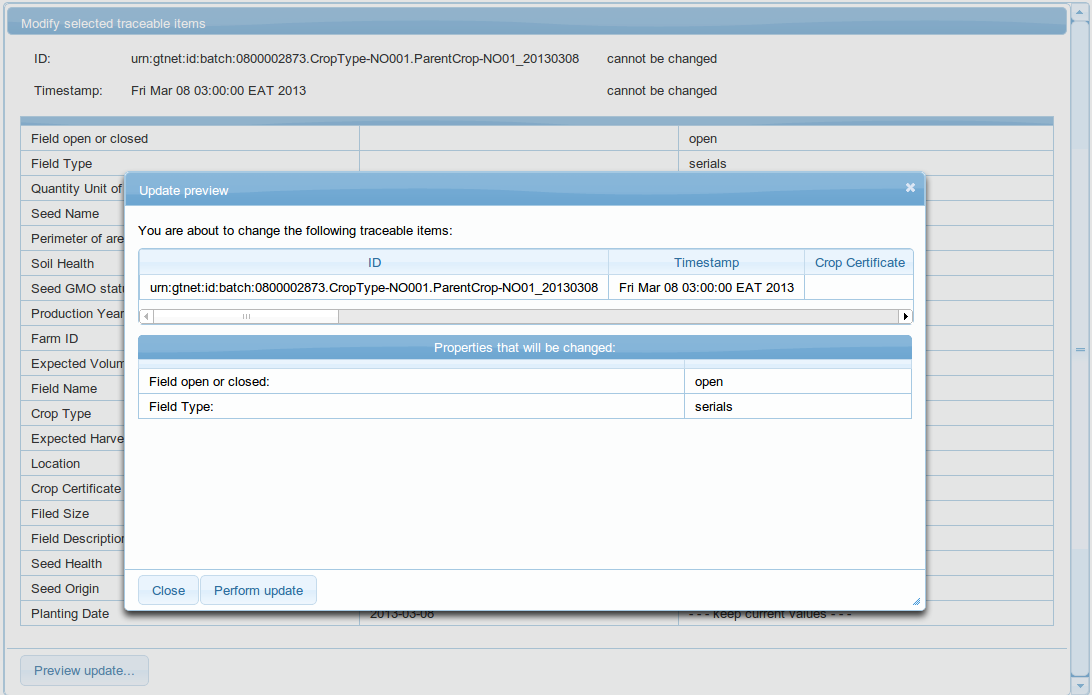
Select & modify
When you have a search set, select items to modify by clicking on the lines of the table. If you want to select multiple items, use <Shift> + <Left Mouse Button> to select multiple consequent items and/or <Shift> + <Left Mouse Button> to select multiple items which are not in a row. Then, in the Modify selected traceable items section (see the figure below), modify properties which you want to change for all selected traceable items.
Preview and perform update.
Before update, you can preview changes. Perform update button then creates necessary changes and they are then uploaded to the data repository based on the configured schedule.