myView
myView is an application for viewing your supply chain.
Filter the Supply Chain
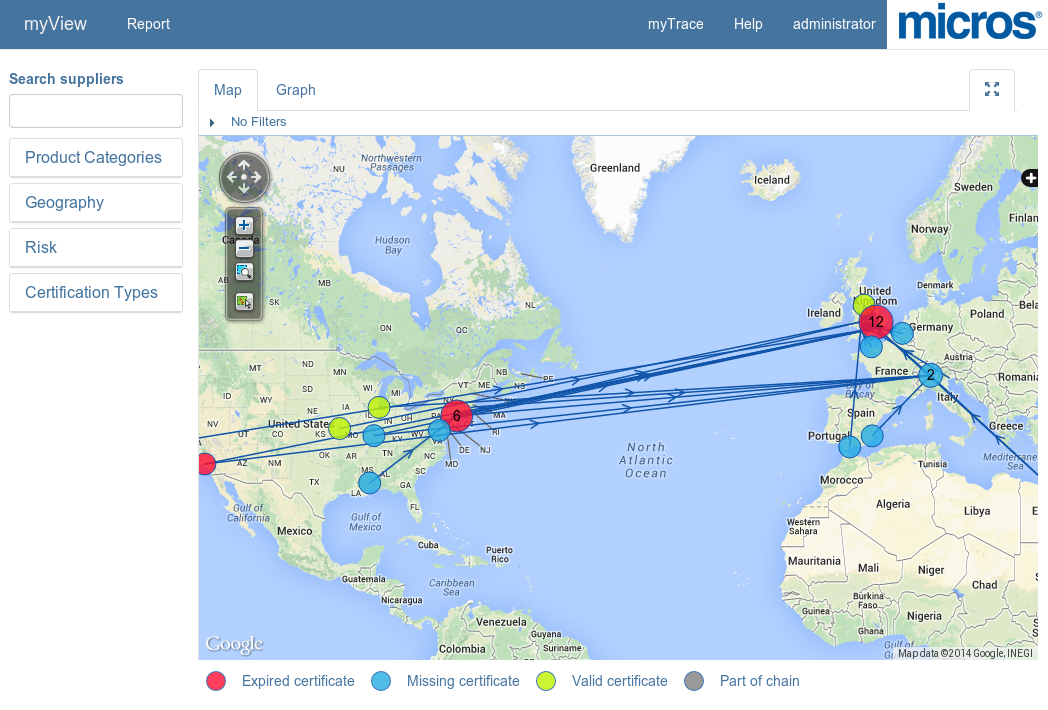
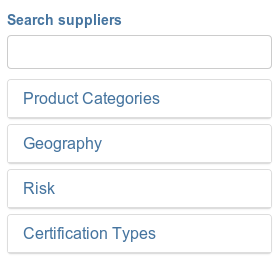
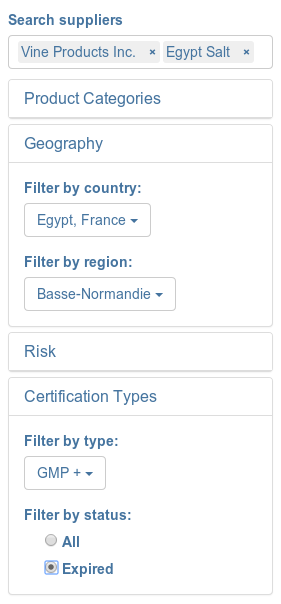
The left column of myView contains controls for applying filters to the view of the supply chain. These filters are available:
- Filter by Organization name
- Filter by Product Categories
- Filter by Geography
- Filter by Risk
- Filter by Certification Types and Status
More than one filter can be applied at the same time, and the view will be updated as new filters are added or removed.
Map View
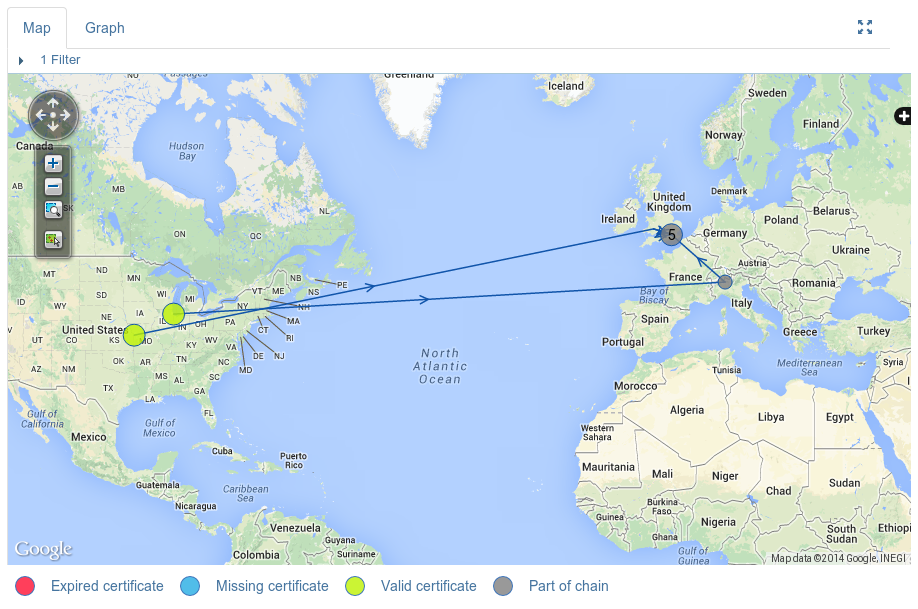
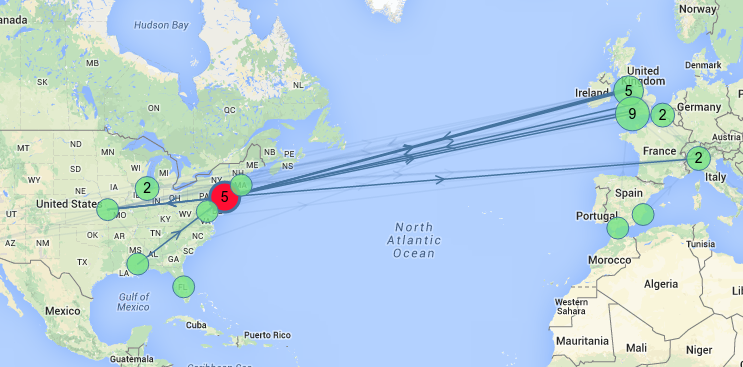
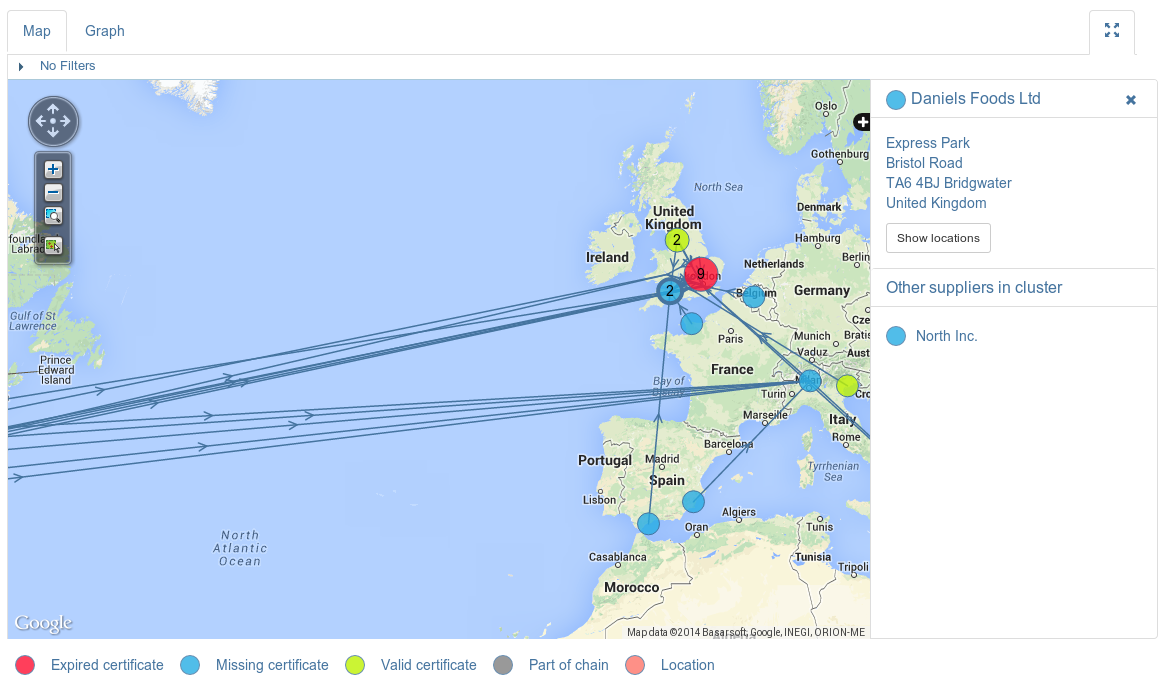
The map view lets you view the supply chain as connected nodes on a map. The organizations are shown as a markers with a certification status color, while the arrows shows the business relations between the organizations in the chain, e.g. supplier/customer relations. Markers in the map containing a number represents clusters of organizations within the same area. As the map is zoomed in or out, these clusters expands or collapses respectively.
The map will highlight connected suppliers when a supplier or cluster is selected, this make it easy to see how a supplier or cluster relates to others.
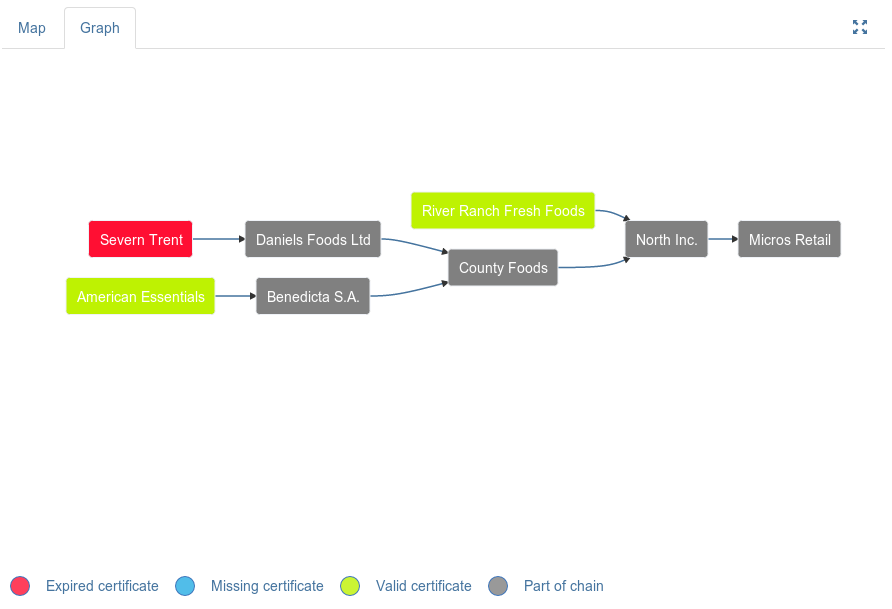
Graph View
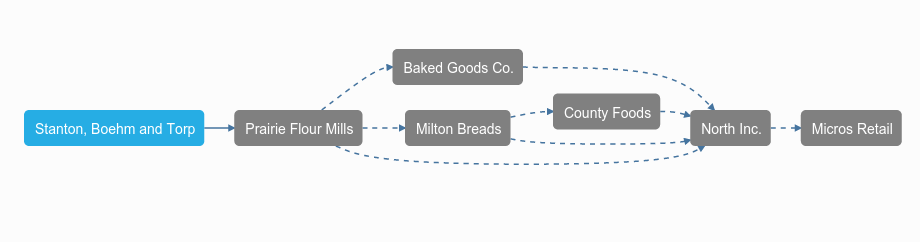
The graph view displays the supplier/customer relations as a "box graph". The geography filter can still be applied to the view though.
View details about a supplier
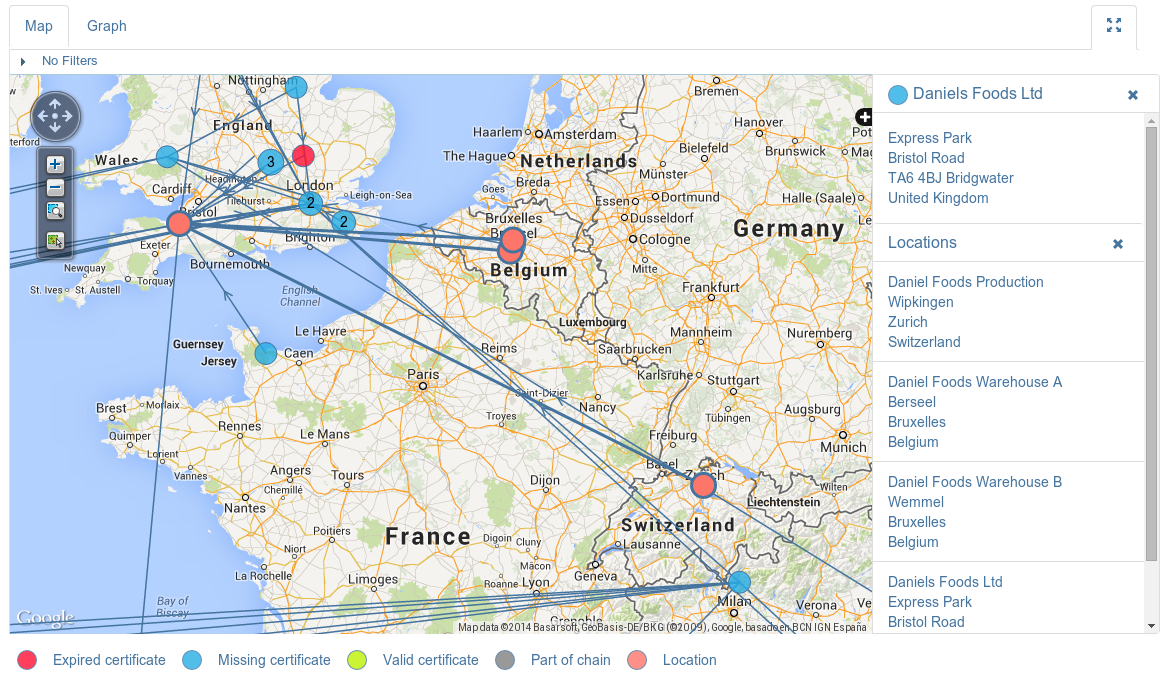
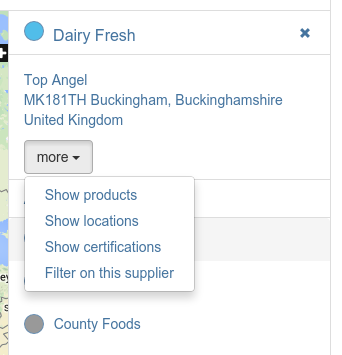
A details panel will be shown when clicking on a marker in the map (Map View) or on a node in the graph (Graph View). All known supplier locations can be shown in the map by clicking on the "Show location" button located inside the details view. Clicks on clusters (marked with a number) will show details about the first supplier in the cluster and list all suppliers in the cluster. Click on listed suppliers to view their details.
Product View
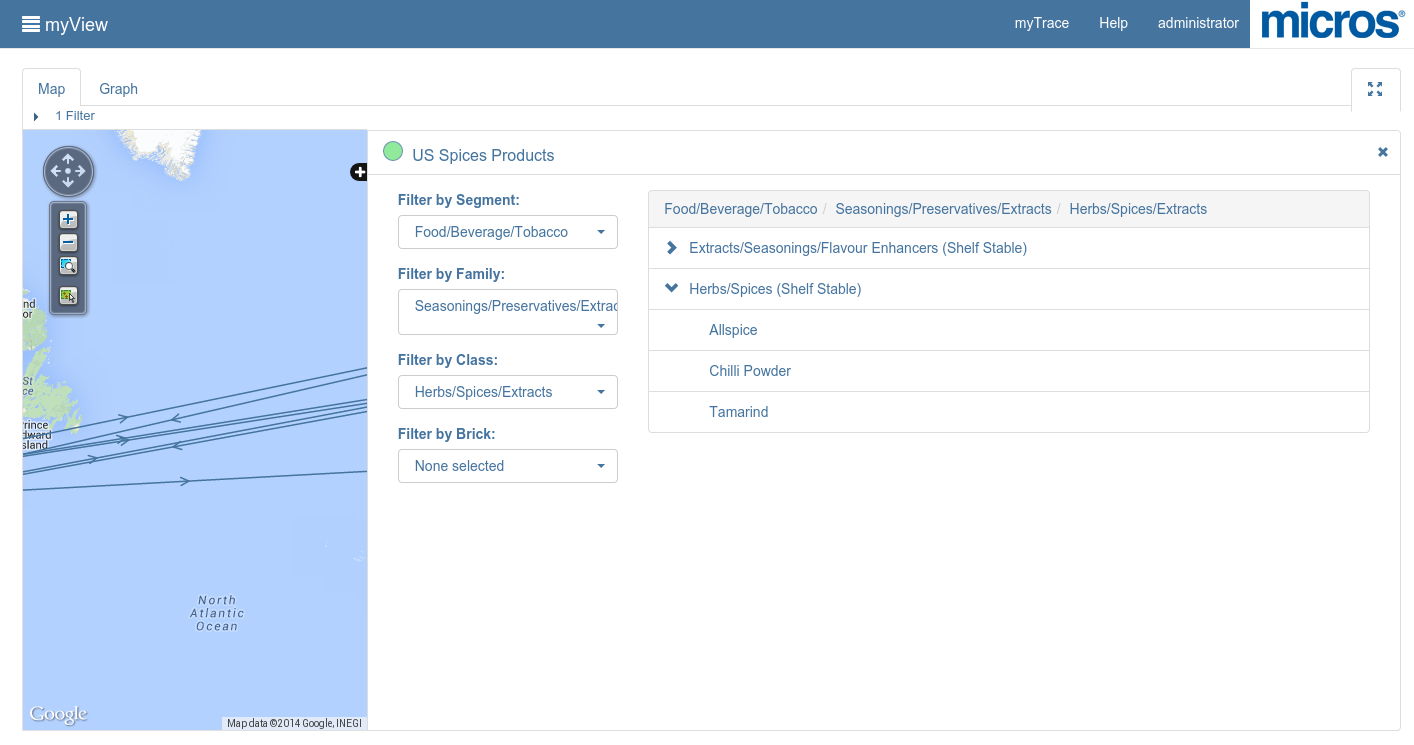
The product view shows all products an organization produces or manufactures. The view can be filtered by the GS1 GPC (Global Product Classification) product category system. This offers a four level deep hierarchy of category names called "segment", "family", "class" and "brick" where "segment" is the top level and "brick" the lowest level of classification.
View Certificate and Certification Details
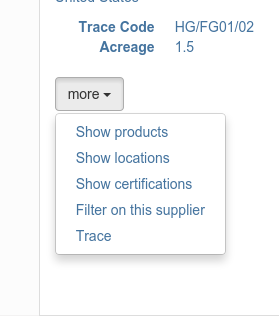
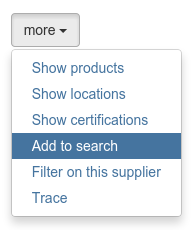
All details on certifications and certificates can be shown by clicking on the "Show certifications" action found in the "more" dropdown in the Details panel.


Filter on selected supplier
The filters can be updated to selected supplier by clicking on the "Filter on this supplier" action found in the "more" dropdown in the Details panel, use "Add to search" if the selected supplier should be added to existing result.
Trace on selected supplier
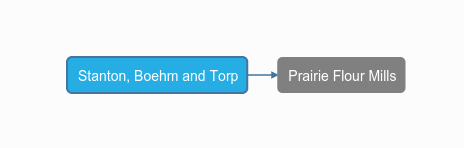
You can do a downstream trace to your organization by clicking on the "Trace" action found in the "more" dropdown in the Details panel.