Service Reminders
Asset can manage schedules for servicing or maintaining assets in a simple-to-use calendar.
This document will explain to you how to
- Create Reminders
- Re-schedule Reminders
- Cancel Reminders
- Record Service operations or notes
To Create reminders from the Asset AMA event endpoint, check out the documentation
Asset Servicing reminders are accessed from the tab 'Servicing' shown below.
The figure in the Parenthesis shows the number of Assets whose Service reminders are expired. Clicking on this tab brings you to the window below whose functions are explained.
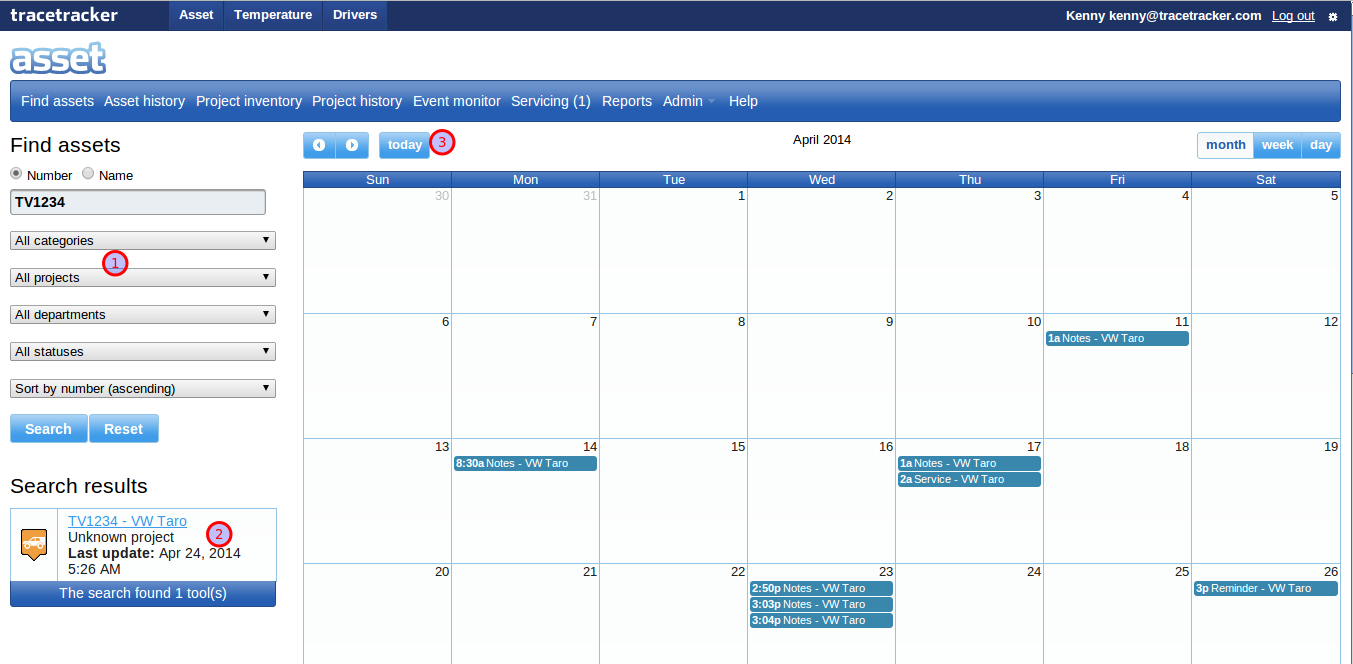
- This is the familiar Asset Search Filter that you can use to locate a Specific item and schedule servicing for it and browse Maintenance actions associated with it.
- The search result. When a single item is returned from the search, it is selected automatically and the calendar view will be showing all events associated with the item. You can browse more and select each to view their events as well.
- Calendar browser controls. Use these buttons when you cant find past, current and future events. Note: it can take a few seconds before the calendar view is populated.
Modes
If no search has been performed or such as when reset is pressed in the search pane, the calendar will show all the events for all the Assets for the current time boundary, i.e current month. Use the Calendar browser control to browse for more events.
Creating Reminders
To create a reminder:
- Search and Select the target Asset which you intend to set the reminder for
- Select a date when you would like to be reminded of a servicing event for the Asset
- Make sure that the selected date comes after the current date
You will see the dialog below
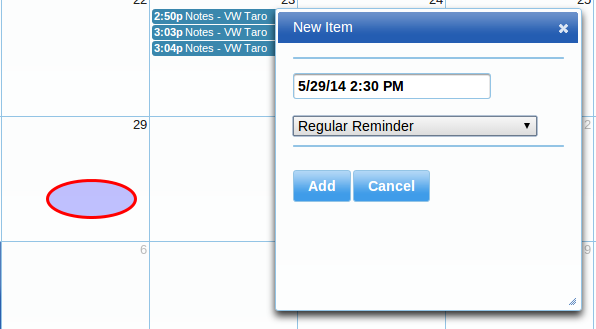
The ellipse shows the date where the reminder will be placed. Click Add.
Re-schedule Reminders
This is perhaps the simplest task. Follow the following steps
- Select an existing Reminder with your mouse and Drag it.
- Drop the reminder to your new preferred date
- A dialog that lets you confirm or change the date comes up.
- Confirm the date and time then Click move
Movable Items
For Repeat reminders, they are auto-snoozed by Asset when they are expired.
Cancel Reminders
Reminders can be marked as either Done or Canceled. If the Reminder is expired, It can be marked as DONE otherwise it can be CANCELED.
- Select Reminder from Calendar by clicking on it.
- A dialog such as below comes up
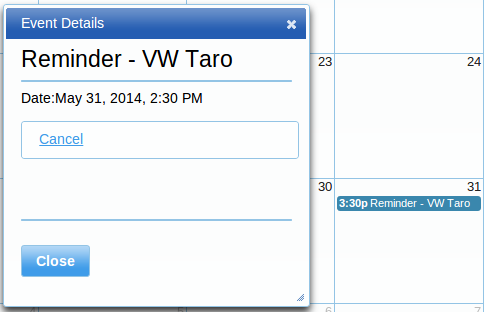
Click the Cancel link. This removes the reminder from the calendar.
Recording Service Operations
Once a Service or Maintenance operation is performed, it can be recorded in the calendar for future reference. A note can be attached on to this event describing anything about the servicing operation.
- Search and Select the target Asset which you intend to set the reminder for
- Select a date when you would like to record this event.
- A Dialog for selecting type of event you want is presented to you. Choose Record Service
- Typical operation will look as below:
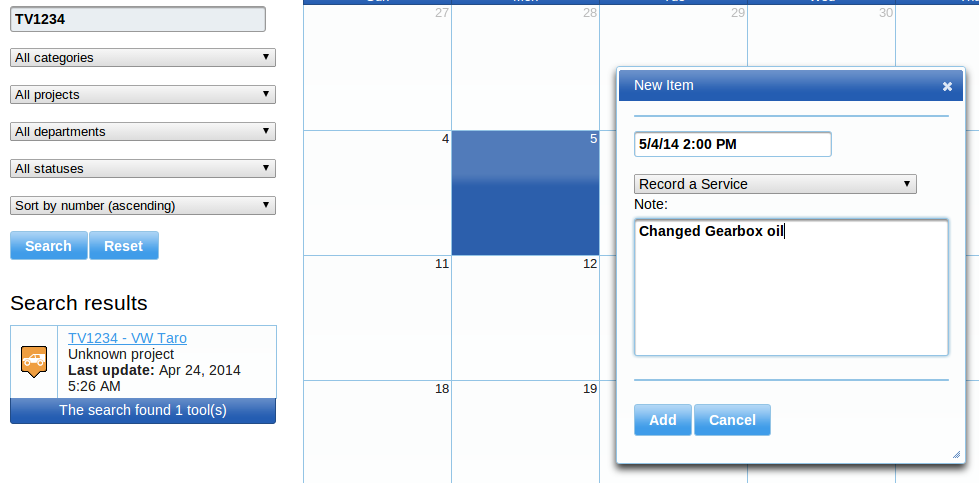
- Select the date when the Service operation was performed. Type in a few comments to attached as notes about this operation.
- Click Add. You will notice two entries: one for the Service and another for the associated notes.
NOTE: To make only comments about an asset for a specific day, follow the above procedure but select Service Notes in the dialog that allows you to record the event.
Differentiating reminders
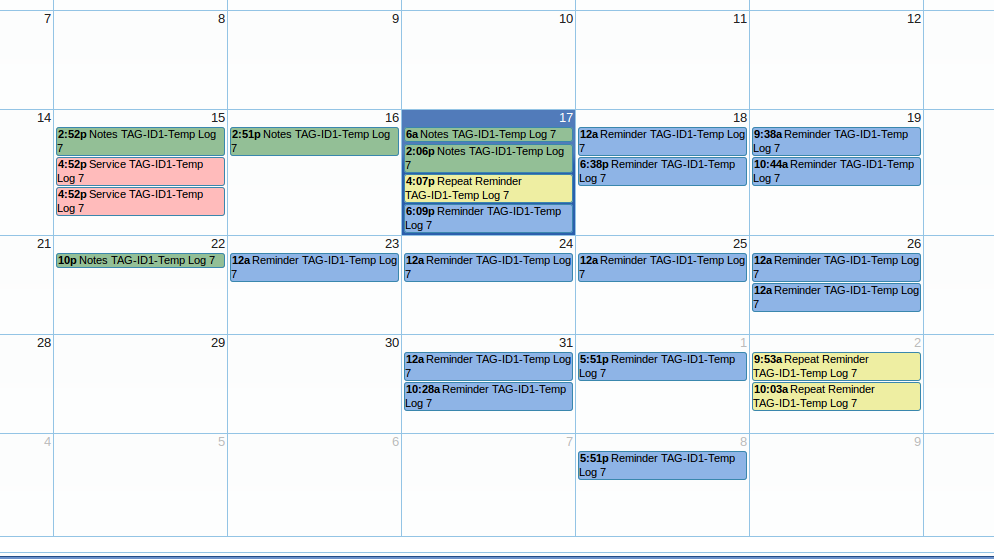
Each type of reminder is colored differently in the calendar schedule as shown below.