Registered Data
Throughout the processes, a user is able to see list of already registered data. This feature is available for all processes. A pop-up window is loaded via a slide transition effect.
Crop Process
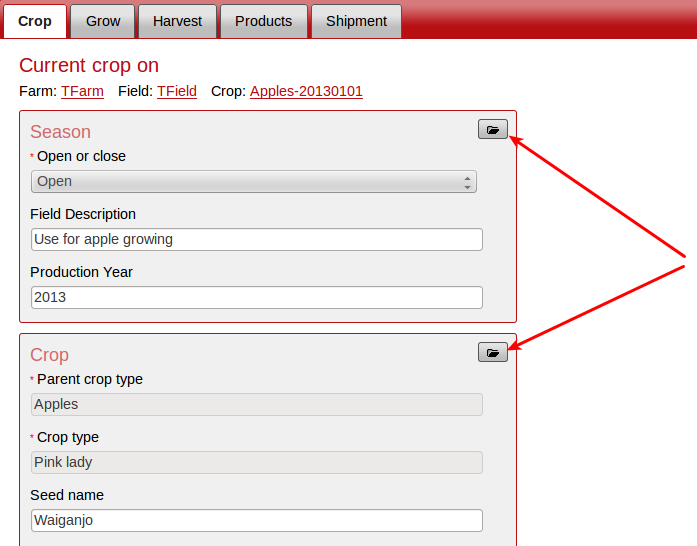
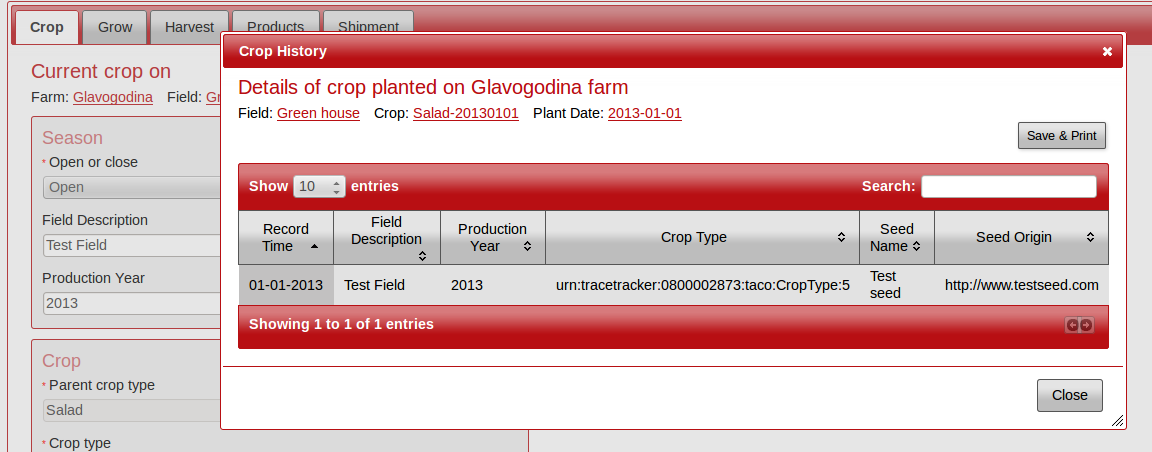
On clicking on the icon found to the far right denoted by an image of an open folder, a pop-up is loaded displaying details of the crop created on that. The icon is available on each field-set, but loads the same pop-up. The images below show the icons and the pop-up with some sample data.
Grow Process
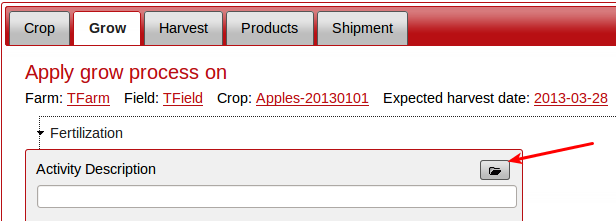
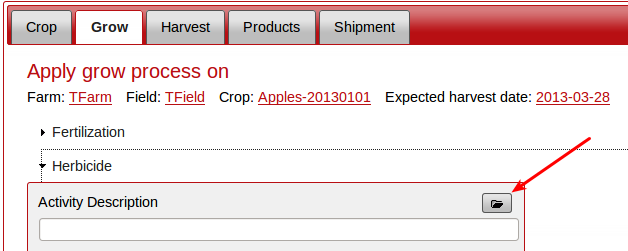
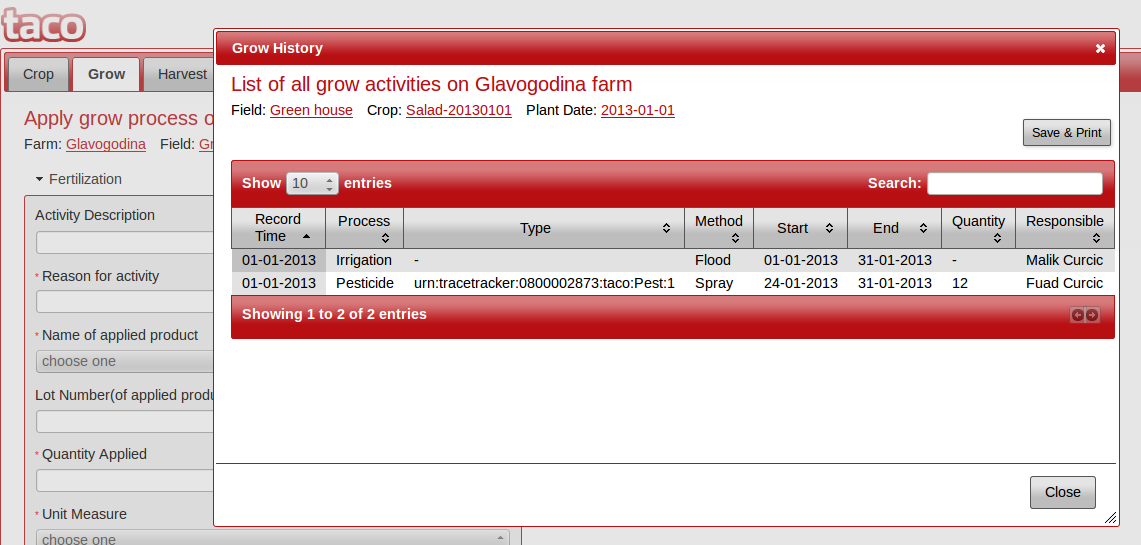
On clicking on the icon found to the far right denoted by an image of an open folder, a pop-up is loaded displaying a detailed list of grow activities that have been done on the crop previously created from the Crop tab. The icon is available on each accordion, but loads the same pop-up. The images below show the icons as available for the Fertilization and Herbicide activities, and the pop-up with some sample data.
Harvest Process
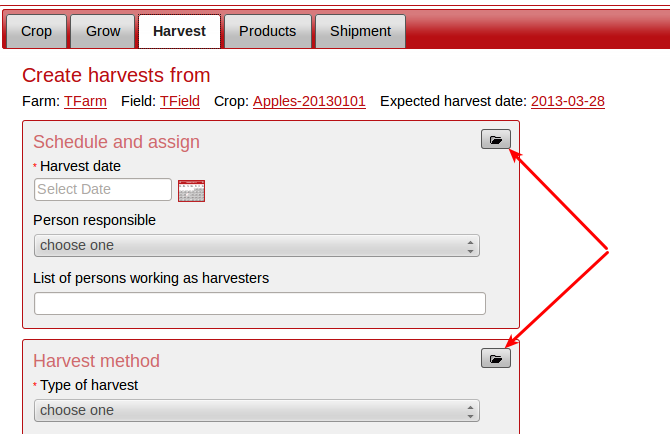
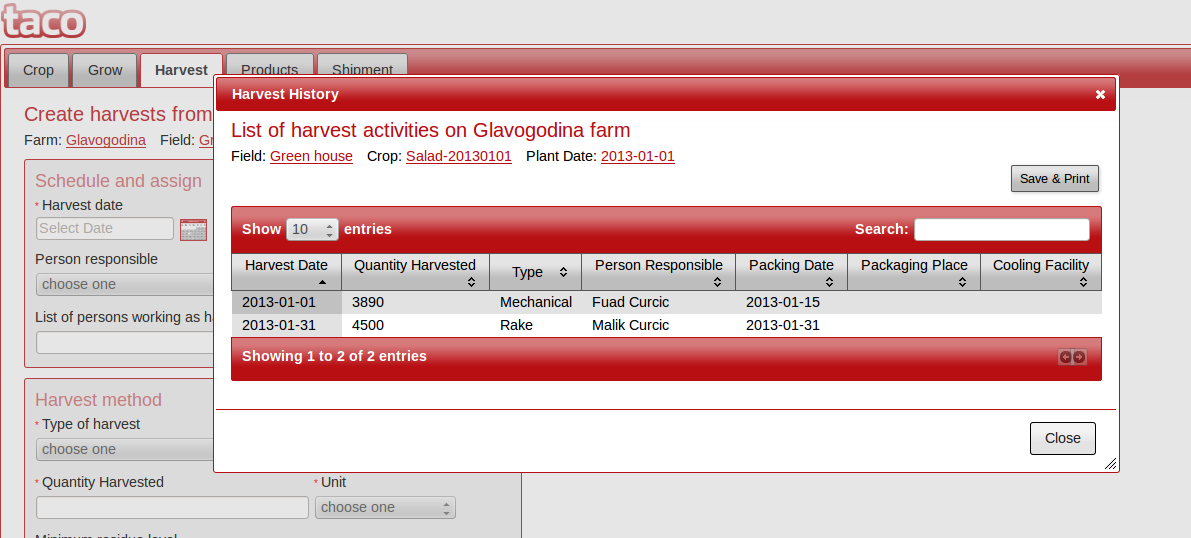
On clicking on the icon found to the far right denoted by an image of an open folder, a pop-up is loaded displaying a detailed list of harvest activities that have been done on the crop previously created from the Crop tab. The icon is available on each field-set, but loads the same pop-up. The images below show the icons and the pop-up with some sample data.
Products Process
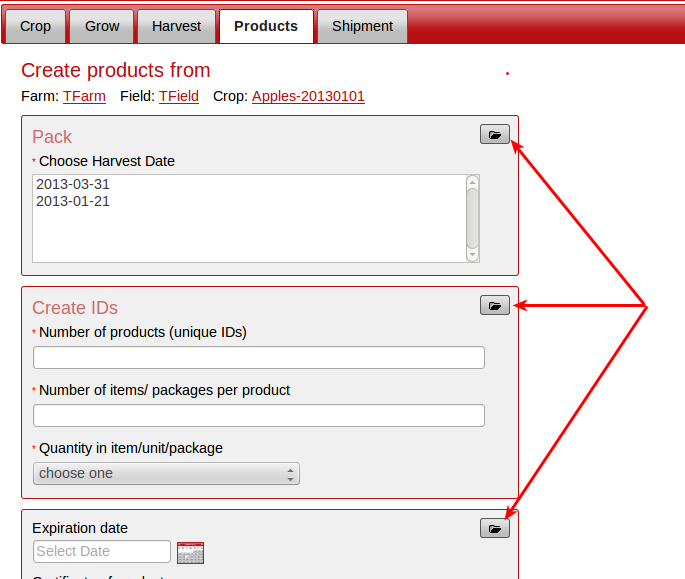
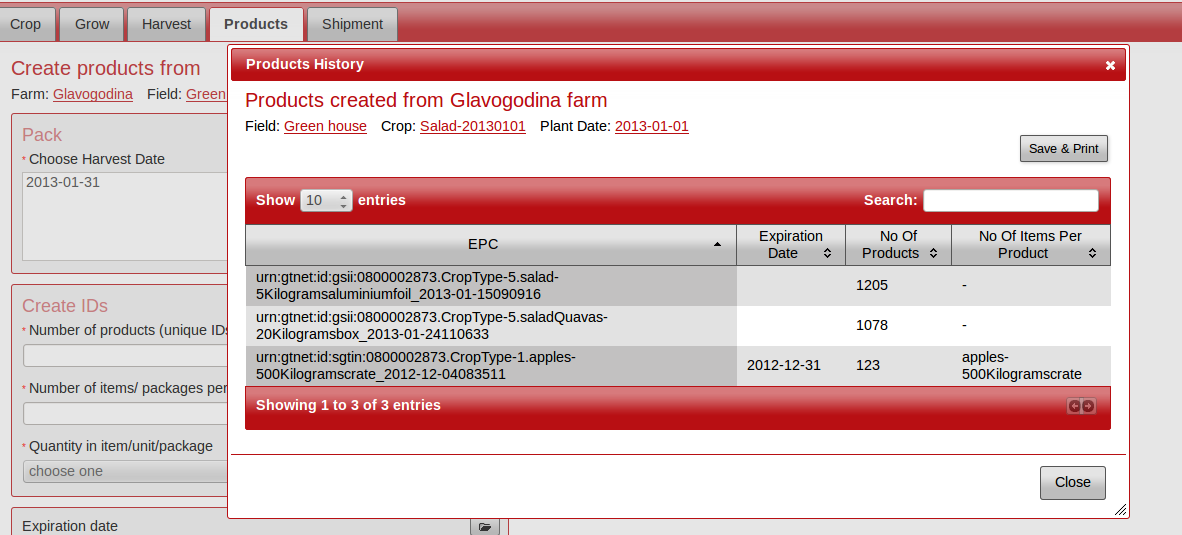
On clicking on the icon found to the far right denoted by an image of an open folder, a pop-up is loaded displaying a detailed list of products that have been created from the crop in question. The icon is available on each field-set, but loads the same pop-up. The images below show the icons and the pop-up with some sample data.
Shipments Process
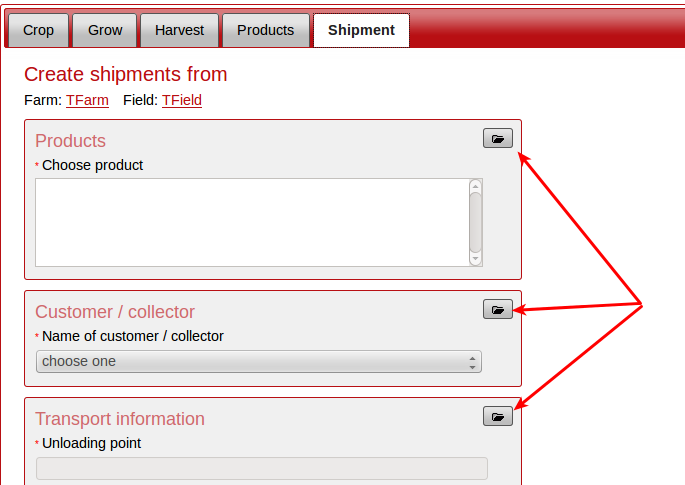
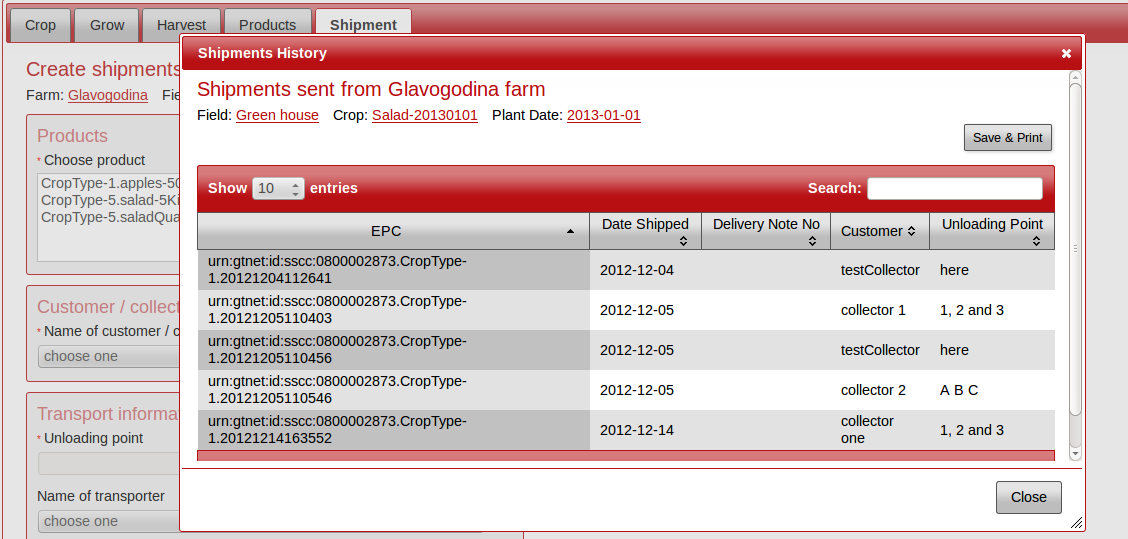
On clicking on the icon found to the far right denoted by an image of an open folder, a pop-up is loaded displaying a detailed list of shipments that have been done from the field currently selected. The icon is available on each field-set, but loads the same pop-up. The images below show the icons and the pop-up with some sample data.
Saving and Printing
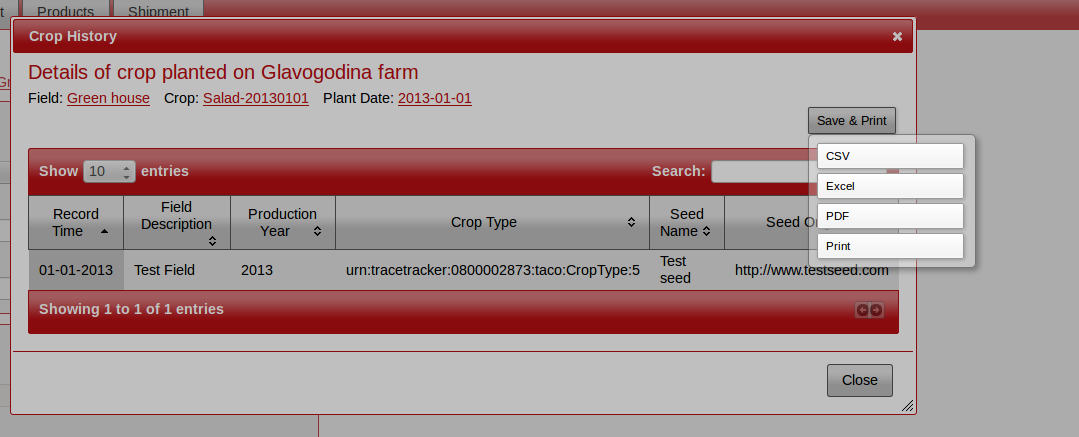
Users are also able to print the contents of the pop-up, or even save them as PDF, XLS and CSV. This is by clicking the "Save & Print" button found to the top right corner of the pop-up (as shown below).