Event Viewer
The “Event Viewer” lets you search for all EPCIS events that has successfully been imported to the TIX by using search parameters supported by EPCIS SimpleEventQuery.
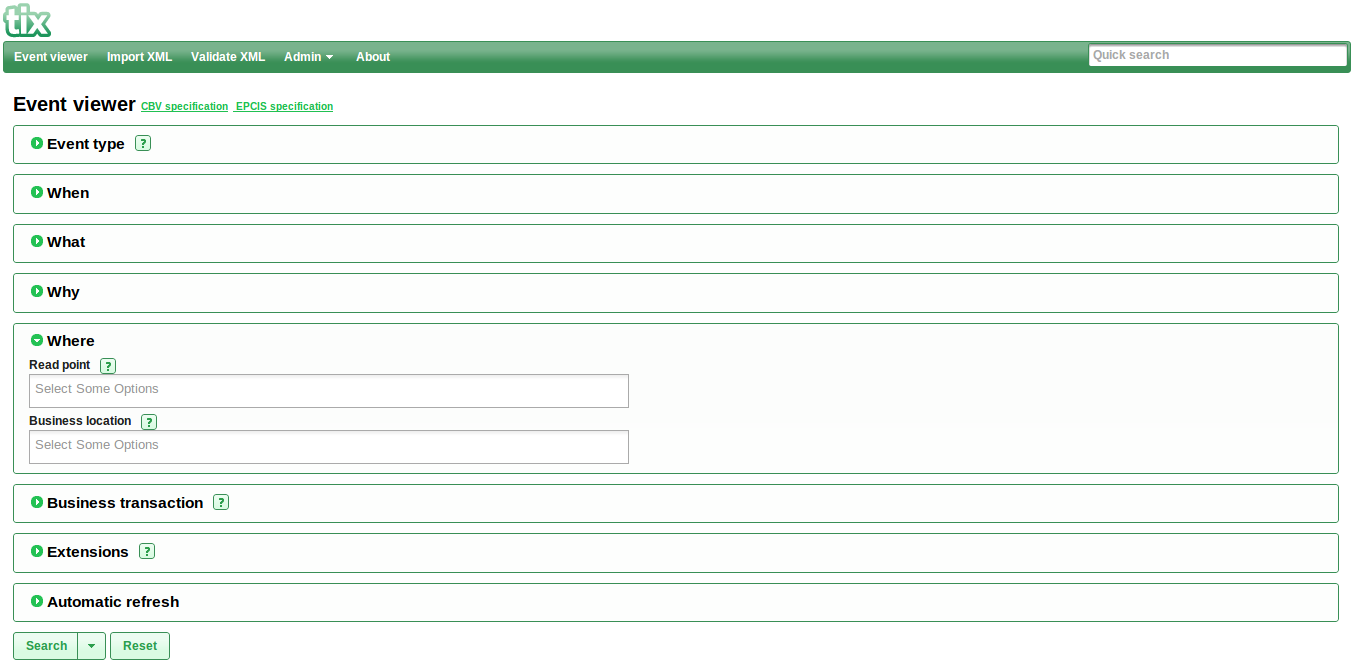
The search form is divided into seven groups, “EventType”, “When”, “What”, “Why”, “Where”, “Business Transaction” and “Extension Searches”. You can expand the groups by clicking on their expand icons  . The refresh slider at the bottom of the form can be used to control how often the search result should be refreshed.
All search parameters have a short help description, we recommend that you take a look in the “CBV specifications” and the “EPCIS specifications” if you are new to the EPCIS model or if you want more details about the search parameters. You can find the links to them above the search form.
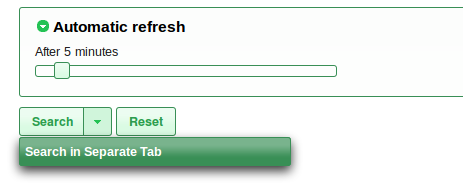
You can view your search results from a separate tab by choosing the drop down option of the search button. See illustration below.
You can click  buttons to get a short description of how the search parameters affects the result.
Results page full overview
Each row in the result table is an event that the TIX found for your search terms. The first item is the latest event found, the second is the next most latest, and so on down the table. If you click the expand icon of any result, you'll be shown all the details for that event.
Clicking on the indicated numbers will let you navigate through the lists of imports from one page to another. When you click on any one of the numbers, say 1,7 or 10, the table will blur for a while as the imports corresponding to that page are fetched. When finished, the table will turn back to normal state for your use.
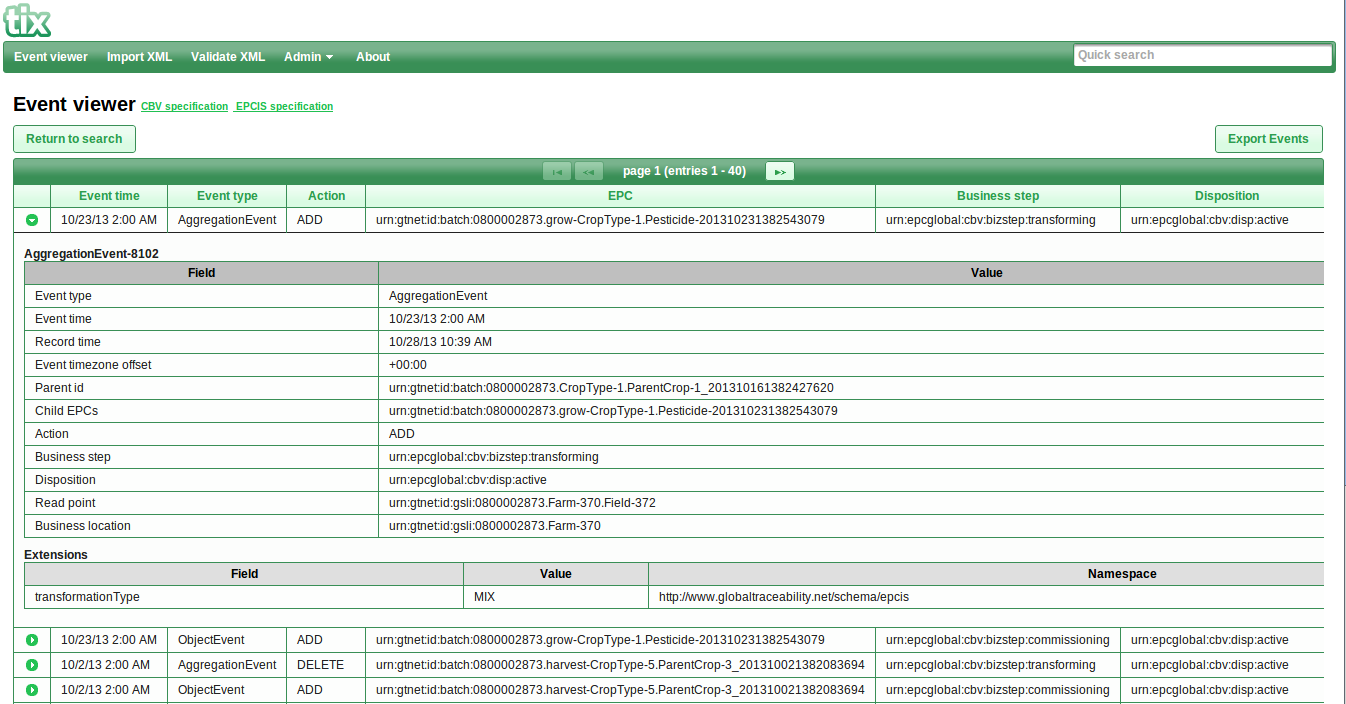
You can redefine your search terms or do a new search by clicking the "Return to search" button.
Exporting Events
The Event Viewer provides options for exporting your search results in three formats, namely:
- Adobe PDF (Portable Document Format)
- CSV (Comma Separated Values)
- XLS (Microsoft Excel)
Click on the "Export Events" button at the top right corner of the event search results. You will interact with the screen shown below.

Select your preferred format and number of pages you wish to include in your export. Note that a single page refers to a set of 40(forty) events. Basically that means if you leave the pages setting to defaults, you will get the first 40 events of your search result.
The event and extension fields can be selected from the options as well. Click "Export Now" to get a file download in your preferred format.
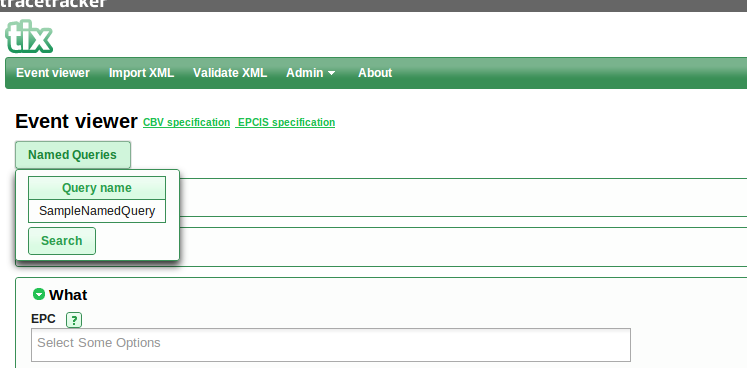
Named Queries
On the "Event Viewer" page, you can as well view and execute the named queries that you might have created. To do this click on the "Named Queries" button, select the named query you want to execute and click the "Search" button.