
Change Status
Click on the “Change Status” sub menu and the below page is loaded.
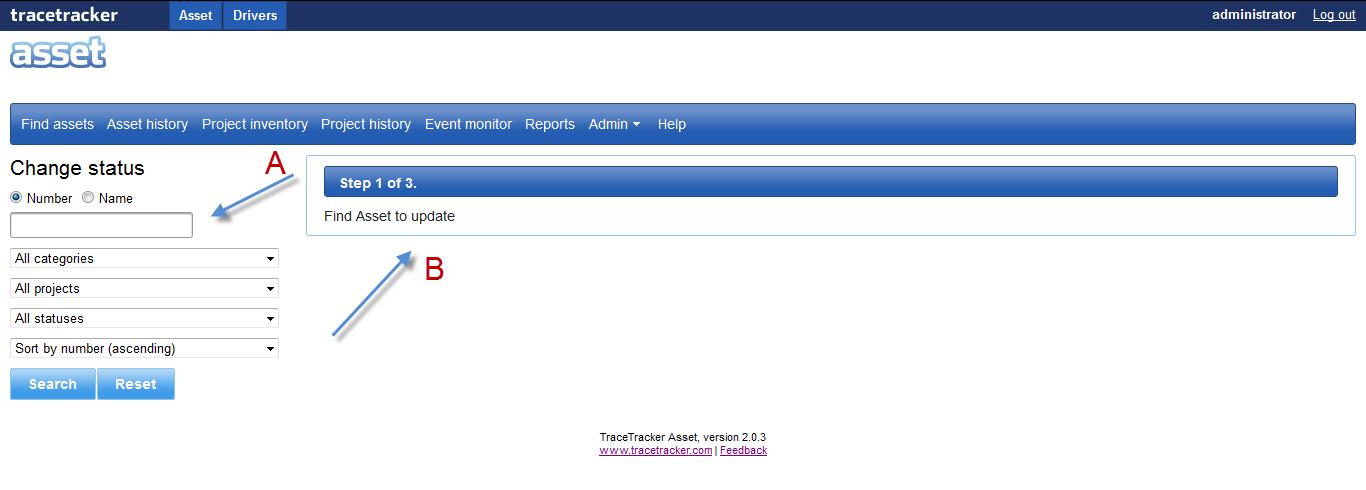
The change status form indicated by “A” is where the user puts in the parameters for the asset whose status is being changed.
This is the first step of searching for the asset.
b. Select the category, the project that the asset is in.
c. Select the current status of the project.
d. Can also sort the order in which the result will appear.
e. Press the “Search” button to look for asset.
f. The “Reset” button restores the page back to its previous state.
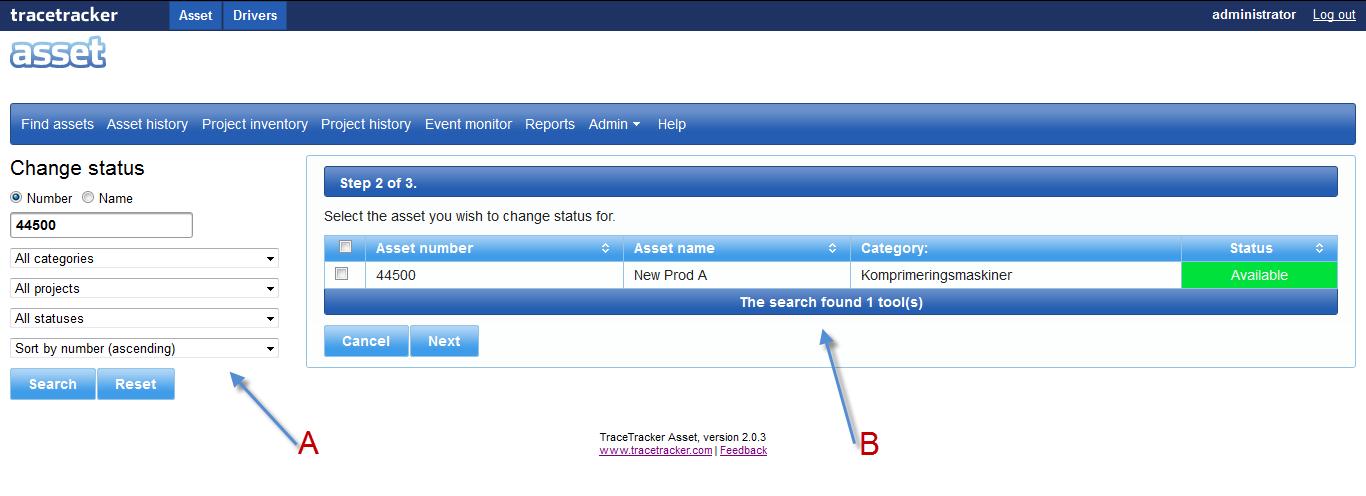
The results will be displayed on the right hand side as indicated by “B”.
Step 2
Details of the asset are displayed, the assets number, name, category and its status.
→a. Click on the assets “check box” and click on the “Next” button.
b. The “Cancel” button restores the page to its previous state.
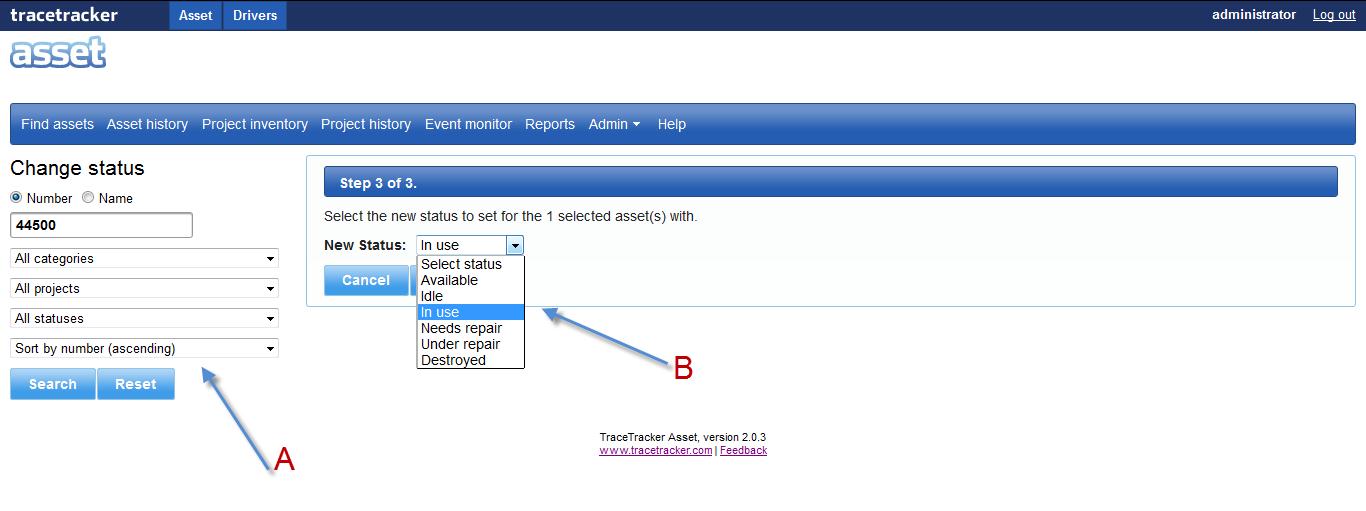
Step 3
A new page is loaded with a drop down menu.
→a. Select the new status of the asset from the drop down menu. b. Click on the “Save” button c. The “Cancel” button restores the page to its previous state.
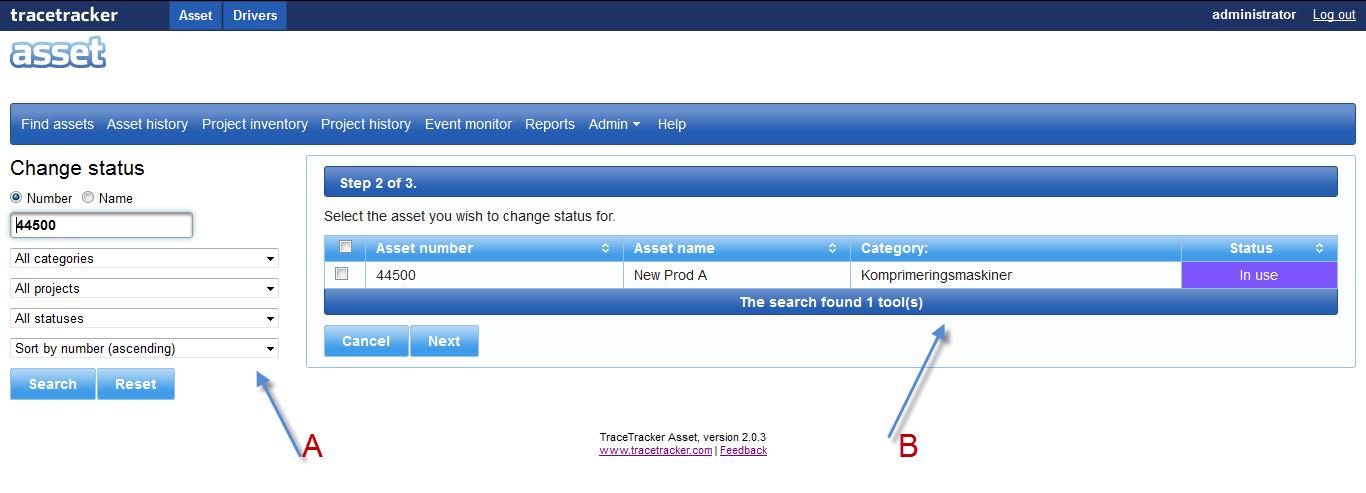 |
|The status of the asset is changed from “Available” to “In Use”.