
Authority
Coffee Authority
a) Launching
Open Mozilla-Firefox and type “https://demo-ct.tracetracker.com”.
b) Login
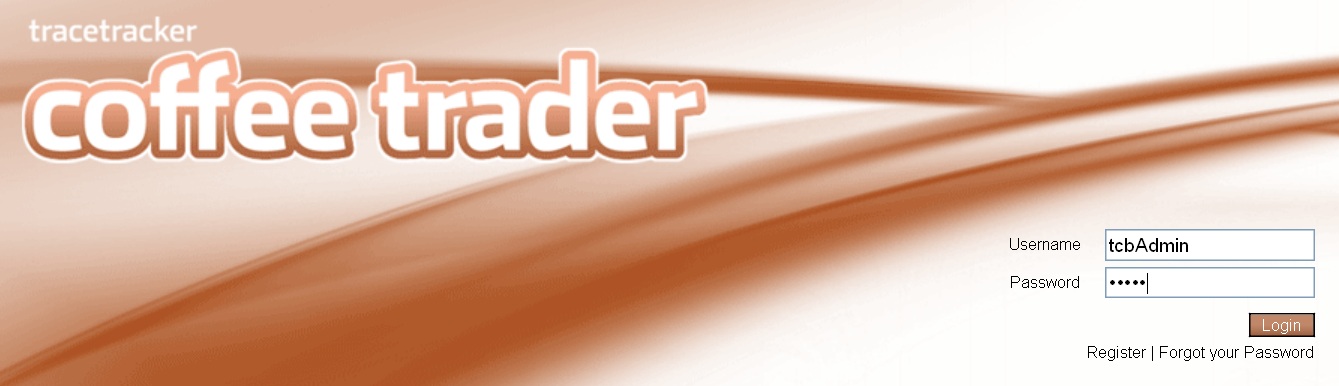
i) Enter your username and password then click on Login.
ii) Click on cancel it clears the username and password fields/text boxes.
a) Process
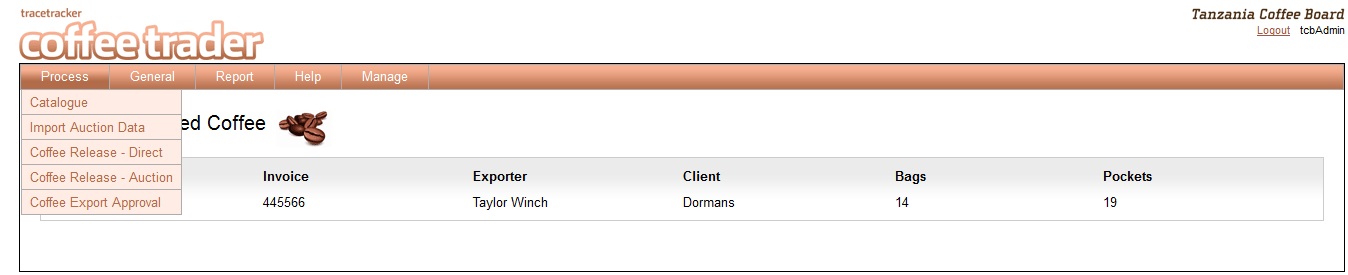
i) The menus are located on the top; they assist the users to navigate through the application.
ii) Menus arranged under
- Process
- General
- Reports
- Views
Catalogue
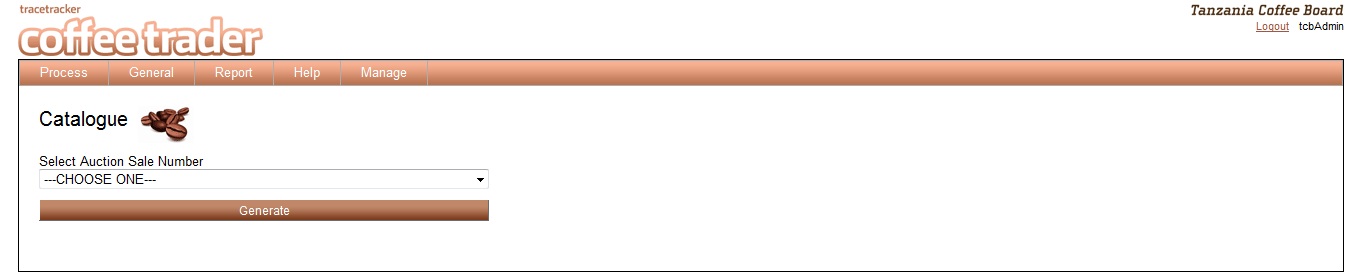
The page is used to generate an auction catalogue in Excel.
Import Auction Data
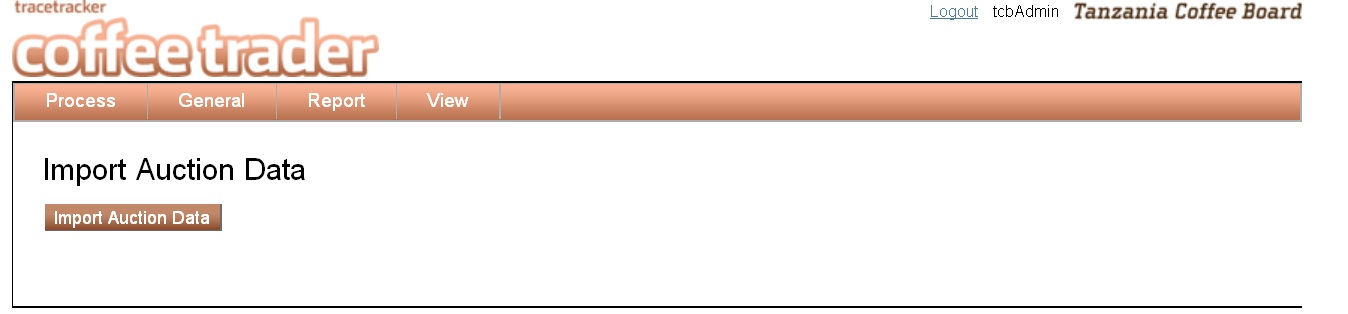
The page is used to import data from the auction system into the Coffee Trader application.
Coffee Release - Direct
Coffee release direct is the step where the exporter records details for release of coffee for Direct Export
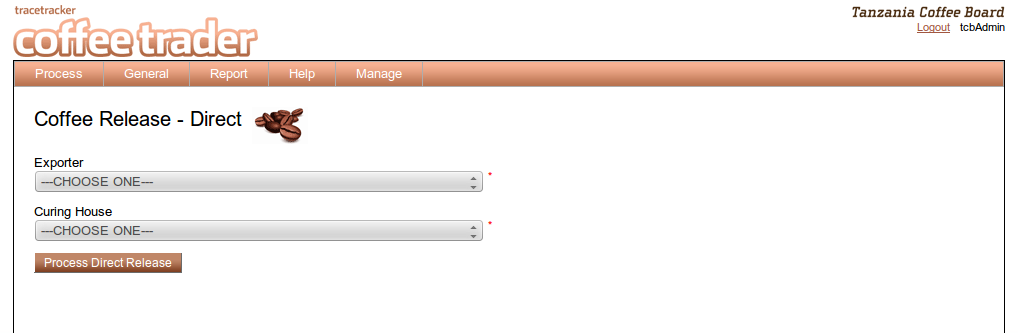
Then Next Page
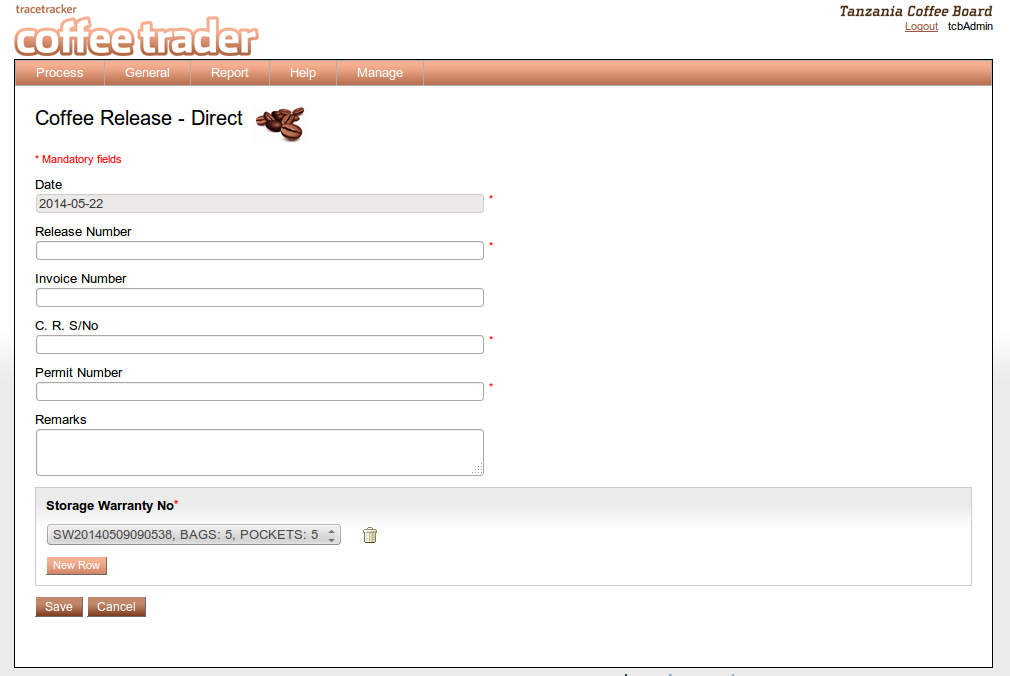
- Select the date by clicking inside the Date field. The default date displayed is of the present day.
- Enter the “Release Number”.
- Enter the “Invoice Number”.
- Enter the “C.R S/No”.
- Enter the “Permit Number”.
- Select the “Exporter”, from the drop down menu.
- Select the “Curing House”, from the drop down menu.
- Enter the “Remarks”.
- Select the “Lot Number”.
- If you want to add more click on “new row”.
- When done click on the “save” button.
- If the data has been wrongly entered you will get an error message as shown below
Validation on input.
- “Date“will accept the date format.
- “Release number“ will accept numeric values
- “Invoice Number“will accept numeric values.
- “C.R. S/No“ will accept numeric values only
- “Permit number“ will accept only numeric values
- “Exporter” will text values
- “Curing house“ will accept text
- “Remarks“ will accept alpha numeric values
If wrong input is entered an error message is loaded.
Coffee Release - Auction
Coffee release form enables the user to record details for release of coffee as a result of auction process
- Select the date by clicking inside the Date field. The default date displayed is of the present day.
- Enter the “Release Number”.
- Enter the “Invoice Number”.
- Enter the “C.R S/No”.
- Select the “Auction sale number”
- Select the “Exporter”, from the drop down menu.
- Select the “Curing House”, from the drop down menu.
- Enter the “Remarks”.
- Select the “Lot Number”.
- If you want to add more click on “new row”.
- When done click on the “save” button.
- If the data has been wrongly entered you will get an error message as shown below
Validation on input.
- “Date“will accept the date format.
- “Release number“ will accept numeric values
- “Invoice Number“will accept numeric values.
- “C.R. S/No“will accept numeric values.
- “Auction number“will accept only numeric values.
- “Exporter“wills text values.
- “Curing house“ will accept text
- “Remarks“will accept alpha numeric values.
If wrong input is entered an error message is loaded.
Export Permit Application
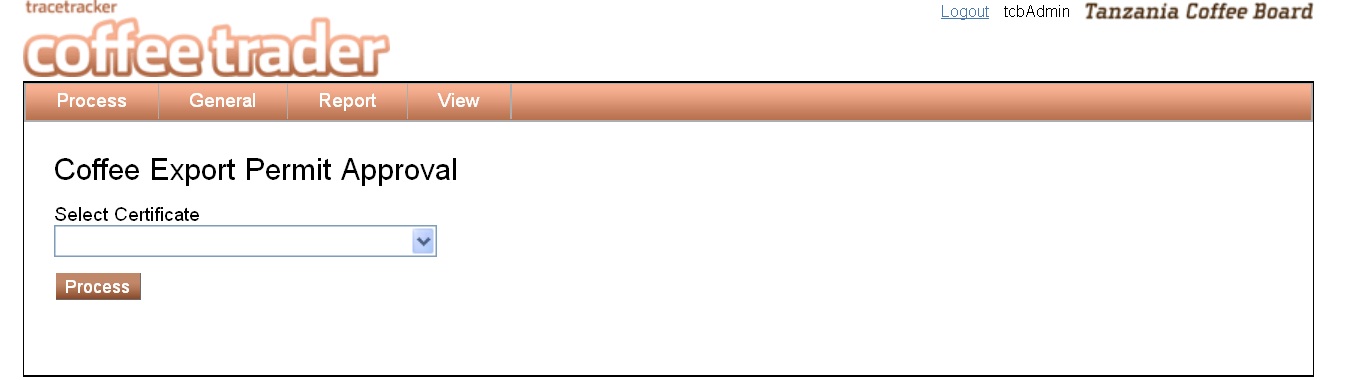
This screen is used to apply for an export permit. To get started, select an outgoing shipment and press the Apply button. Then select date of application and click Save. The application is then opened as a PDF, and also sent directly to TCB for export approval. TCB later generates the export permit approval, signs it and sends it back to the exporter.
General
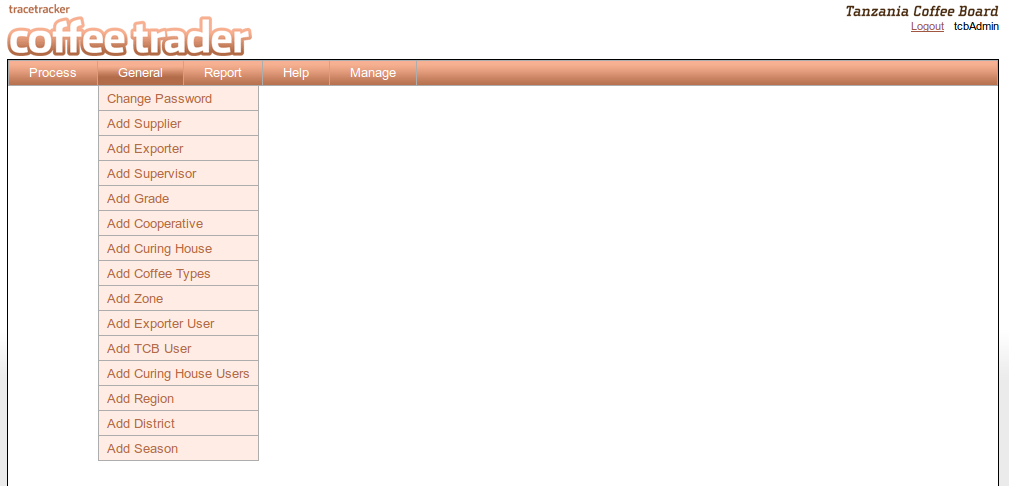
This section consists of standing data. This data does not change often eg register supplier, exporter, curing house, supervisor, supplier, coffee grade, cooperative, coffee type and zone.
You can only define the data once in the system and the data will be available automatically during transactions.
Supplier Registration
The supplier registration form provides the TCB users with the opportunity to register the supplier‘s basic information as shown below.
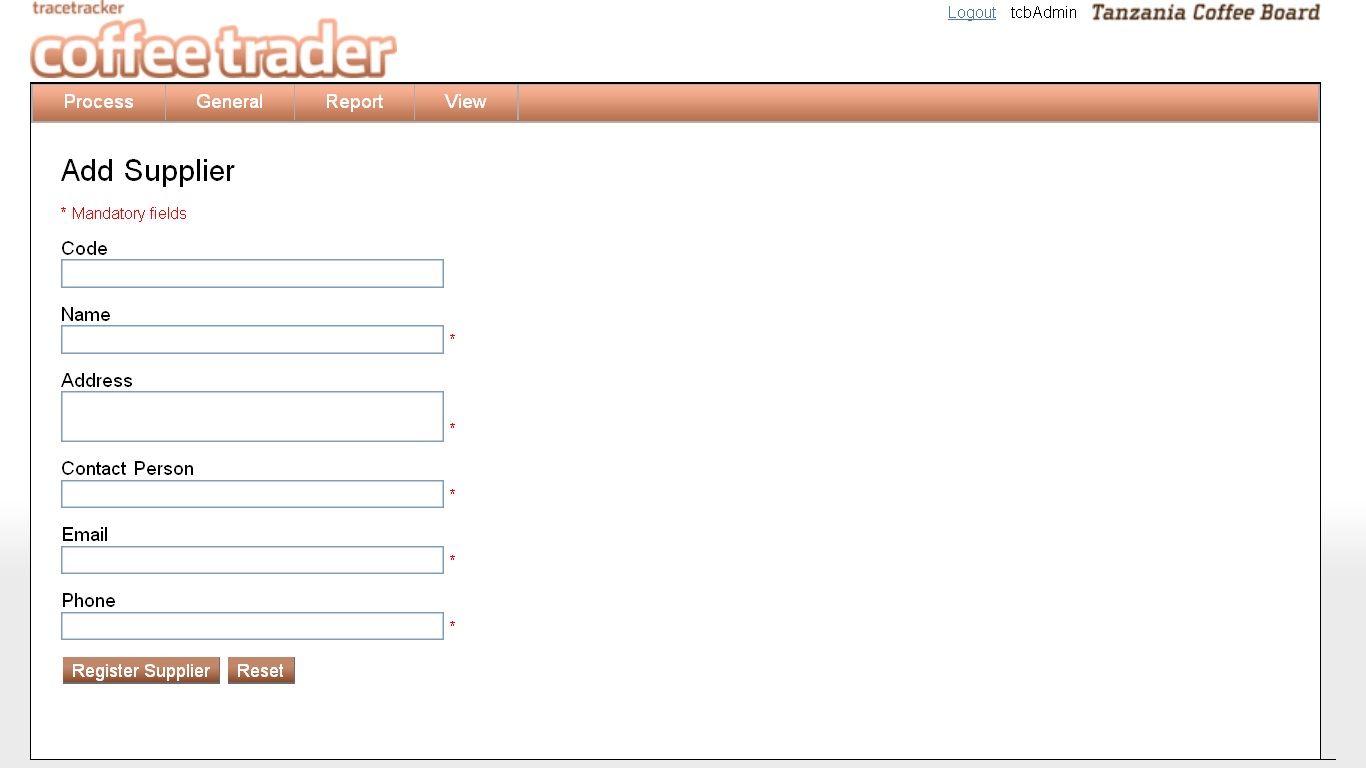
- Enter the suppliers Name.
- Enter the suppliers Code.
- Enter the “address“where, he/she is located.
- Enter the Suppliers”contact person”.
- Enter the supplier’s “Email Address”
- Enter the supplier’s “Phone Number”.
- When the details are all entered, click “Register Supplier”.
- The “Reset” button clears everything from the page.
- If the details aren’t entered correctly, an error message is displayed, as shown below
Validation on input.
- “Suppliers name” will accept text values.
- “Supplier Code” will accept only numeric values.
- “Address” will only accept numeric values.
- “Contact person” will accept text values.
- “Email Address” will accept the email format e.g. wewe@arusha.com
- “Phone Number” will only accept numeric values.
If wrong input is entered an error message is loaded on the screen.
Exporter Registration
The exporter registration form provides the TCB users with the opportunity to register the Exporters basic information as shown below.
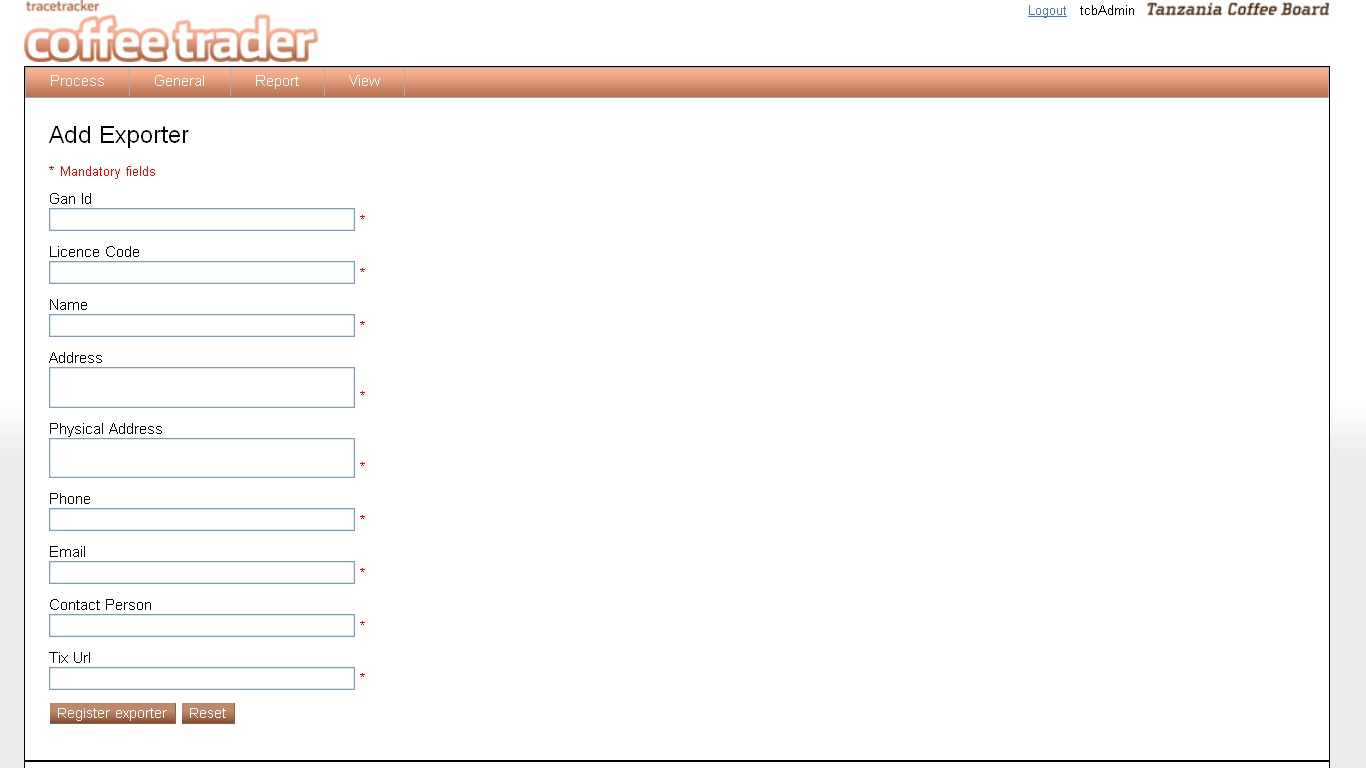
- Enter the exporters “GAN ID” – Global Access Node.
- Enter the exporters “License Code”
- Enter the exporters “Name”.
- Enter the “address” where, the exporters are located.
- Enter the “phone number”.
- Enter the “Contact Person”
- Enter the “Tix Url”
- Enter the staff code.
- When the details are all entered, click “Register Exporter”.
- The “Reset” button clears everything from the page.
- If the details aren’t entered correctly, an error message is displayed, as shown below
Validation on input.
- “GAN Id” will accept only numeric values.
- “License Code” will accept only numeric values.
- “Exporter name” will accept only text values.
- “Address” will only accept numeric values.
- “Phone Number” will only accept numeric values.
- “Contact person” will accept text values.
- “Email Address” will accept the email format e.g. wewe@arusha.com
- h. “TIX Url” will only accept url format e.g. http://arusha.com
If wrong input is entered an error message is loaded on the screen.
Coffee Grade Registration
The coffee grade registration form provides the TCB users with the opportunity to register the coffee grade basic information as shown below.
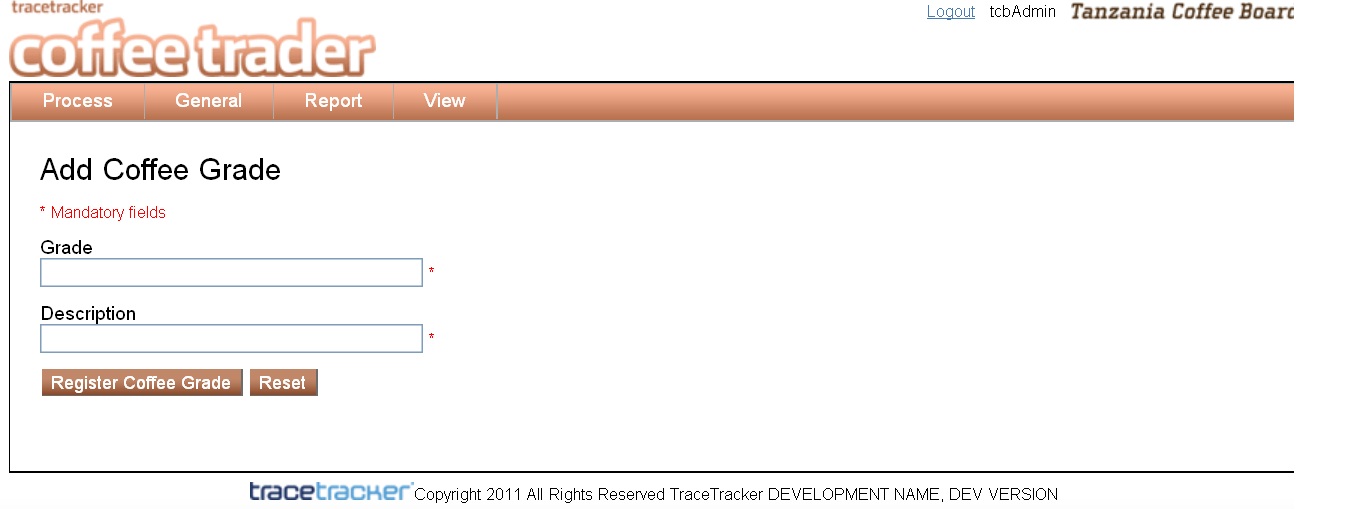
- Enter the “Grade Name” – Name of the grade.
- Enter the “Description” – what the grade is composed of.
- When the details are all entered, click “Register coffee Grade”.
- The “Reset” button clears everything from the page.
- If the details aren’t entered correctly, an error message is displayed, as shown below.
Validation on input.
- “Grade Name” will accept text values.
- “Description” will accept both text and numeric values.
If wrong input is entered an error message is loaded on the screen.
Co-operative Registration
The cooperative registration form provides the TCB users with the opportunity to register the cooperative basic information as shown below.
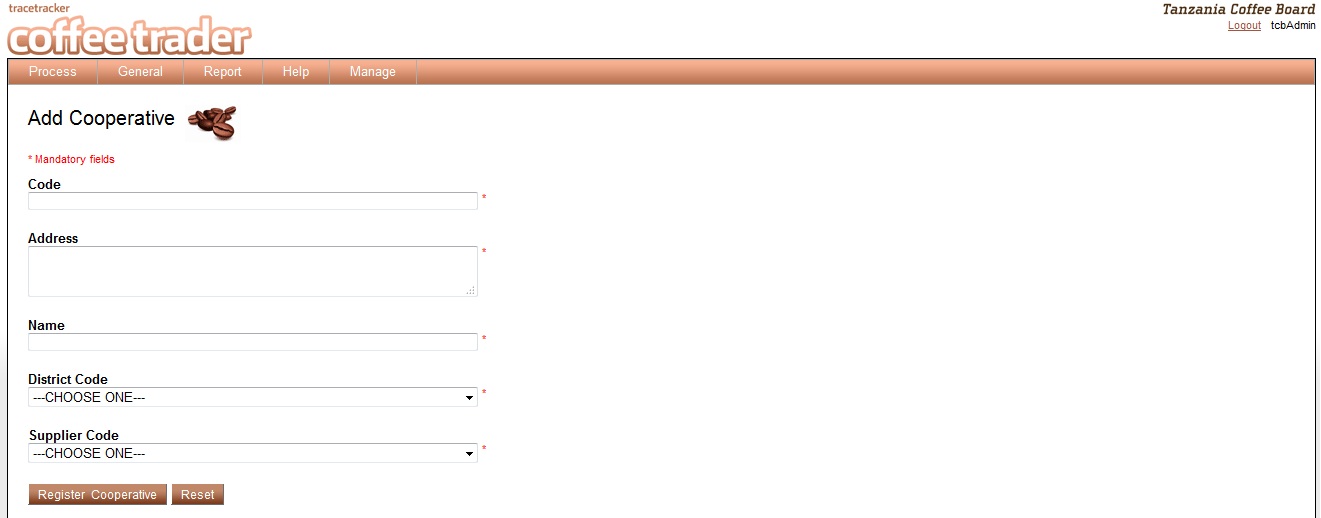
- Enter the “Code” – Code number of the cooperative.
- Enter the “Name” – Name of the cooperative.
- Enter the “Address” – Address of the cooperative.
- Select the “Supplier”
- Select the District where the cooperative is located.
- When the details are all entered, click “Register cooperative”.
- The “Reset” button clears everything from the page
- If the details aren’t entered correctly, an error message is displayed, as shown below.
Validation on input.
- “Code” will accept numeric values
- “Address” will accept both text and numeric values.
- “District” will accept both text and numeric values.
If wrong input is entered an error message is loaded on the screen.
Coffee Type Registration
The coffee type registration form provides the TCB users with the opportunity to register the coffee type basic information as shown below.
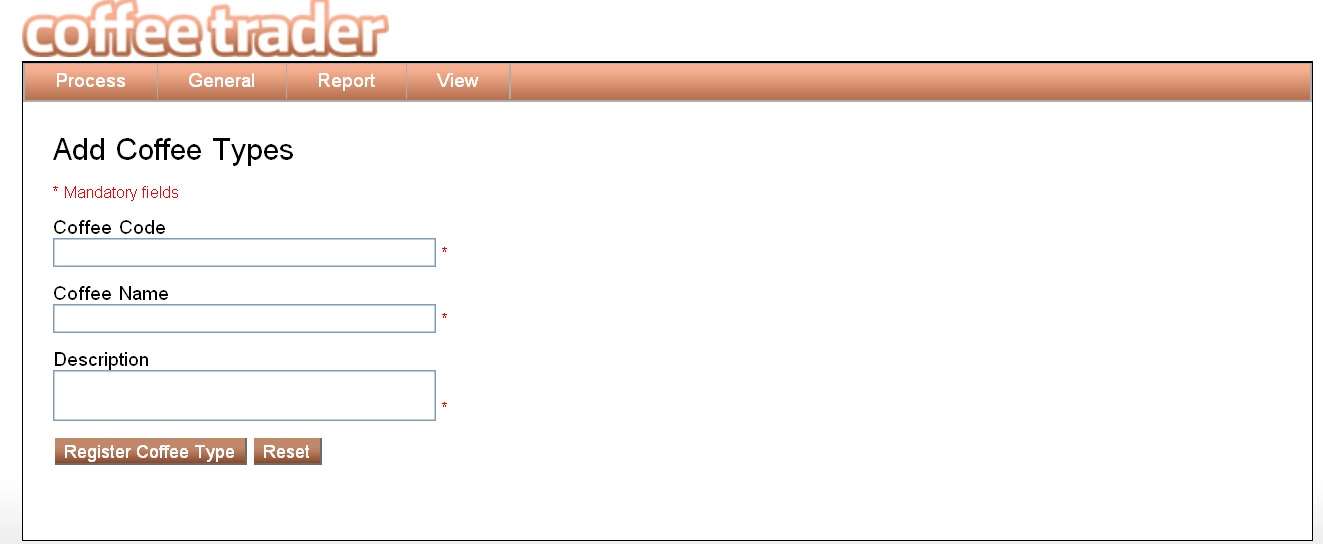
- Enter the “Coffee Type Code”
- Enter the “Coffee Name”.
- Enter the “Description”
- When the details are all entered, click “Register Coffee Type”.
- The “Reset” button clears everything from the page
- If the details aren’t entered correctly, an error message is displayed, as shown below.
Validation on input.
- “Coffee Type Code” will accept only numeric values.
- “Coffee name” will accept text values.
- “Description” will alpha numeric values.
If wrong input is entered an error message is loaded on the screen.
Zone Registration
The zone registration form provides the TCB users with the opportunity to register the zone ‘s basic information as shown below.
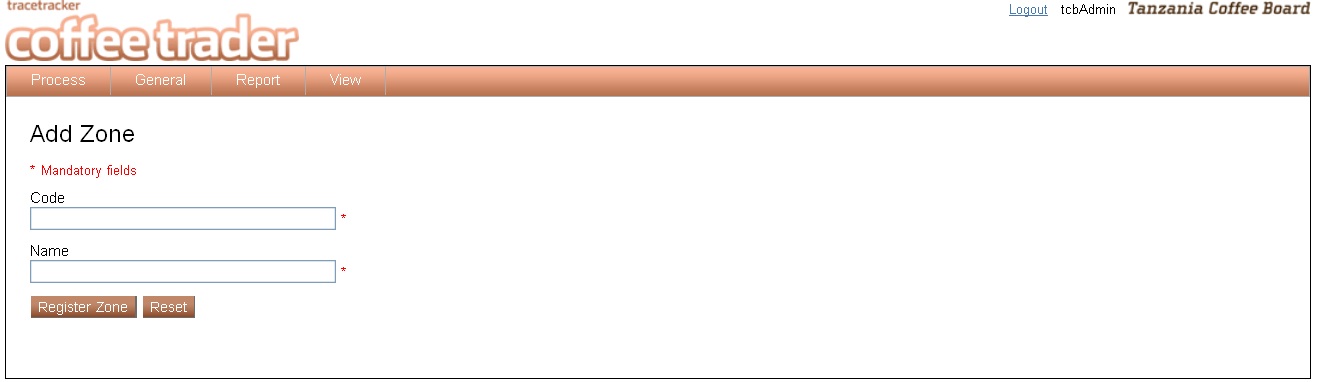
- Enter the Zone “Code”
- Enter the “Name” of the Zone.
- When the details are all entered, click “Register Zone”.
- The “Reset” button clears everything from the page
- If the details aren’t entered correctly, an error message is displayed, as shown below.
Validation on input.
- “Zone Code” will accept only numeric values.
- “Zone name” will accept text values.
If wrong input is entered an error message is loaded on the screen.
Coffee Authority User Registration
This screen allows registration of the Coffee Authority users; these are users who will be able access the Coffee Authority module only.
These users can only be registered by the Coffee Authority administrator.
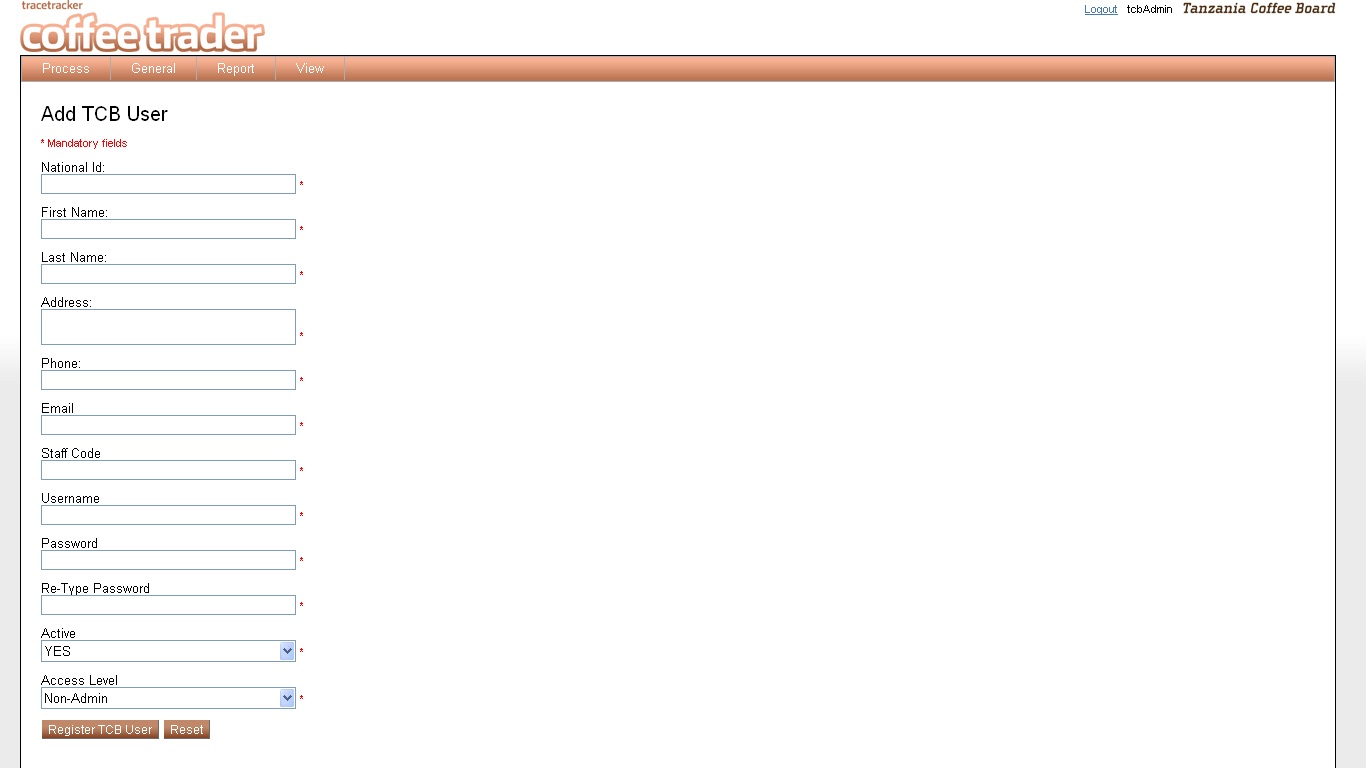
- Enter the TCB User “National Identification Number”.
- Enter the TCB User “First Name”.
- Enter the TCB User “Last Name”.
- Enter the “address” where, he/she is located.
- Enter the “phone number”.
- Enter the “staff code”.
- Enter the “username” that the user will be using to log in into the system.
- Enter the “Password”.
- Re-type the “Password”
- Select “active or not active”, if not active the curing house will not be able to log in into the system.
- Select the “access level” – if admin the user will be able to view all pages, non-admin the user will not be allowed to view some pages
- When the details are all entered, click “Register Curing house user”.
- The “Reset” button clears everything from the page.
- If the data has been correctly or incorrectly entered you will get a message as shown below.
Validation on input.
- “National Identification Number” will accept only numeric values.
- “First Name” will accept only text values.
- “Last Name” will accept only text values.
- “Address” will only accept numeric values.
- “Phone Number” will only accept numeric values.
- “Staff Code” will only accept alpha numeric values.
- “user name” will accept text values
- “Password” will accept alpha numeric values.
If wrong input is entered an error message is loaded on the screen.