
Master Data Service User Guide
The TraceTracer Master Data Service (TTMDS) is an EPCIS compatible master Data Service. Technically, TTMDS is a JavaEE application, ready to run in JEE compatible application servers. Currently, only JBoss is supported.
TTMDS has three different web interfaces associated with it:
- A REST based API for query and capture
- A SOAP based API for query and capture
- A web browser application called the “TTMDS Console”, used for management of TTMDS and for query and capture
In this guide we assume a basic knowledge of the EPCIS specification and the master data model, including concepts like Vocabularies, VocabularyElements, and Attributes.
In addition to the functionalities described in the EPCIS specification, TTMDS provides functionality for:
- Administering role based access control
- Utilizing Master Data Definitions. An MDD file is a set of meta data that imposes restrictions on the data that can be uploaded to the service.
- Built in support for ownership of data. This is especially useful in situations where several organizations share a common Master Data Service.
TTMDS Console
The TTMDS Console provides a simple to use graphical user interface for the Master Data Service. It includes functionality for capturing and querying maser data documents. There is also an option for validating documents against schema and MDD without uploading anything to the service. Finally, for administrators the Console has an interface for administering access control.
Home
The Home page holds some useful information about the data in the service and the user who is currently logged in.
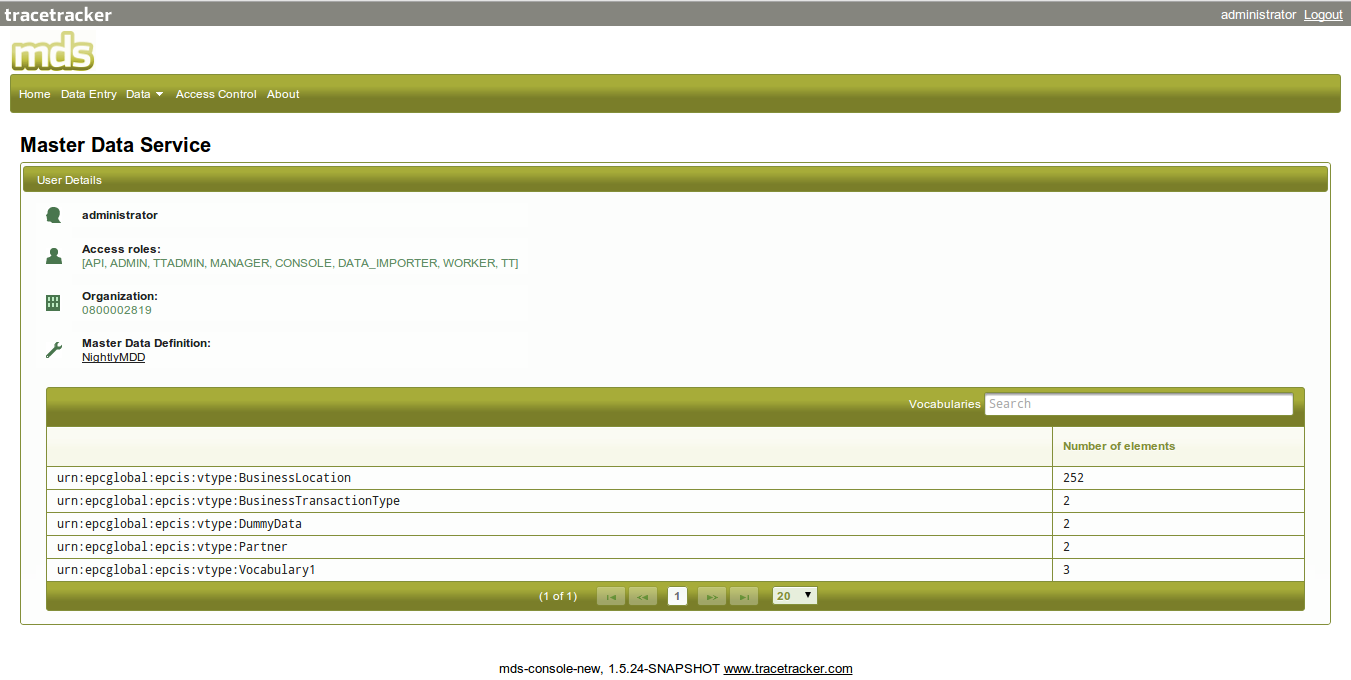
The Home page of the TTMDS Console.
The information on the page is largely self explanatory. It includes the user name and organization of the currently logged in user as well as a list of all the roles he/she has been assigned. Also displayed is the label of the MDD that is installed in the TTMDS. If you are logged in as an administrator, the label of the MDD will be a link that allows you to download the current MDD. Finally there is a list of all the vocabularies that have been uploaded and how many elements are contained in each. Clicking on a vocabulary navigates to the detailed data entry page.
Data Entry
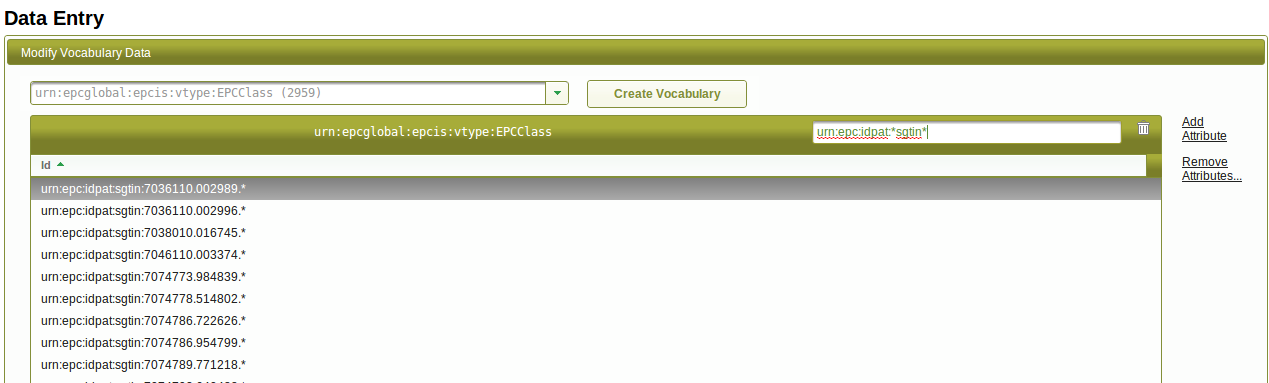
The data entry page shows a list of all vocabulary elements for a given selected vocabulary. On the top right of the table containing the vocabulary elements is a text field that can be used to filter
by id the vocabulary elements to be shown. The search filter accepts wildcard searching so, search terms like "urn:*", "urn:*:sample" are acceptable. After typing in your search term, press enter to initiate the search/filter.
Validate
The Validate page can be used to validate an EPCISMasterDataDocuments, MDDs and RBAC XML against their respective schemas. In the case of EPCISMasterDataDocuments, they will also be validated against the current MDD. There are three available methods for providing the XML; as a URL, as an uploaded file and by inputting it directly. In this figure the last method is shown.
The validate page is available via the Data>Validate menu.
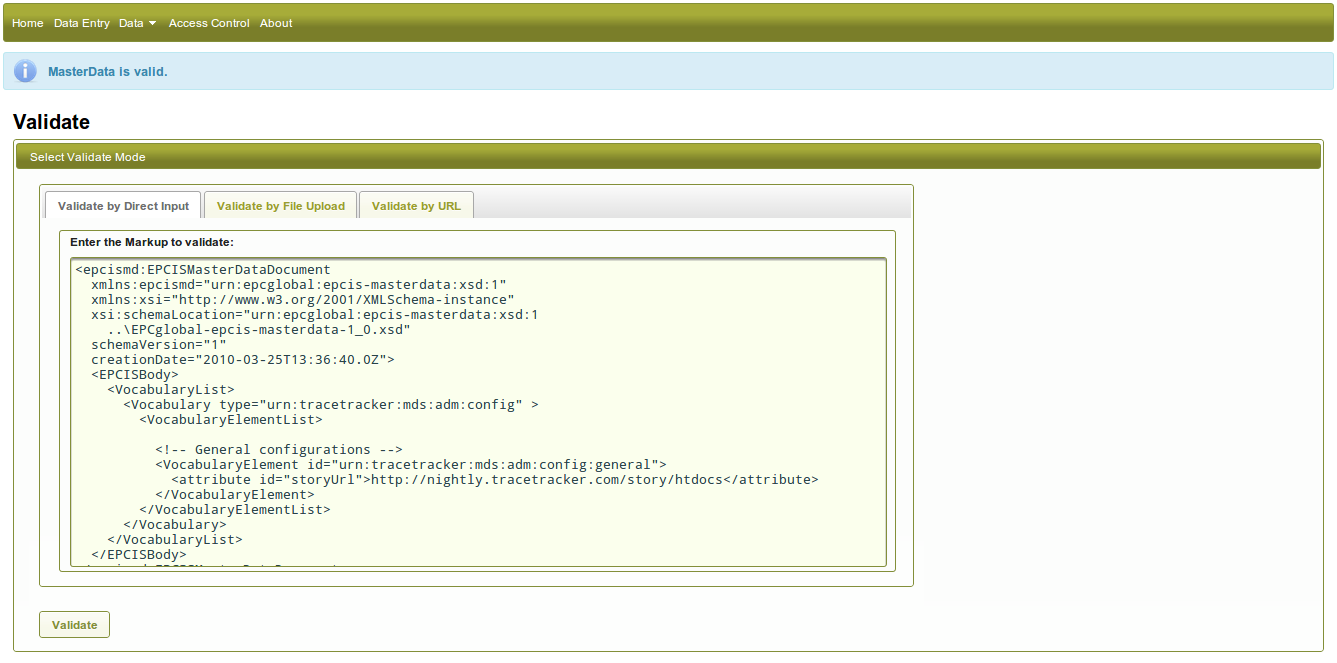
The Validate page of the TTMDS Console.
To validate a document, provide the XML file using the method you prefer and press the “Validate” button. If the document is valid, a message will appear stating this. If the document contains validation errors, a message will appear with line and column numbers describing where in the document the syntax errors are. This is what is shown in the foregoing figure. If the document is an EPCISMasterDataDocuments and fails validation against the MDD, a message will appear stating for instance that the vocabulary is not permitted or that some elements are missing required attributes.
Schemas used:
Capture
The Capture tab is used for uploading master data that is to be persisted in the TTMDS. As with the Validation tab, the Capture tab has three methods for inputting XML: by URL, by uploading a file, and by inputting it directly. In this figure the capture by File Upload method is shown. After every capture, the result of the capture will be displayed for you to see in the "Capture results" section, as shown below.
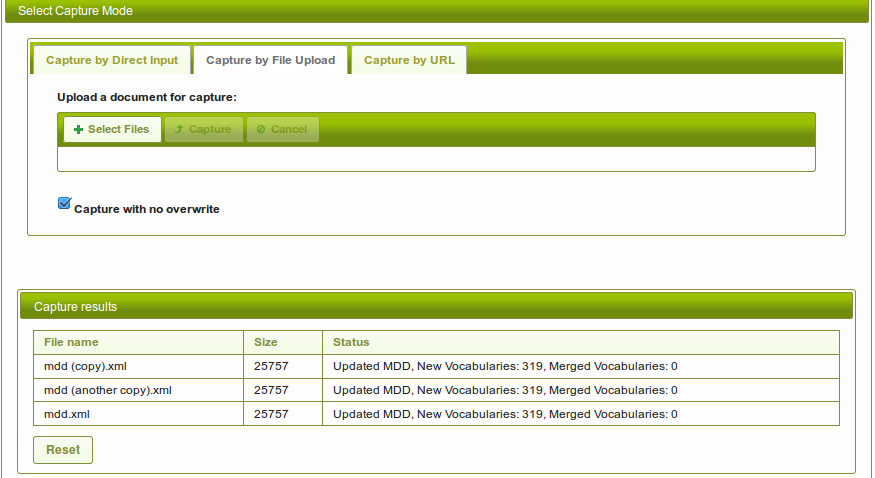
Capture page of the TTMDS Console.
To capture an EPCISMasterDataDocument, supply the XML using the preferred method and press the “Capture” button. The document will only be captured if the XML is valid against schema and MDD. If it is not, a message will appear like described in section Validate. If there are no validation errors, a message will appear stating that the document was successfully captured. And some statistics are given showing how many elements were captured to each vocabulary.
Fetching Files with Authentication Required
If the file you intend to capture is provided by a site that require basic authentication, this is how your URL should be supplied:
https://username:password@site.com/target/file.xml
Capture without overwrite
By checking off the box labeled "Capture with no overwrite", it is possible to only capture data that is new. If the document being captured contains elements that are already present in the MDS, these will not be overwritten.
Overriding organization
It is possible to specify the organizational ownership of VocabularyElements in the XML. If it is not, the vocabularyElements are assumed to belong to the organization of the user performing the capture. By selecting an organization from the drop-down menu labeled "override organization" it is possible to specify an organization for all the vocabularyElements being captured regardless of what is specified in the XML, or what organization the vocabularyElements belong to if they already exist in the MDS. Note that the user still have to have access rights to perform capture on behalf of the selected organization. Alternatively the user must have administer privileges.
Capture with Auto incremented Id
It is possible to use auto incremented ids in TTMDS. All that is needed is to use the special keyword ((tt_autoid)) in the id of a VocabularyElement. Upon capture that keyword will be replaced by the next available number.
Each combination of some text and the keyword will yield a unique series of incrementing numbers. By using just ((tt_autoid)) you will get ids on the form 1, 2, 3 and so on. While using for instance urn:tracetracker:((tt_autoid)).* will produce ids like urn:tracetracker:1.*, urn:tracetracker:2.*, urn:tracetracker:3.* etc.
If for some reason a generated id already exists in the MDS, then the auto increment id will skip to the next available number to avoid overwriting data.
The progress of each series of incrementing numbers is stored in the configuration vocabulary. A user with administrator privileges will be able to edit this data to, for instance make the incrementing numbers start at 1000.
Query
The queries used to fetch data from TTMDS are formulated using a special XML syntax. The format of this XML is defined by the EPCIS specification. Here is a simple example of such a query:
<?xml version="1.0" encoding="UTF-8" standalone="yes"?>
<epcisq:Poll xmlns:epcisq="urn:epcglobal:epcis-query:xsd:1"
  xmlns:xsi="http://www.w3.org/2001/XMLSchema">
  <queryName>SimpleMasterDataQuery</queryName>
  <params>
    <param>
      <name>includeAttributes</name>
      <value>true</value>
    </param>
    <param>
      <name>includeChildren</name>
      <value>true</value>
    </param>
  </params>
</epcisq:Poll>
The above example shows a SimpleMasterDataQuery. An ExtendedMasterDataQuery is also available in TTMDS. This extra interface has more
As with the Validate and Capture tab, the Query tab has three options for supplying XML: by URL, by file upload and by inputing it directly. In this figure the file upload method is shown.
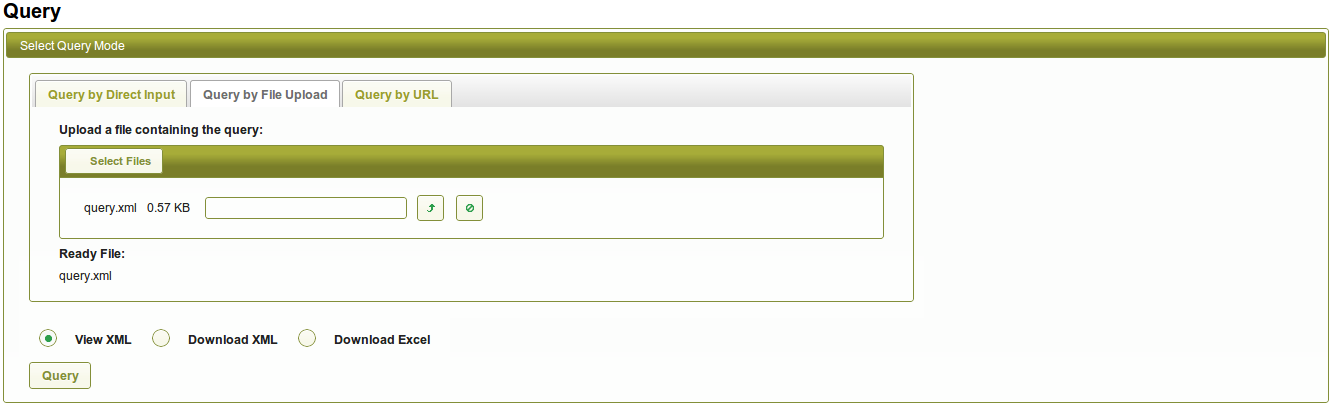
Query page of the TTMDS Console.
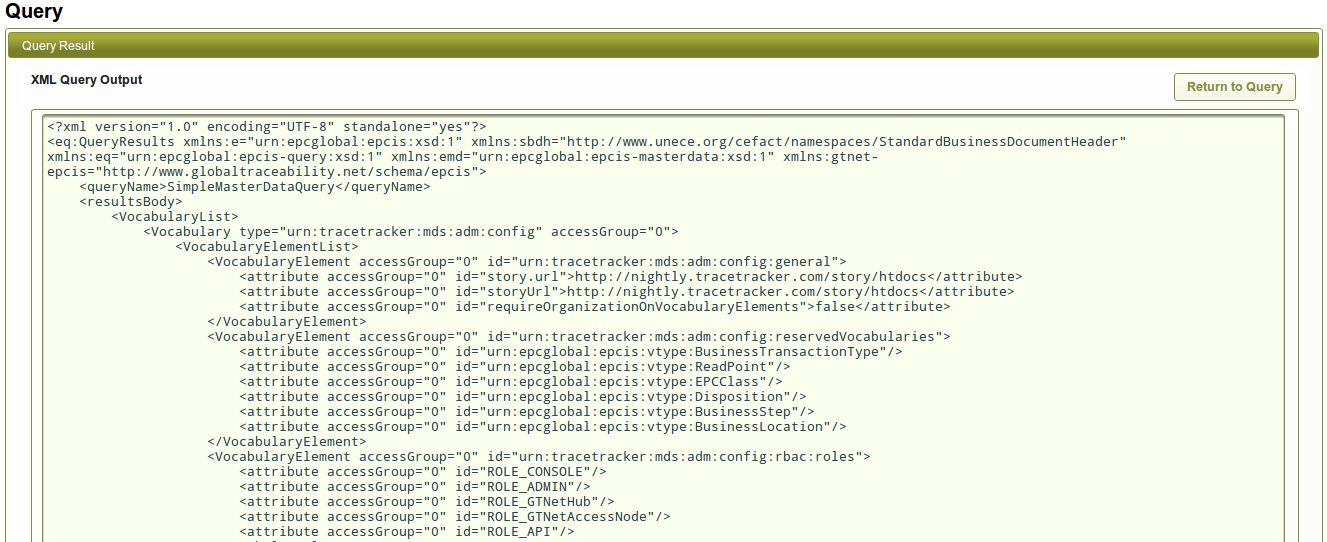
To perform a query, supply the XML using the preferred method and press the “Query” button. The result of the query will appear as is shown in the figure below. If the XML making up the query has validation errors, an error message will instead be shown much like in section Validate section. Multiple files can be selected to be uploaded but only one file at a time can be used to query the MDS. The File shown as ready will be applied in the query button.
TTMDS supports three different formats for the result of a query. the desired format can be selected using the radio buttons on the query tab of the console.
- View XML - The XML with the result of the query is printed on screen in the console.
- Download XML - A prompt is given with the option to save or open the XML file in an appropriate application.
- Download Excel - Returns the result of the query in MIcrosoft Excel format. A prompt is given with the option to save or open the excel file in an appropriate application.
For the first option (default), a typical results window is shown below.
Ordering of Attributes in Excel
When getting a query result as Excel each row represent a VocabularyElement, and the columns are the attributes. The order the columns can be controlled using a dictionary. A dictionary is just a normal VocabularyElement located in the urn:tracetracker:mds:adm:dictionary vocabulary. See example below.
<Vocabulary type="urn:tracetracker:mds:adm:dictionary"> <VocabularyElementList> <VocabularyElement id="urn:gtnet:person"> <attribute id="id" sortIndex="1" /> <attribute id="name" sortIndex="2" /> <attribute id="address" sortIndex="3" /> <attribute id="phone" sortIndex="4" /> </VocabularyElement> </VocabularyElementList></Vocabulary>The above example illustrates that any VocabularyElement in the urn:gtnet:person vocabulary will have its attributes sorted in the following order; id, name, address and phone.
- Additional attributes not mentioned in the dictionary will appear towards the end.
- If one of the attributes mentioned in the dictionary is not present in any of the elements of the result, that attribute will be omitted from the excel sheet.
- If there is a gap in the numbering of the sortIndexes, the result will be truncated. I.e. there will be no empty columns in the excel sheet.
- If some of the attributes in the dictionary have identical sortIndex, ordering of those attributes is undefined. They will still be grouped together relative to the other attributes having higher or lower sortIndex.
- If an attribute is missing sortIndex or the sortIndex has a value which is not a number, the ordering of that attribute is undefined.
Data Dictionary.
The MDS is capable of storing dictionary data similar to what GS1 uses. See http://apps.gs1.org/GDD/SitePages/Home.aspx.
Entries in the dictionary are essentially meta data to master data. They are definitions of things that are common across several sets of master data. An example is address; In master data is stored the actual addresses of people or businesses, while the dictionary specifies things like an address have to have a street name, a postal code and a country code, and it can have a POBox number etc. In addition the dictionary can be used for validation of master data. For instance that the value of certain attributes conform to a type, or that the occurrence of certain attributes are required or optional.
The following is an example of dictionary entries describing master data for organizations.
<Vocabulary type="urn:tracetracker:dictionary"> <VocabularyElementList> <VocabularyElement id="Organisation"> <!-- Every entity in the dictionary have name, definition and subtype. --> <attribute id="dictionary:name">Organisation</attribute> <attribute id="dictionary:definition">An entity pursuing collective goals, such as a business, government body, department, charity, or financial institution. </attribute> <attribute id="dictionary:subtype">CLASS</attribute> <!-- All attributes have a type, some are "primitive" such as string while others are complex and have to be defined as a dictionary entry themselvs. All attributes have a cardinality describing minimun and maximun occurence. --> <attribute id="organizationName" type="string" cardinality="1..1"></attribute> <attribute id="officialAdress" type="Address" cardinality="0..1"></attribute> <attribute id="legalStructure" type="Description80" cardinality="0..1"></attribute> <attribute id="issuedCapital" type="Amount" cardinality="0..1"></attribute> <attribute id="legalRegistration" type="LegalRegistration" cardinality="0..*"></attribute> <!-- Children relation might be useful for complex types in order to resolve the elements in the database. This need not be included in the result when querying the dictionary. --> <children> <id>Address</id> <id>Amount</id> </children> </VocabularyElement> <VocabularyElement id="Address"> <attribute id="dictionary:name">Address</attribute> <attribute id="dictionary:definition">The location at which a particular organization or person may be found or reached. </attribute> <attribute id="dictionary:subtype">CLASS</attribute> <attribute id="city" type="string" cardinality="0..1">Text specifying the name of the city.</attribute> <attribute id="cityCode" type="string" cardinality="0..1">Identifier for a city, expressed as a short code rather than the full name</attribute> <attribute id="countryCode" type="CountryCode" cardinality="0..1"></attribute> <attribute id="countyCode" type="string" cardinality="0..1"></attribute> <attribute id="crossStreet" type="string" cardinality="0..1"></attribute> <attribute id="currencyOfPartyCode" type="CurrencyCode" cardinality="0..1"></attribute> <attribute id="languageOfThePartyCode" type="LanguageCode" cardinality="0..1"></attribute> <attribute id="name" type="string" cardinality="0..1"></attribute> <attribute id="pOBoxNumber" type="string" cardinality="0..1"></attribute> <attribute id="postalCode" type="string" cardinality="0..1"></attribute> <attribute id="provinceCode" type="string" cardinality="0..1"></attribute> <attribute id="state" type="string" cardinality="0..1"></attribute> <attribute id="streetAddressOne" type="string" cardinality="0..1"></attribute> <attribute id="streetAddressThree" type="string" cardinality="0..1"></attribute> <attribute id="streetAddressTwo" type="string" cardinality="0..1"></attribute> <attribute id="geoPosition" type="GeographicalCoordinates" cardinality="0..1"></attribute> <children> <id>CountryCode</id> </children> </VocabularyElement> <VocabularyElement id="GeographicalCoordinates"> <attribute id="dictionary:name">GeographicalCoordinates</attribute> <attribute id="dictionary:definition">The longitude and latitude of a geographical location.</attribute> <attribute id="dictionary:subtype">CLASS</attribute> <attribute id="latitude" type="string" cardinality="1..1"></attribute> <attribute id="longitude" type="string" cardinality="1..1"></attribute> </VocabularyElement> <VocabularyElement id="CountryCode"> <attribute id="dictionary:name">CountryCode</attribute> <attribute id="dictionary:definition">Code specifying a country. Allowed code values are specified in GS1 Code List CountryCode. </attribute> <attribute id="dictionary:subtype">CODE_LIST</attribute> <!-- A very incomplete code list --> <attribute id="NO">Norway</attribute> <attribute id="SE">Sweden</attribute> <attribute id="BG">United Kingdom</attribute> </VocabularyElement> <!-- Definition of a base datatype. Might be to low level for us. --> <VocabularyElement id="string"> <attribute id="dictionary:name">String</attribute> <attribute id="dictionary:definition">Represents character strings in XML.</attribute> <attribute id="dictionary:subtype">DATATYPE</attribute> </VocabularyElement> </VocabularyElementList></Vocabulary>Capture of dictionary data is performed in the same was as capture of normal master data. However additional validation errors will be given if the data does not conform to the dictionary structure. The dictionary data can be queried through SimpleMasterDataQuery, but there is also a separate endpoint with parameters tailor made for querying the dictionary. See the API documentation page for a descripton of this endpoint.
Access control
The Access Control tab is used for administering access control for the TTMDS. Note that this tab is only visible if the users is logged in with an account that has administration rights. Please see the Master Data Service Administration Guide for how to administer access control.
TTMDS Data Management API
The TTMDS contains a REST and SOAP data management web service API which makes it possible to both query and capture master data from various clients. The API itself can be found at http://<server>:<port>/mds/api/.
See screen below.
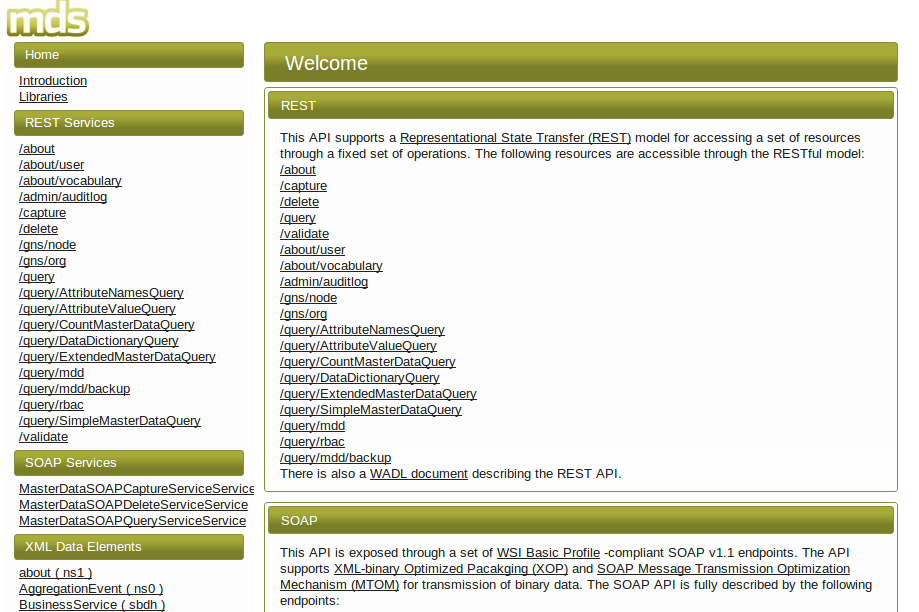
The homepage of the TTMDS Data Management API.
The TTMDS Data Management API homepage consists of a menu to the left and a detailed description of each menu item to the right when the links are clicked.
- Home
- Introduction
- Libraries: A set of client libraries and examples for various languages that can be used to utilize the REST and SOAP API’s.
- REST Services
- /capture: The REST capture service which makes it possible to add master data to the TTMDS. Use header "nonOverwrite: true" to capture data in the non overwrite mode.
- /query/SimpleMasterDataQuery: The REST query service which makes it possible to query master data from the TTMDS.
- SOAP Services
- EPCISServicePortTypeService: The SOAP capture service which makes it possible to add master data to the TTMDS. A WSDL is made available in the detailed description area to the right that can be used in various tools like http://www.soapui.org/ to test the SOAP web service.
- MasterDataSOAPCaptureServiceService: The SOAP query service which makes it possible to query master data from the TTMDS. A WSDL is made available in the detailed description area to the right that can be used in various tools like http://www.soapui.org/ to test the SOAP web service.
- XML Data Elements and XML Data Types: The items in these categories are divided into elements and types. Types define the structure of the data. Elements define specific instances of the types, and are therefore more relevant to REST endpoints, which generally consume and/or produce elements.