
Logging On To The User Console
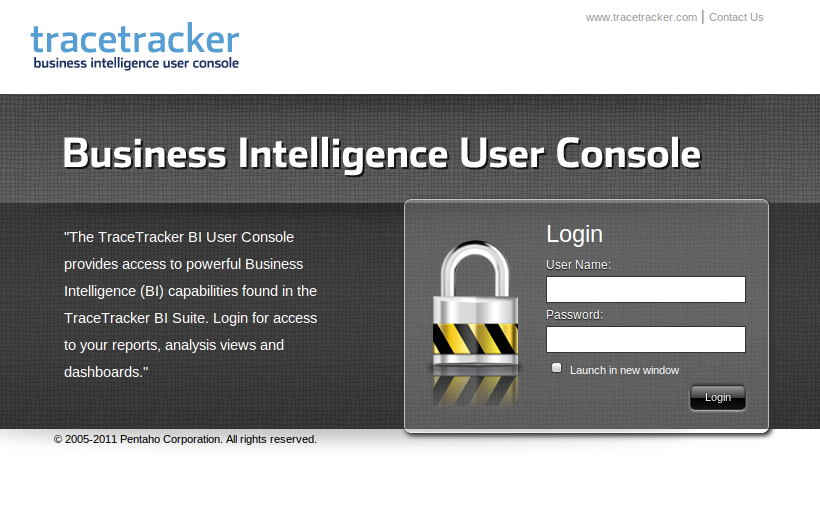
The TraceTracker BI Platform User Console is a web-based application that requires login. Opening the URL to the User Console in your prefered browser, will take you to the following login page:
After login, you will see the Welcome page.
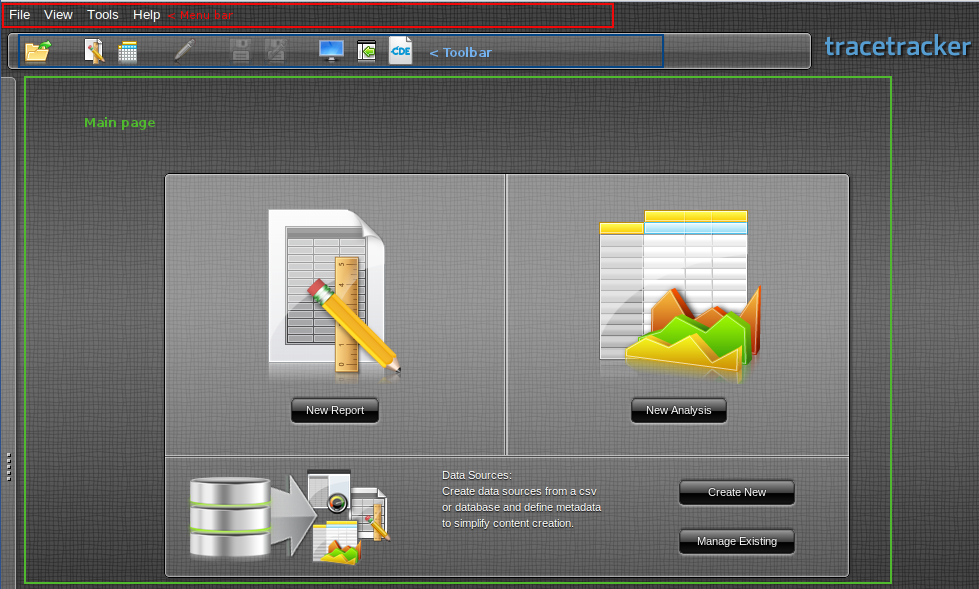
User Console main elements
When browsing the User Console, there will always be 3 main elements on the page.
Menu bar
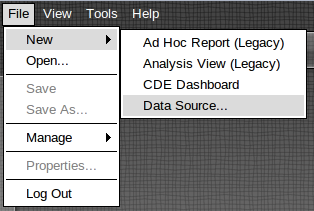
In the Menu bar you will have access to all the functionallity available in the User Console. Some elements in the Menu bar might not be accessible to all users based on user access control:
Toolbar
The Toolbar offers some quick access to some of the elements in the Menu bar.

| Description | Menu bar |
|---|---|---|
1 | Open files accessible to user. | File=>Open… |
2 | Create a new Ad-hoc Report. This is a quick way to create reports and requires that TraceTracker has setup database access and metadata views to be used in the report! | File=>New=>New Report |
3 | Create a new Analysis View for drilling into OLAP data. This requires that TraceTracker has setup OLAP Schemas to be used in Analysis view | File=>New=>Analysis View… |
4 | View the Workspace page. The Workspace contains a list of all your scheduled reports and the possibility to view those executed. | View=>Workspace |
5 | Toggle on/off the Solution Browser. The Solution Browser makes it possible to see the content in the Solution Repository. The Solution Repository is a file-based like repository where all content deployed, published and stored to the BI Platform is located. Users will have different access to the repository based on user roles and access control. | View=>Browser |
6 | Create a new Dashboard. | File=>New=>CDE Dashboard |
Main page
The Main page is where all content is displayed: Reports, Dashboards, Solution Browser and content when editing etc.