
Introduction
About
TraceTracker Asset is an online tool and equipment tracking solution designed to allow users to track and monitor data from remote objects. The software collects data from RFID and GPS devices through TraceTracker Herder so users can increase productivity, improve safety and reduce costs. The main purpose of the application is to provide increased visibility of assets which can provide better planning capabilities.
The Login Screen
There are two ways of logging in to Asset
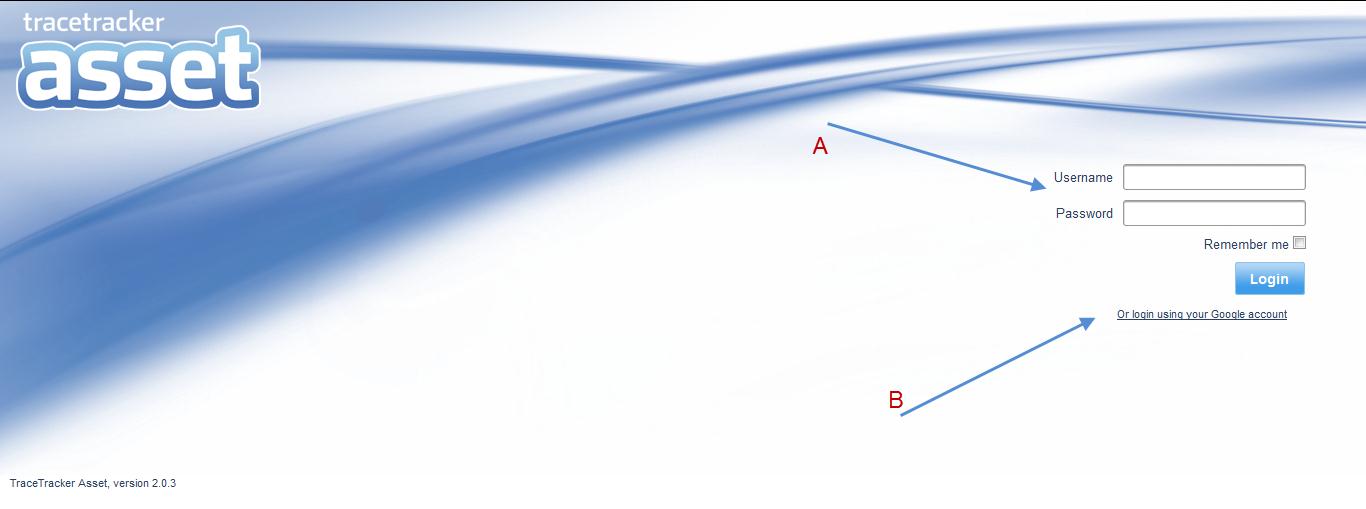
- Logging in as illustrated by “A” enter a username and password based on an account already made in asset.
- Logging in using your normal Gmail account click on the link indicated by “B”.
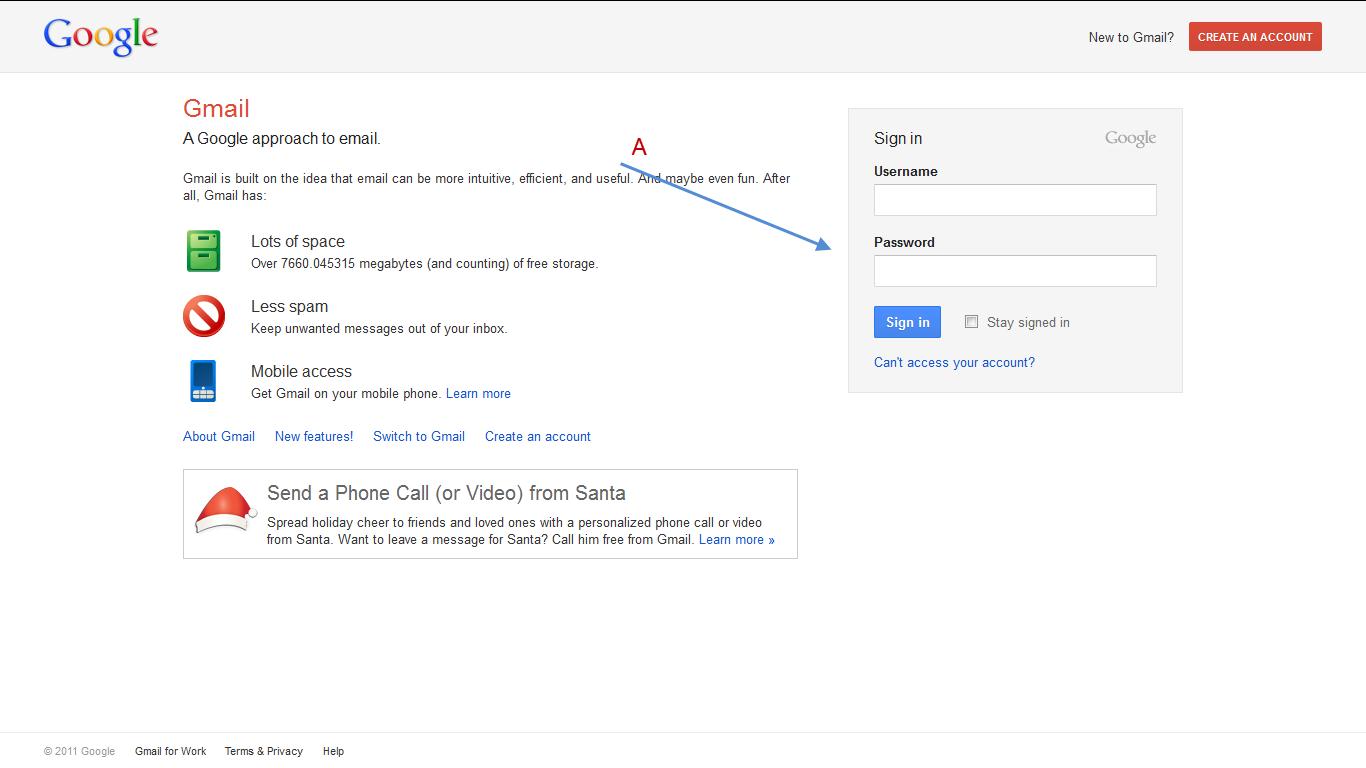
Enter your Gmail username and password. In the section as indicated by “A”.
The main Page
This is the main page loaded after a successfully logs in.
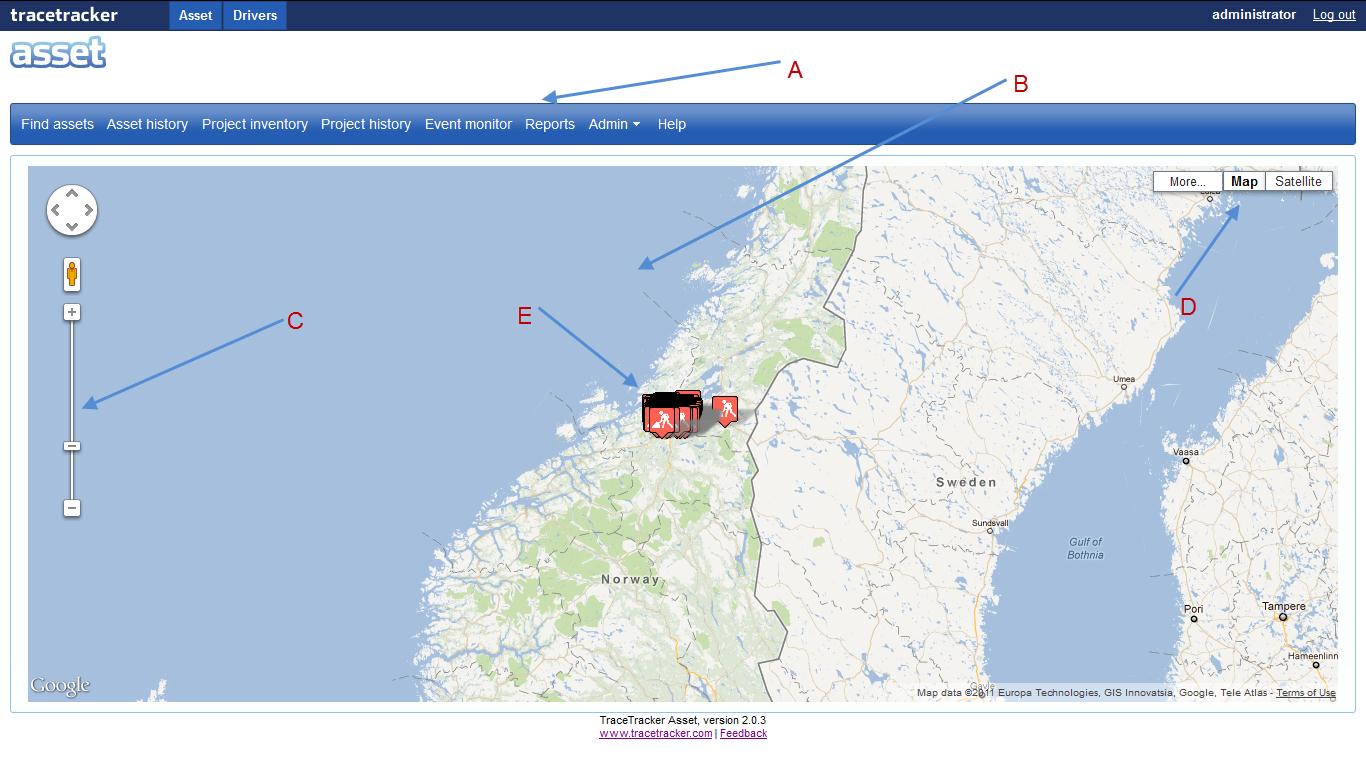
- “A” is the dashboard where all the links/tab are located, they include;
- Find assets.
- Asset history
- Project inventor.y
- Event Monitor.
- Reports.
- Admin.
- Help
- “B” as indicated above is the Google maps platform that illustrates where the assets are located in the map.
- “C” is The Zoom control displays a slider (for large maps) or small "+/-" buttons (for small maps) to control the zoom level of the map. This control appears by default in the top left corner of the map.
- “D” is the Map Type control that lets the user toggle between map types (such as Map and Satellite). By default, this control is visible and appears in the top right corner of the map.
- “E” are the icons that represent the asset, all icons will not be the same based on its status.